iCloud storage full? How to free space without confusing it with iPhone storage
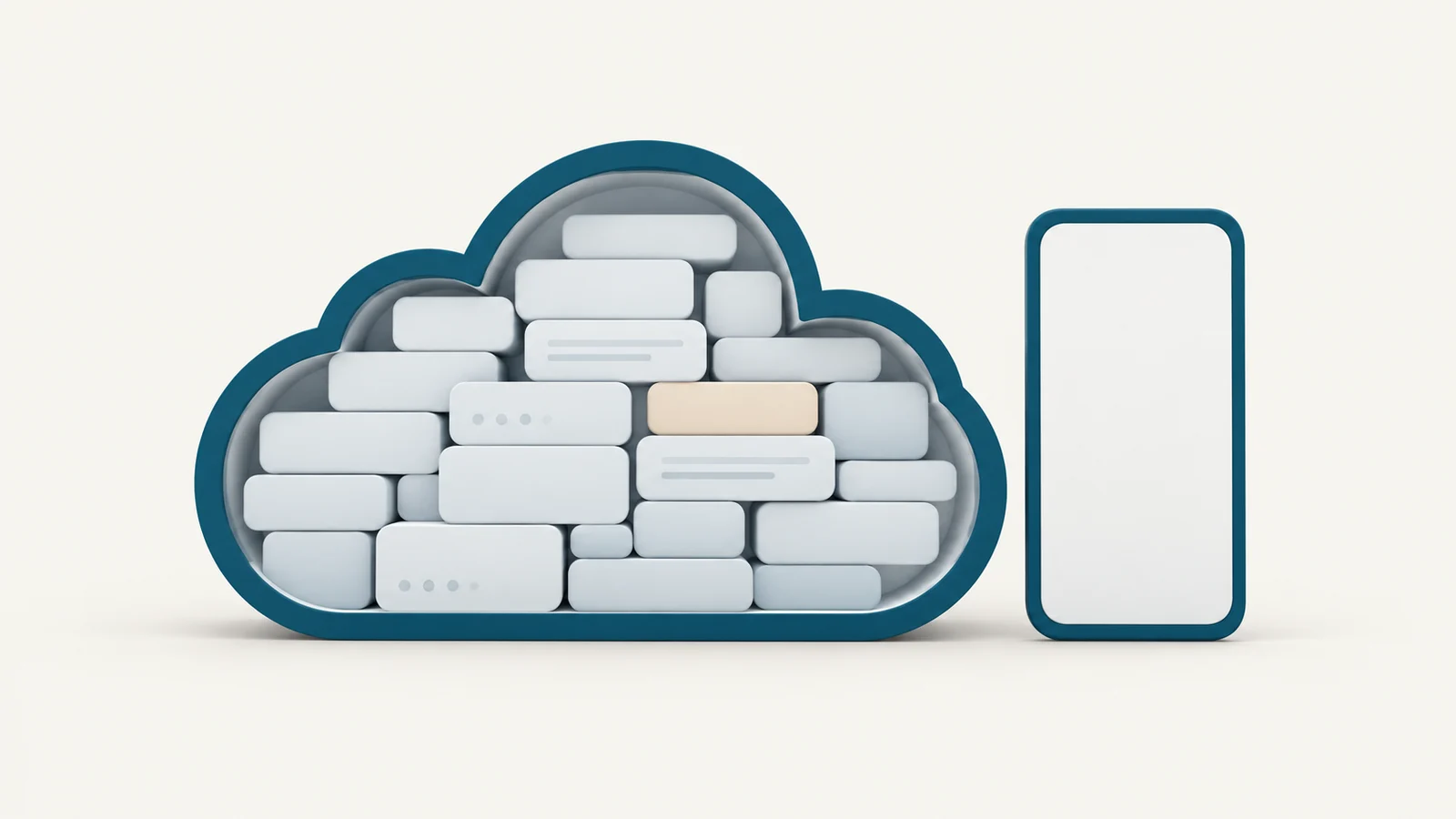
iPhone storage is the capacity built into your phone, while iCloud storage is a separate cloud allowance that starts with 5 GB free, with more available through iCloud+. To free up iCloud storage, check which cloud category is full, then remove an obsolete backup or save independent copies before deleting synced content. Removing a local download or optimizing photos on the phone can reduce local storage without reducing your iCloud usage.
Check which storage is full
Open Settings > General > iPhone Storage to see the phone's usage. Separately, open Settings > [your name] > iCloud to see your cloud usage, then tap Storage for the breakdown. Apple also documents Manage Storage as an alternative label in its storage comparison.
Record the largest cloud categories before changing anything. Photos, device backups, Messages in iCloud, iCloud Drive and iCloud Mail can all use that allowance, so deleting apps from your phone may leave the largest cloud category untouched.
If only the phone is full, use the iPhone storage cleanup guide. Buying more iCloud capacity does not enlarge the phone's built-in storage.
Why syncing and backups use space differently
iCloud Backup saves information that is not already syncing to iCloud, including device settings and Home Screen organization. When iCloud Photos is on, photos and videos sync separately and are excluded from the daily iCloud backup. Messages follow the same distinction when Messages in iCloud is enabled.
That means deleting a device backup does not remove its separately synced photo library, and turning off iCloud Backup does not turn off iCloud Photos. If Photos accounts for most of your usage, removing a small backup will leave that larger category in place.
The phone can also hold a downloaded copy of something stored in iCloud. That local copy uses device space while the cloud file uses cloud space. With Optimize iPhone Storage, full-resolution photo originals remain in iCloud and smaller copies can stay on the phone when needed, as Apple explains. Optimization helps the phone's capacity, but the cloud originals still need room.
Remove backups belonging to old devices
Start with a backup for a phone you no longer need to restore. Check the device name carefully, especially if several backups have similar names, and keep any backup that still holds information you need.
Apple's iCloud storage instructions give these steps on the iPhone:
- Open Settings, tap your name, then iCloud.
- Tap Storage, or Manage Account Storage, then Backups.
- Tap the device whose backup you intend to remove.
- Tap Turn Off and Delete from iCloud, then Turn Off and Delete to confirm.
This also switches off iCloud Backup for that device. For the phone you currently use, make and check a replacement local backup first.
You can inspect the same backups on the Mac through System Settings, your name, iCloud, Manage, then Backups. Select the intended device and use the remove button, following Apple's backup-management guide.
Make a Mac backup before stopping cloud backups
Finder is enough for an occasional local backup. Connect the iPhone with a cable, allow the connection if prompted, unlock it and complete the trust prompts. Select the phone in Finder's sidebar and open General.
Select Back up all of the data on your iPhone to this Mac, then click Back Up Now. If you need Health and Activity data included, enable Encrypt local backup and keep the password. Wait for completion and check the last-backup date and time, following Apple's Mac backup instructions and iOS 26 backup guide.
Yado offers local backups with a full first run and incremental updates afterward. In Overview, click Manage on the Backup card. If encryption is off and you want it, use Turn On Encryption before Start Backup.
After completing that first backup, open Yado's Settings and change Automatic backup from Off to Daily or Weekly. Yado must remain open with the iPhone connected, and scheduled Wi-Fi backups require the phone to be charging. The schedule updates existing backups; it does not create the first one. The Mac backup guide covers the setup and checks in detail.
Once the local backup is complete, the iOS 26 control for stopping future cloud backups is Settings > [your name] > iCloud > iCloud Backup > Back Up This iPhone. Switching it off alone does not immediately reclaim the old backup's space: Apple says stored backups remain for 180 days after iCloud Backup is turned off. To reclaim that quota now, delete the existing cloud backup using the previous section's steps.
The trade-off is keeping local backups current and protecting the disk that holds them. A computer backup uses that computer's available space. It also excludes data already synced and stored in iCloud, so a completed local device backup does not establish that every iCloud photo original has been saved separately.
Export photo originals before reducing the cloud library
For originals stored in iCloud, start with Apple's Photos app on the Mac. Open Photos > Settings > iCloud, select Download Originals to this Mac, and let the download finish. Apple's download guide documents this route.
Then select the items you want to archive and choose File > Export > Export Unmodified Original. Save them to a local folder outside iCloud Drive, following Apple's original-format export instructions. Inspect those files directly, open photos, play videos and keep another copy of irreplaceable material before deletion.
Photos visible in the Mac's synced library are still subject to synced deletion. Exporting creates a separate set of files; merely downloading the library's originals does not disconnect it from iCloud Photos.
For media present on the phone, Yado's Photos tab has Library, Select Photos and Export to Mac. Choose the destination with Choose Folder, then inspect the exported files. Yado's cable export does not retrieve originals that exist only in iCloud, so use Apple's download route for those items.
After verifying the independent originals, delete only the batch you intend to remove from the synced library. The export-before-delete guide covers Yado's verification and deletion workflow. Deleting from iCloud Photos affects the other devices using that library too.
Do not rely on a recovery period when the account is over its limit. Apple says deleted photos and videos can then be removed immediately, without recovery through Recently Deleted, in its iCloud storage guidance.
Handle files, messages and mail in their own categories
In Files > Browse > iCloud Drive, touching and holding a downloaded file gives you Remove Download to reclaim its local copy while retaining the cloud file. Delete removes the file from iCloud Drive across your signed-in devices. Apple's Files instructions distinguish these actions, so removing downloads will not fix a full cloud allowance.
If Messages in iCloud is large, review unwanted conversations and attachments. Those texts and attachments use iCloud storage when that feature is enabled. If iCloud Mail is large, delete unneeded mail, preserving attachments you still need, then review its Trash before permanently emptying it. Apple's category-specific cleanup steps cover both routes.
Check the result before deleting more
Return to the iCloud storage breakdown and check the category you changed. A completed Mac backup will not shrink iCloud usage until the cloud copy is removed, and removing a local download will leave the cloud file counted.
If uploads or backups have stopped, check the remaining cloud capacity. Apple says a full account prevents new iCloud backups and photo uploads, interrupts iCloud Drive updates and can stop iCloud Mail from sending or receiving. If the content remaining in iCloud is all needed, increasing cloud capacity is an alternative to deleting it, while Mac exports and local backups suit content you are prepared to maintain locally.