What does Optimize iPhone Storage do?
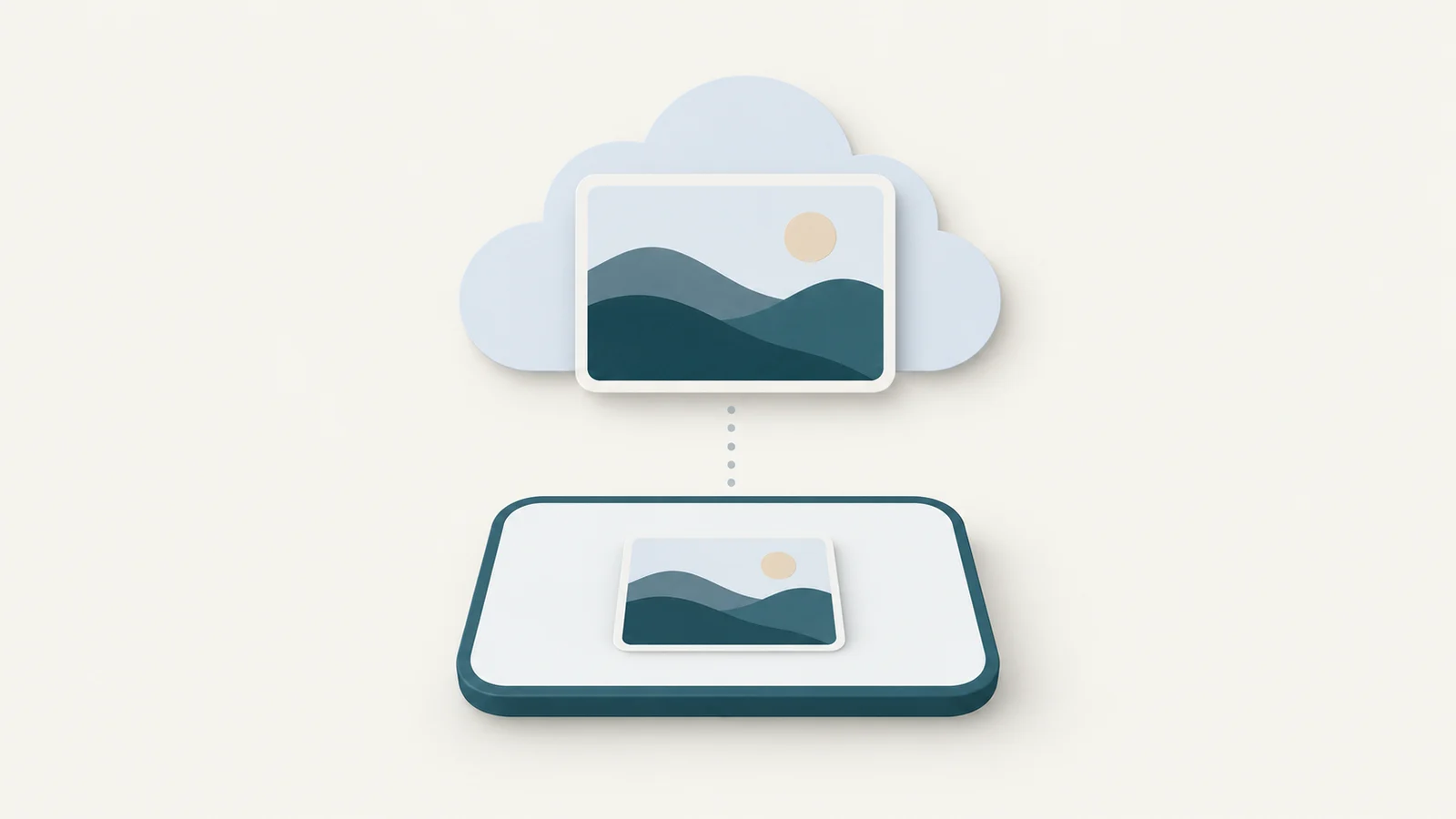
Turn on Optimize iPhone Storage if you want to keep your photo library in iCloud while reducing the space it uses on your phone. iCloud keeps the full-resolution originals, and the iPhone can keep smaller versions as it needs space, with originals available to download when needed. The trade-off is that seeing a photo in your library does not prove its original file is on the phone, which matters for offline access and cable exports.
How optimization works
Apple describes optimization as a response to storage pressure. When the phone needs more space, iCloud Photos starts with the photos and videos you access least, keeping space-saving versions locally while retaining the original high-resolution files in iCloud. You can download originals over Wi-Fi or cellular when you need them.
Turning the setting on therefore does not mean every original immediately disappears from the phone. Apple gives no fixed completion time or percentage reduction in this guidance, so an unchanged storage reading immediately afterward is not enough to diagnose a failure.
The library still appears in Photos even when originals are elsewhere. Opening the library and seeing all its thumbnails is different from having a complete local archive available without a download.

Turn it on
Use the iCloud settings on the iPhone:
- Open Settings, tap your name, then tap iCloud.
- Tap Photos.
- Turn on Sync this iPhone if you want to use iCloud Photos.
- In iOS 27 or later, tap iPhone Storage. In iOS 26 the choice is on the Photos screen itself.
- Select Optimize iPhone Storage.
Apple's storage instructions give this route and say Optimize Storage is on by default when you use iCloud Photos, so check the current choice before assuming it is off.
Before enabling the service, check that iCloud has room for your entire collection. Optimization reduces the phone's local storage requirement, while iCloud still stores the originals. Other data using the same iCloud storage also needs room; a smaller phone copy does not shrink the cloud library. Apple's transfer guide explicitly calls for enough iCloud space for the whole collection.
Check the result without inventing an optimization percentage
Start with the two storage views Apple documents. Settings > General > iPhone Storage shows device usage and the apps using it. Settings > your name > iCloud shows cloud usage; tap Storage for the breakdown. Compare the Photos usage in these views to understand where space is being used.
These are storage measurements, not a count of photos whose originals have been removed locally. Dividing one reading by the other does not establish an optimization percentage, and a photo count alone cannot tell you how many original bytes are on the phone. Apple's storage guide documents the views, without defining such a calculation.
Check syncing separately. In iOS 26, open Photos > Collections and tap the profile button in the upper corner. The library status appears below your name and photo count. A completed sync answers whether the library is up to date with iCloud; it is not proof that all originals have been downloaded to this iPhone.
If syncing is paused, read that message before changing settings. Apple lists low power or data modes, poor connectivity and full iCloud storage among the causes. Its sync troubleshooting instructions recommend power, Wi-Fi and uninterrupted time, and say not to turn off iCloud Photos, since that restarts the syncing process.
Turn optimization off while keeping iCloud Photos
To keep full-size files on the phone, return to Settings > your name > iCloud > Photos and choose Download and Keep Originals; in iOS 27 or later it sits under iPhone Storage on that screen. This changes the local storage choice while leaving iCloud Photos enabled. The exact path is in Apple's iPhone User Guide.
The phone needs room for the original library alongside its other contents. If the collection is larger than the space available for it, selecting this setting cannot make it fit. Check capacity before starting, and allow the download to finish before relying on offline originals or planning an archive over a cable.
If your goal is an archive on the Mac, downloading the entire library back to a nearly full phone adds an unnecessary storage requirement. Download to the Mac instead, using the route below.
Turning off iCloud Photos is a separate decision
Disabling Sync this iPhone stops this phone's subsequent photo changes from syncing with your other devices. It also asks what to do with the photos. Apple's turn-off instructions offer Download Photos & Videos to save copies on the device, or Remove from iPhone to remove them without saving local copies.
Prepare the originals and enough device storage before choosing to retain them. Apple explicitly warns that optimized photos are not at original resolution if you choose not to download copies. Keeping a smaller local version cannot substitute for retrieving the original.
If you only want smaller phone storage, keep syncing and use optimization. Turning off the service for your whole account is another action again, with consequences for the cloud library; it is not required to change the phone's storage setting.
Get originals onto the Mac before trusting an export
Apple's own tools are enough to retrieve the cloud library. On the Mac, open Photos > Settings > iCloud and select Download Originals to this Mac. This is the documented full-resolution download, and it requires room on the Mac for the files. Wait for the download before treating the library as locally available.
A USB import has a different source. Apple says some optimized items can be unavailable for import because their originals are in iCloud. Its missing-import guidance recommends enabling iCloud Photos on the Mac, or using AirDrop if you do not want the Mac to use iCloud Photos.
For AirDrop, open the photo in Photos on the iPhone, tap the Share button, then Options. Turn on All Photos Data to send the original file with its edit history and metadata. Current prevents format conversion, while Most Compatible may convert files to JPEG or MOV, as described in Apple's sharing guide. File format and original-file availability are separate questions.
For the complete import steps and folder options, use the guide to transferring iPhone photos to a Mac. Check the resulting files before deleting anything. With iCloud Photos enabled, deletion also reaches iCloud and your other synced devices, so follow the separate workflow for deleting iPhone photos after Mac export when making an independent archive.
Read Yado's cloud count and export limits
Yado helps when you want to inspect the phone's available files and export selected items into a Mac folder. Connect the iPhone by USB, open Photos, select Library, and leave Recents showing the whole library without a search or filter. When iCloud Photos is on and the library metadata is available, the footer can add N more in iCloud for items with no matching file on the phone.
That count does not include every photo that might have a smaller local copy. It describes the gap between the library and the files available on the phone, so it is not an optimization progress counter. It is omitted from narrowed album, search and filter views.
Use Select Photos, then Export to Mac and Choose Folder to export local items. Yado cannot include originals that exist only in iCloud. Its released export path can receive a smaller local copy from the phone, so a completed export proves that the available file was copied, not that the cloud original was retrieved.
Before Delete from iPhone, Yado checks the retained export's size and content. When iCloud Photos is on, or its state is unknown, it also requires a file belonging to that photo to match the original byte size recorded by the phone's library. Items without that evidence stay on the iPhone, even after export.
If Yado keeps those items, retrieve their originals through Apple's download route and check your archive. If the immediate problem is storage pressure across the whole phone, the iPhone storage guide covers the next choices beyond Photos.