How to remove a profile from your iPhone
To remove a profile from an iPhone, open Settings, General, VPN & Device Management, tap the profile and remove it. Removing it also removes the settings it installed, such as Wi-Fi, VPN or certificates. If there is no remove button, the profile was marked non-removable or the phone belongs to an organization, and the profile has to be released by whoever manages it. Yado can show the same list on a Mac, remove the removable ones over the cable and tell you when someone else manages the phone.
Where profiles live on iOS
Apple's iPhone guide says configuration profiles define settings for using the iPhone with corporate or school networks or accounts. The ones you have installed are listed in Settings, General, VPN & Device Management, and if you delete a profile, all of the settings, apps and data associated with it are deleted too.
That last sentence is the reason to look before you remove. A profile can carry a Wi-Fi network, a VPN, certificates, restrictions or device management, so removing one VPN or DNS profile is harmless when you no longer use it, while removing a school profile can take away the account and apps that came with it. Read the name and the organization first.
The ones people go looking for are a VPN or ad-blocking DNS profile, a certificate from a proxy or debugging tool, a font profile (install fonts on iPhone covers it), an old beta profile and a school or company profile that enrolls the phone in device management.
Old beta profiles and held-back updates
Beta software used to arrive through a profile. For iOS 16.4 and later it does not: Apple's beta page says to go to Settings, General, Software Update, Beta Updates and choose the beta, and Apple's uninstall article says to stop receiving betas by tapping Beta Updates, then Off. Only for iOS 16.3.1 and earlier does it send you to VPN & Device Management to tap the iOS Beta Software Profile and tap Remove Profile.
So a phone on a current iOS that still has a beta profile is carrying a leftover. One kind gets a label of its own in Yado: a beta profile for another Apple platform, such as a tvOS beta profile on an iPhone, is marked Holds back iOS updates. If Software Update shows nothing new on a phone that should have an update, check this list first.
Supervised and enrolled phones
Some profiles cannot be removed from the phone, and the reason is usually management rather than a bug. Apple's supervision page says supervision generally means the device is owned by an organization, which gets additional control over its configuration and restrictions, and that an iPhone with iOS 13 or later enrolled through Automated Device Enrollment is supervised automatically. Apple's enrollment page adds that the organization can prevent unenrollment, so the user cannot remove the enrollment profile of a supervised device.
Apple also says administrators can install profiles on enrolled devices without any interaction from the user (installation article). That is the likely reason a profile comes back after you remove it: something is still managing the phone and pushes it again.
This matters most with a second-hand phone. Apple's Apple Business guide describes Automated Device Enrollment as designed for new or erased devices, and its assignment page says Setup Assistant shows the pane to enroll a device in the device management service it is assigned to, so erasing the phone does not take it out of the organization. The organization does that by releasing it, which Apple's release page says is for a device that has been sold, so ask the seller to release it before you buy.
What Yado's Profiles panel shows
Connect the phone with a cable, unlock it and accept the trust request if it asks. Click the Yado logo at the left of the tab bar and choose Profiles; the same item is in the iPhone menu in the menu bar. The panel is titled Profiles, with the phone's model and name under the title. Managing an iPhone from a Mac covers the connection itself.
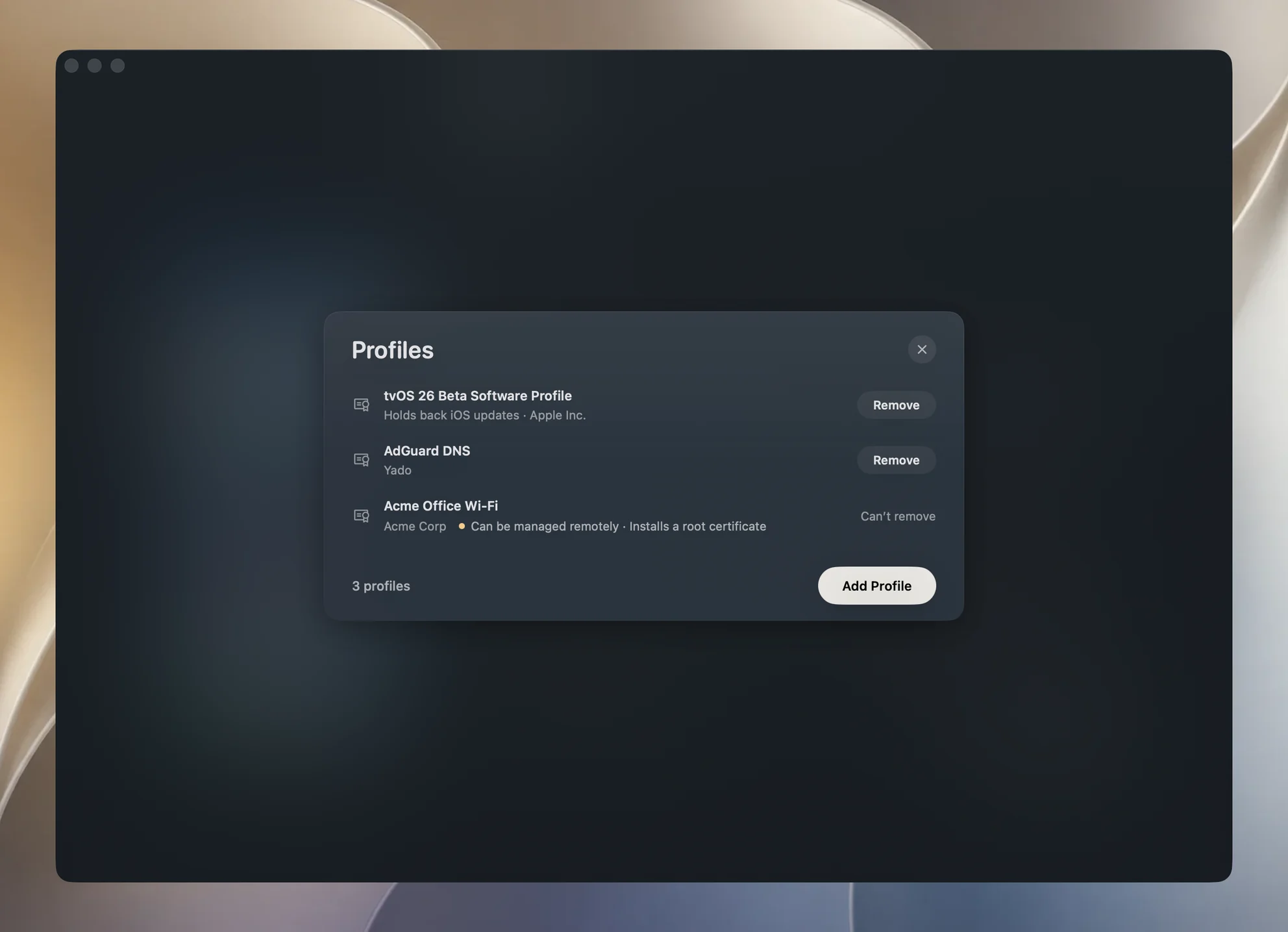
Each row shows the profile's name, then its organization and description when it has them. The footer counts them, and a phone with none reads No profiles installed.
- Remove sits on the right of any profile that allows removal. Clicking it opens Remove [name]? with the line "Settings it installed on the iPhone, such as Wi-Fi, VPN or certificates, go with it." Confirm with Remove.
- Can't remove replaces the button when the profile is marked as not removable. Hovering over it explains that the profile or the organization managing the iPhone does not allow removing it from a Mac.
- Holds back iOS updates is added to the row of a profile from Apple whose identifier names tvOS, watchOS, audioOS, visionOS or macOS.
- A line above the list appears only when the phone reports management: This iPhone is supervised by [organization] when it is supervised (This iPhone is supervised by an organization when no name comes with it), This iPhone is enrolled with [organization] and goes back to it after an erase when an organization enrolled it without supervising it. A phone nobody manages shows no line.
How it works underneath
iOS keeps profiles in a service of its own, and Yado talks to it over the same pairing the Mac already has with the phone. The service is com.apple.mobile.MCInstall, a plain property-list service reached through lockdownd, the iPhone's connection daemon.
Listing sends a GetProfileList request and reads each profile's display name, organization, description, UUID, version and PayloadRemovalDisallowed flag; that flag decides between Remove and Can't remove. Removal sends RemoveProfile with a small stub naming the profile by identifier, UUID and version, and the phone answers acknowledged or not. The management lines come from a separate GetCloudConfiguration request, which reports whether the phone is supervised and the organization name if there is one.
Adding is where an unsupervised phone differs. Yado can hand a .mobileconfig file to the phone with InstallProfile, but a phone nobody supervises will not install it silently. It keeps the file as a downloaded profile, and you finish in Settings by tapping Profile Downloaded, then Install in the upper-right corner, and entering the passcode. In the panel, click Add Profile, then Choose on Mac, pick the file and click Send to iPhone. Apple notes that a downloaded profile is deleted if it is not installed within 8 minutes, and that only one can be waiting at a time.
When removal does not work
The panel says to unlock the iPhone
If the list will not load you see "Unlock the iPhone and keep it trusted to read its profiles". Unlock the phone, tap Trust if asked and reopen the panel. Why an iPhone does not show up on a Mac covers cables and trust prompts.
Remove failed
"The iPhone didn't remove [name]. Unlock it and try again." The phone refused or the connection dropped. Unlock it and try once more; if it fails again, remove the profile on the phone under VPN & Device Management, where iOS shows what it allows.
The profile is Can't remove
Find out who manages the phone, using the line above the list, and ask them. A school or company can remove its profile from its side; a seller can release a phone their organization enrolled. Yado does not override that restriction.
The profile came back
An enrolled phone gets the profile again from its management service, as above. A profile from an app or website returns if you open that source and install it a second time.
FAQ
Will removing a profile delete my data?
It removes the settings, apps and data associated with that profile, according to Apple. Photos, messages and your own apps are not part of a Wi-Fi, VPN or font profile, but a school or company profile can include managed apps, so read its name and organization first.
How do I stop getting beta updates?
On iOS 16.4 or later, go to Settings, General, Software Update, Beta Updates and tap Off. Then check VPN & Device Management for a leftover beta profile and remove it.
Can I install a profile from my Mac?
Yes, with Add Profile and Choose on Mac, but the phone only holds it as a downloaded profile. You approve it in Settings with the passcode.