How to view iPhone logs on Mac

To read an iPhone's live log from a Mac, connect it with a cable, unlock it, open Console from the Utilities folder in Applications, select the phone under Devices and click Start. Console needs no Xcode, but with no filter it shows every process on the phone at once. Crashes that already happened are saved on the phone as reports, which you find in Settings and share from there. Yado's Live Log shows the same kind of stream with a process filter, an errors-only switch and an export button.
Pick the log that matches the problem
The unified log is a running stream of messages from the system and from apps: an app launching, a request timing out, a network link changing. It exists to be read as it happens. Crash and diagnostic reports are files the phone writes after something has gone wrong.
So the first question is whether the problem is still reproducible. If you can make the app misbehave again, read the live stream while you do it. If the app crashed an hour ago and you cannot trigger it, the live stream will not contain that moment, because it only shows messages from the time you start it. In that case go to the saved reports.
Console, which already ships with macOS
Apple's Console guide gives the steps. Connect the iPhone to the Mac, open Console, and in the Devices list on the left select the phone. If the list is hidden, use the sidebar button in the Favorites bar. Then click Start in the toolbar, and the device's log messages appear.
Console is the right tool when you want the complete, unfiltered picture. The cost is volume: a phone writes a great deal of text every second, and with no filter set you are looking at the whole system. Reproduce the problem, note the exact time and look at the lines around it, as Apple's developer guidance suggests.
Crash and diagnostic reports on the phone
For something that already happened, open Settings, Privacy & Security, Analytics & Improvements and tap Analytics Data. Apple names this path in its device analytics page. Apple's developer documentation describes the next steps for a crash: find the log for your app, select it, tap the Share icon and choose Mail to send it as an attachment.
Sharing a report is a choice you make per file. The separate switch Share iPhone & Watch Analytics, described on Apple's page, controls whether the phone sends information to Apple, not whether you can open a report yourself.
Xcode, for developers
If you already have Xcode, its Devices and Simulators window shows a connected device and its logs, and Apple's crash report guide describes transferring crash reports and device logs to a Mac this way. It is the right place when you are debugging your own build. It is a heavy install if all you want is to look at what an iPhone is saying for ten minutes.
Reading the log in Yado
Live Log is one of Yado's phone tools. Connect the iPhone, unlock it, then open the Yado logo menu and choose Live Log, which sits after Hardware Check. The Mac menu bar has the same entry under iPhone.
The page first shows Waiting for the iPhone's log, then fills. Each row shows the time, the process that wrote it and the message. A dot before the process marks an error or fault, and hovering a row shows the process with its subsystem.
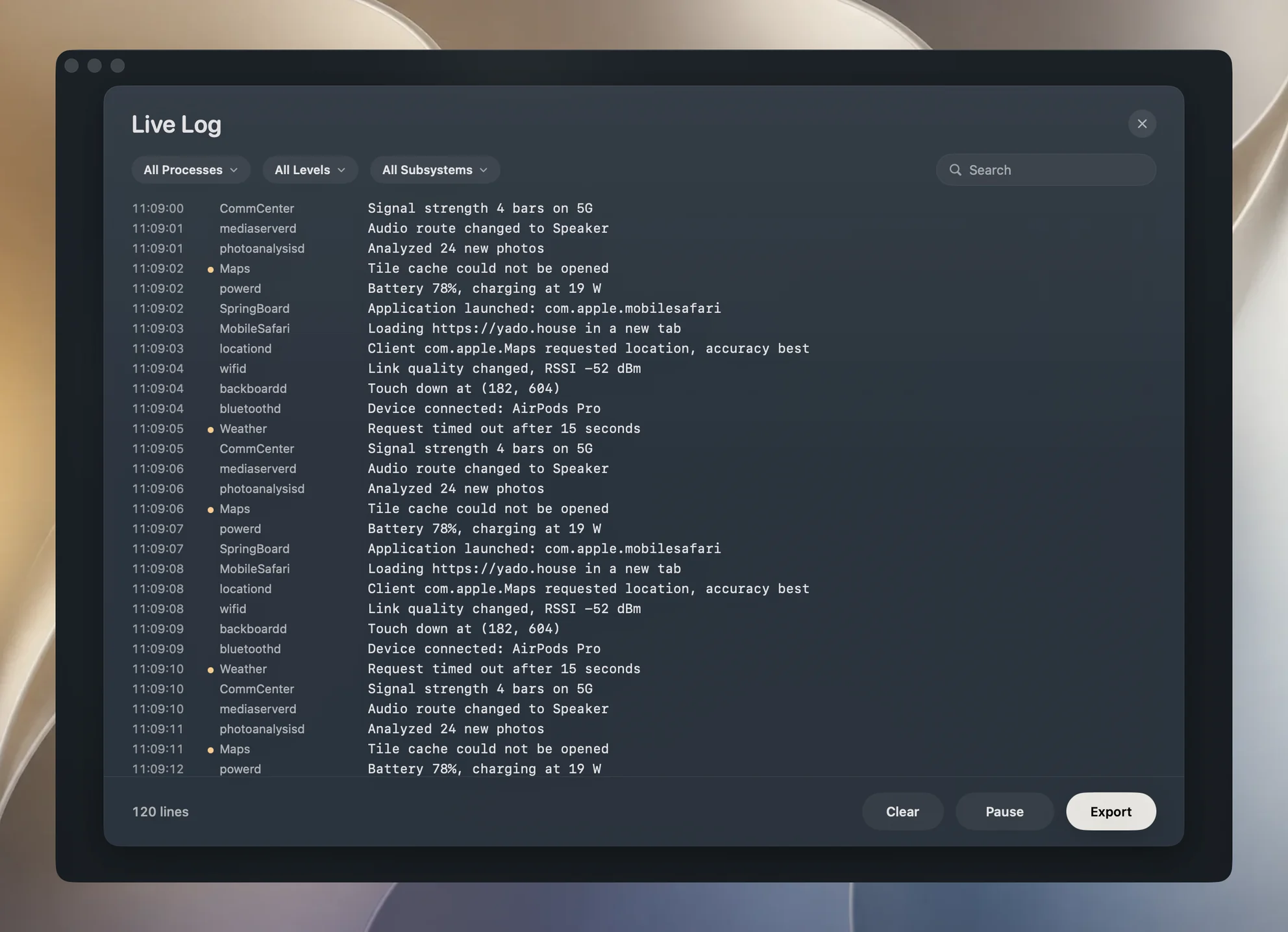
Three controls narrow it down. The first dropdown is All Processes, and lists up to 24 of the busiest processes seen so far; pick one to see only its lines. The second switches between All Levels and Errors Only, which keeps error and fault lines. The search field matches the message, the process name and the subsystem, so it also reaches processes the dropdown does not list.
The buttons at the bottom are Clear, Pause (which becomes Resume) and Export. While paused, the stream keeps reading and the new lines wait, then join the list when you resume. The footer counts the lines currently shown, and the page keeps the latest 5,000, dropping the oldest as new ones arrive.
Export saves a plain text file, named after the phone with "Log" after it, for example iPhone Log.txt. It writes what the filters currently show, one line per message with the time, process, subsystem, process ID and the message, and the words error or fault in brackets where they apply.
How the stream gets from the phone to the page
iOS has a service for streaming its unified log to a computer, called com.apple.mobile.os_trace_relay. Yado opens it over the same pairing the Mac and the phone already share, so there is nothing to enable on the phone: no Developer Mode and no developer disk image. Yado reads each packet for its time, process, level, subsystem and message, and updates the page a few times a second.
The lines are held in memory only. Nothing reaches the disk until you press Export. Closing the page stops the stream and drops the lines, and so does switching to another phone.
The log levels are Apple's own. Per Apple's logging documentation, the system keeps every message in memory first and writes the more severe ones to disk. Debug messages are not persisted and info messages only when collected with the log tool, while notice (the default), error and fault messages are saved, up to a storage limit. Apple describes error as errors seen while code runs and fault as faults and bugs, so those two are the ones to filter to first.
Check before you share a log
A log is a record of what the phone was doing, and that can include names, email addresses, places or the titles of things you opened, depending on what the apps wrote. Apple's documentation says the system hides dynamic strings by default, but it shows numbers, and an app can mark any value public, so do not assume everything is hidden. Open the exported file, search it for your own name and addresses, and cut anything you do not want to hand over. Filter to one process before exporting, since a smaller file has less to check.
When it does not work
Nothing arrives. Unlock the iPhone and, if it asks, tap Trust. If Yado shows The iPhone didn't send its log. Unlock it and open Live Log again., do exactly that. A connection problem can look the same, so the checks in iPhone not showing up on Mac apply.
It is too noisy. Choose one process, then Errors Only, then search for a word from the failing screen. A phone idling still writes lines.
The crash already happened. The live stream starts when you open the page, so it cannot show earlier moments. Use Analytics Data on the phone, or reproduce the problem with Live Log already open.
Lines are missing from the middle. The page keeps the latest 5,000 lines, so on a busy phone the start of a long session scrolls away. Filter to the process you care about, or export sooner.
For the rest of what a Mac can do with a phone, see managing an iPhone from a Mac.
FAQ
Can I read an iPhone's logs on a Mac without Xcode?
Yes. Console ships with macOS and lists a connected iPhone under Devices. Yado's Live Log is another way to read the same kind of stream.
Does the live log include crash reports?
No. Crash reports are saved files, found under Settings, Privacy & Security, Analytics & Improvements, Analytics Data. The live log shows messages from the moment you open it.
Is the log stored on my Mac?
Yado keeps the lines in memory while the page is open and drops them when you close it. A file exists only if you use Export.