What to do before selling or trading in an iPhone
Before you sell, trade in or give away an iPhone, make a fresh backup, move everything you want to keep somewhere safe, sign out of your Apple Account, unpair any Apple Watch, and only then run Erase All Content and Settings. The order matters because the erase is the one step you cannot take back, and because a phone that leaves you still linked to your Apple Account can arrive at the buyer locked to you. A Mac helps with the keeping part: a local backup, photo originals, an app list, and a hardware report the buyer can read. Yado has a checklist for those checks, but the erase itself always happens in iPhone Settings.
Apple's own sequence
Apple's page What to do before you sell, give away, or trade in your iPhone or iPad is the reference, and the steps run in this order.
- Create a backup, and back up again just before you remove your data.
- Transfer your information to the new device, with Quick Start on iOS 11 or later, or from iCloud, iTunes or the Finder on older setups.
- Open Parts and Service History. Apple says a part marked Finish Repair has to be finished before the device can be traded in.
- Unpair your Apple Watch if one is paired with this iPhone.
- Cancel AppleCare or transfer it to the new owner.
- Sign out of your Apple Account. On iOS 26 or later, open Settings, tap your name, scroll down, tap Sign Out, then choose Erase this iPhone or Sign Out But Don't Erase. On iOS 18 or earlier, the same path asks for your Apple Account password and then Turn Off.
- Open Settings, General, Transfer or Reset iPhone, then Erase All Content and Settings, and confirm.
- If the phone uses an eSIM, choose the option that erases the device and the eSIM profile when it asks. Without a physical SIM card, Apple says you can contact your carrier to move service to the new owner.
- Remove the old phone from your trusted devices list.
Why signing out matters
Activation Lock is the reason. Apple's Activation Lock page says it "turns on automatically when you turn on Find My on your device", and that Apple then stores your Apple Account on its activation servers and links it to the device. After that, your Apple Account password is required before anyone can turn off Find My or erase the device, and Apple adds that even a remote erase can leave Activation Lock in place to deter reactivation.
The link is stored on Apple's servers, so it is your password that releases it. Apple's sale page says Find My and Activation Lock turn off when you erase the phone in Settings, which may ask for that password. Apple's advice to buyers shows what happens when the link stays: do not take ownership of a used iPhone protected by Activation Lock, an iPhone Locked to Owner screen means the owner still has it linked, and a request for the previous owner's Apple Account during setup means the same. The phone is ready for the next person only when it reaches the Hello screen.
If the phone has already left your hands, Apple's page says to ask the new owner to erase it with the steps above, to erase it in Find Devices on iCloud.com if it was lost or stolen, and either way to remove it from your trusted devices list.
What a Mac adds
A local backup is the base. If you have none yet, back up an iPhone to Mac covers Finder and Yado. Turn on encryption first if you want saved passwords and Health data in it, since an unencrypted backup leaves them out, and read encrypting an iPhone backup on Mac before choosing a password.
Photos need their own pass, because a backup is not an export. Transferring photos from iPhone to Mac explains the options; keep originals, not converted copies.
An app list helps when the new phone starts empty. Yado's Export App List, in the menu bar's iPhone menu, writes a CSV with each app's name, bundle ID, version, sizes, whether it came from the App Store and whether the store has removed it.
Saved Home Screen layouts matter if you spent time arranging pages. In the Apps tab, the Arrange Home Screen menu has Save Current Layout and Export Layouts, and saved layouts sit in a folder on the Mac, so the erase does not touch them. They belong to no phone, so the same menu on the new iPhone lists them by name and can lay one out there; apps the new phone does not have drop out, and apps the layout does not name go onto the last page.
The handoff checklist in Yado
With the phone connected, open the Yado menu from the logo in the tab bar and choose Handoff Checklist, or find it in the menu bar's iPhone menu. The panel lists six rows, and each row reports only what this Mac could check.
- Backup shows the phone's newest finished backup on this Mac, with how long ago it was made and whether it is Encrypted or Not encrypted. With none, it says No backup yet. An unfinished backup does not count.
- Photos shows how many photos the phone lists and, if iCloud Photos is on, how many more live in iCloud, then how many are not exported yet or that all the photos on the phone are exported. If no export folder is set, it says so.
- Apps counts apps the store no longer lists and apps that did not come from the App Store, or says that nothing is gone or outside the store.
- Home Screen layouts shows how many layouts you have saved.
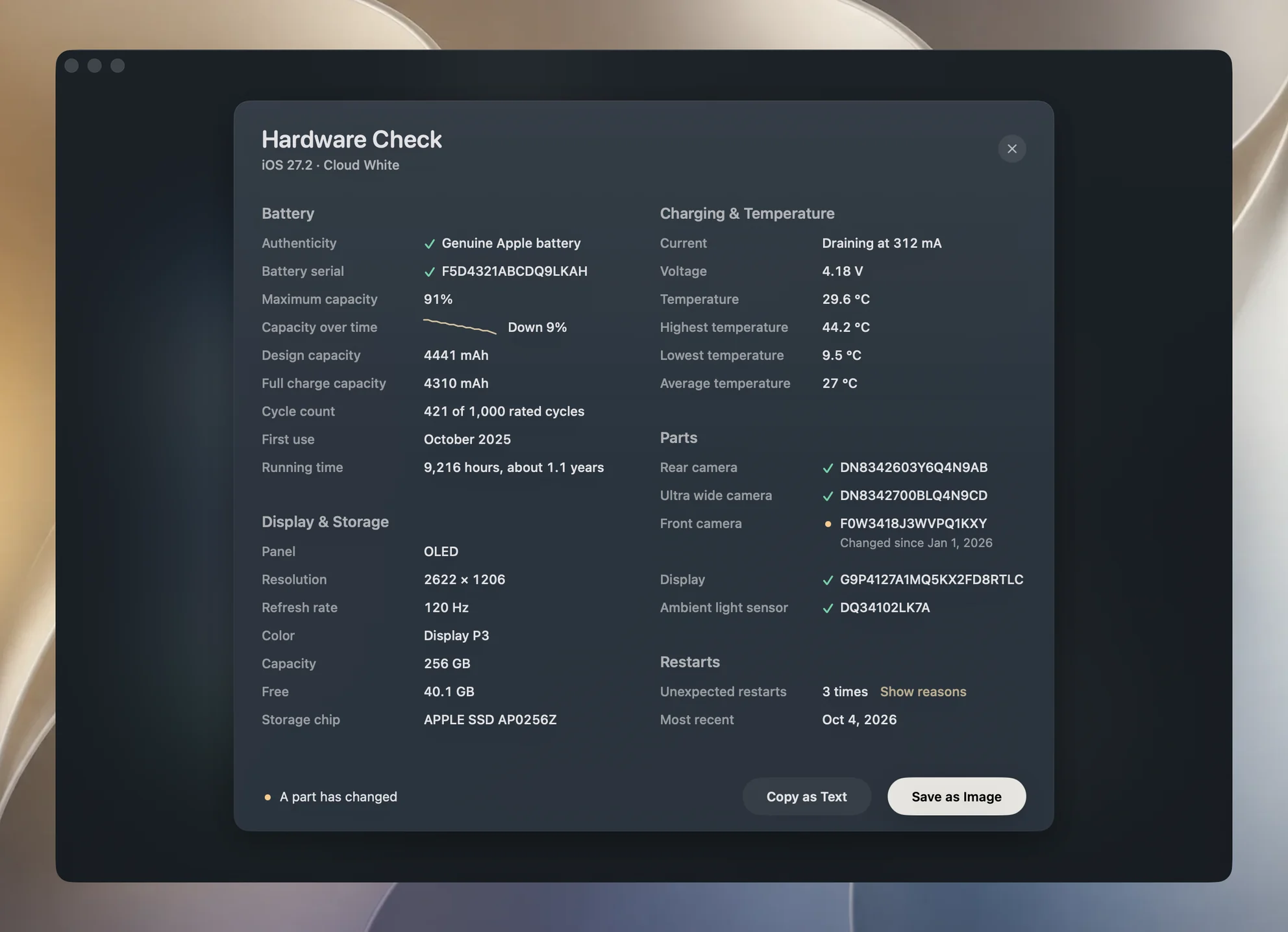
- Hardware report opens Hardware Check.
- Erase the iPhone opens a card that points to Settings, General, Transfer or Reset iPhone, Erase All Content and Settings, and says it may ask for the Apple Account password. Yado does not do this step.
Clicking any of the first five rows closes the panel and opens the matching page. The photos row needs the cable, and shows Needs the cable over Wi-Fi.
The photos row is strict. It counts a photo as exported only when its original sits in an export folder as it is on the phone, so a JPG made from a HEIC, a lossy copy, does not count. It also cannot count what is only in iCloud, since those photos are not on the phone to export.
The checklist does not read Find My, your Apple Account, your Apple Watch or your eSIM. Those steps stay yours, and Apple's list above is the one to follow for them.
A hardware report for the buyer
In Hardware Check, Save as Image writes one PNG named after the phone, such as "Phone name Hardware Check". It shows the phone drawn with its own Home Screen, the model, the phone's name, the day it was checked, a line with the last backup and photo count when known, the verdict, and the maximum capacity, cycle count and storage. Below that, one panel lists the readings. It carries no Yado mark.
Check two things before you send it. The panel lists the battery and part serial numbers, and the phone's name is printed on it. And the verdict compares parts against the serials Yado recorded at its first check, so a repair made before then shows only when it left a part's factory serial erased, which the verdict flags on its own. Checking a used iPhone's parts explains what a buyer can and cannot conclude from it.
What goes wrong
Activation Lock left on. The buyer sees iPhone Locked to Owner or is asked for your Apple Account at setup. Apple's fix is that you enter your password for them, or remove the device from your account in a browser.
Photos only in iCloud. The count in the checklist shows them as "more in iCloud", and Yado cannot export them over the cable. Check them in your iCloud library before you sign out, and do not read an exported-everything line as covering them.
A forgotten backup password. Apple's encrypted backup page says resetting a forgotten password lets you make new backups but does not open old ones. If the only backup is encrypted and you cannot unlock it, make a new one first.
An eSIM left behind. Apple asks you to choose the option that erases the device and the eSIM profile, and to contact your carrier to move service to the new owner.
A managed phone. If the phone is enrolled with an organisation, Yado's Profiles panel says it goes back to that organisation after an erase. Ask the organisation before you sell it.
FAQ
Does Yado erase the phone for me?
No. The checklist ends with a card that sends you to Erase All Content and Settings in iPhone Settings.
Can Yado remove Activation Lock?
No. The lock belongs to your Apple Account, and only your password releases it, by signing out, erasing in Settings, or removing the device from your account in a browser.
Does the checklist check Find My?
No. It reads the backup, photos, apps, layouts and hardware on this Mac, so Find My, the Apple Watch and the eSIM stay on Apple's list.