How many watts is my iPhone charging at right now?
The iPhone itself does not show how many watts it is charging at. Settings, then Battery, shows the percentage, a charge-time estimate on iOS 26 and a Slow Charger message when a faster charger would help. To read the actual wattage, connect the phone to a Mac with Yado: the Battery tile on Overview shows what the phone is taking in right now, and the number is usually lower than the charger's rating, which is normal.
What the iPhone tells you
Open Settings, tap Battery. On iOS 26, Apple says the screen shows an estimate of how long charging will take, to 80 percent while the battery is below that and to 100 percent (or your charge limit) once it is above, and the same estimate appears near the top of the Lock Screen. From iOS 18, a Slow Charger message appears on the Lock Screen and in Settings, Battery when a higher-wattage charger would help; Apple says this does not mean anything is wrong with the phone or the charger. In iOS 26 an Incompatible Charger message appears in Settings, Battery when a charger is connected but not charging. All of this is on Apple's charge speeds page.
None of these screens gives a number in watts. If you only need to know whether the charger is the problem, the message and the estimate are enough. If you want to compare two chargers or two cables, you need a reading.
Read the watts on a Mac with Yado
Connect the iPhone with a cable, unlock it and trust the Mac if asked. Open Overview. While the phone charges, the Battery tile shows a line such as Charging 3.0W: one decimal under 10 watts and none above. When the phone is full it reads Full, and if the phone does not report a power figure the tile says Charging without a number.
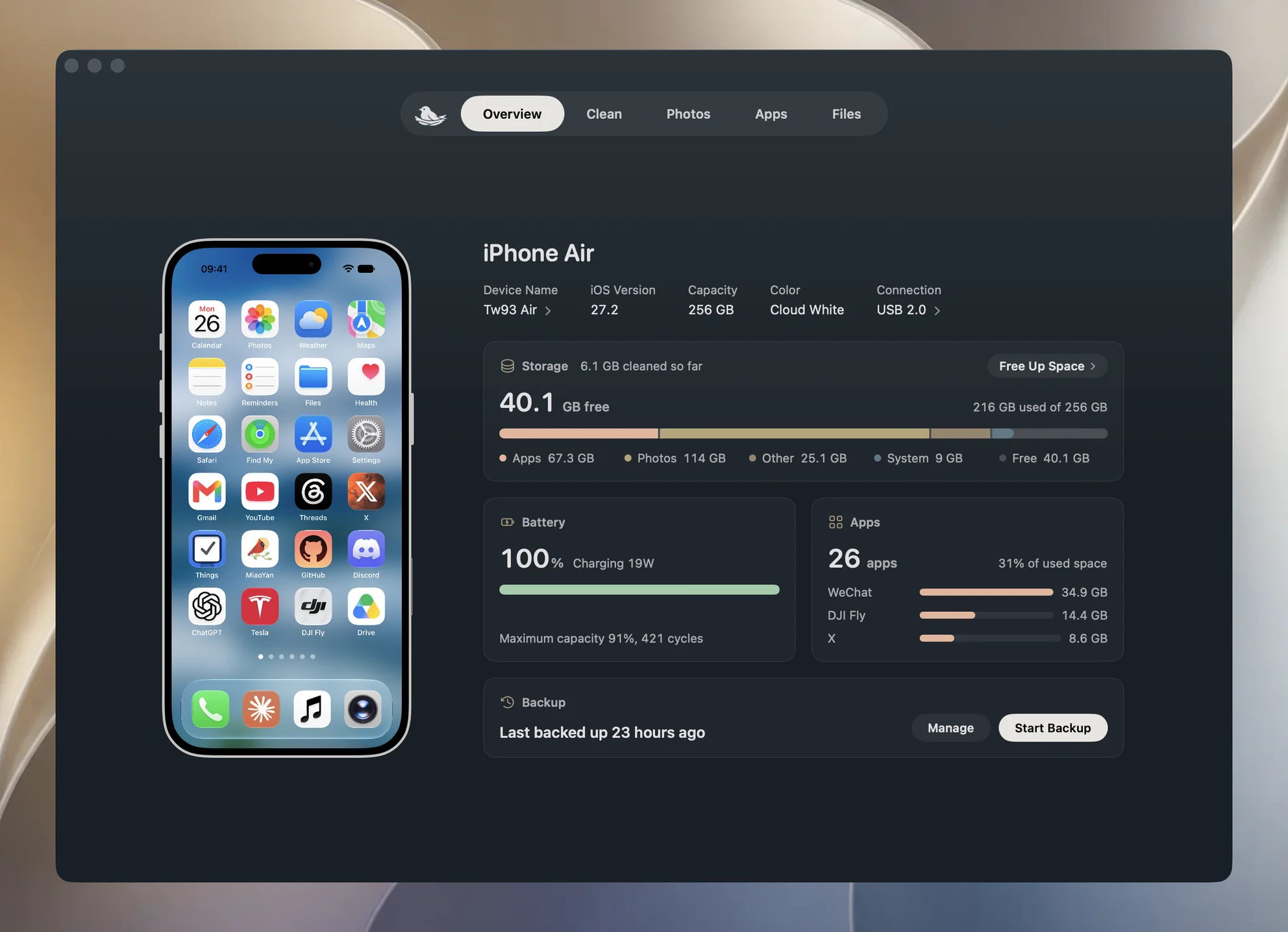
For the detail, click the Battery tile, or open the Yado logo menu and choose Hardware Check. The Charging & Temperature section lists Voltage, Current, Charging power and Charger. Charging power comes from the same reading as the tile, taken when the card opens. Charger shows the adapter rating the phone negotiated and whether it is wired or wireless, for example 15W Wired. If the phone is connected but holding its charge, the row reads , not charging after that and Charging power is not shown.
The reading is a snapshot. The tile is read again about every 15 seconds and Hardware Check reads once when it opens, so give it a moment after plugging in or changing what the phone is doing before you trust a number.
Why the number is lower than the charger label
The number printed on a charger is a rating: the most it can deliver, and the figure the phone and charger agree is available. Yado reads two different things and keeps them apart. Charging power comes from the phone's power telemetry (SystemPowerIn) and is what the phone takes in at that moment. Charger is the negotiated rating (AdapterDetails.Watts). Putting the rating on the tile would make a phone taking 3 W look like it was charging at 15 W.
Both numbers are right and they answer different questions. A charger rated for more than the phone wants simply is not used to its limit. Apple notes that the iPhone gradually reduces the charging current as the battery approaches full to limit heat, and that software might limit charging above 80 percent when the recommended battery temperature is exceeded. So the same charger shows a high figure at 20 percent and a small one at 90.
Even at 100 percent a reading can be a few watts. A phone at 100 percent on a Mac's 5V 3A port, with the charger row reading 15 W, was taking in 2958 mW, which is 5034 mV times 587 mA. A small figure at the top of the charge is not a sign of a bad cable.
Yado's Voltage and Current rows describe the battery, and the Charging power row describes the input to the system. Multiplying the two battery rows and comparing the result with the charger label would mix two different measurement points.
What to compare, and what slows charging
To compare two chargers fairly, start both at a similar charge level, with the screen off and the phone otherwise idle, and read Charging power after a minute. A phone at 30 percent and a phone at 85 percent will not agree even on the same charger.
Apple lists the usual causes of slow charging on the charge speeds page:
- A wired charger that provides 7.5 W or less. With a USB-A charger, iPhone 15 and later charge at a maximum of 7.5 W; faster wired charging needs a USB-C Power Delivery charger and a USB-C cable.
- A wireless charger under 10 W, such as a Qi1 charger. Faster wireless charging uses MagSafe or a Qi2-certified charger.
- A multi-port charger, computer or hub with other devices connected, where the maximum output can be reduced. A Mac with other devices plugged in is one of these cases.
- Accessories with power pass-through, or a USB-C or Lightning accessory plugged in during wireless charging, which limits charging to 7.5 W.
- Demanding apps, games, the camera, or video streamed at full brightness.
- Heat. In extreme temperatures the iPhone can put charging on hold and resume when the battery cools. Settings, Battery shows whether charging is on hold.
If the cable is the suspect, click the USB generation under Connection on Overview to open Cable. When the cable carries an e-marker chip, the card shows its Power rating, for example 60W · 3A. If no chip is read, the card usually says that most cables under 60 W have none and that the iPhone charges fine without one. The cable's data speed is a separate matter, covered in how to tell whether your iPhone cable is USB 2 or USB 3.
Charging past 80 percent
Two different Apple features can make charging pause or stop short, and neither is a fault. Optimized Battery Charging may delay charging past 80 percent in certain situations, as described on Apple's Charge Limit and Optimized Battery Charging page. On iPhone 15 and later, Settings, Battery, Charging lets you set a Charge Limit from 80 to 100 percent in steps of 5.
When either is active, Yado can show the charger as connected while the phone holds its charge. The Charger row then ends with , not charging, and the Charging power row is not shown. Apple also says the phone stops charging when full and resumes if the level drops below 95 percent.
When the number does not show
If the tile says only Charging, the phone did not report a power figure on that read. The tile reads again about every 15 seconds, so look again after a moment; Hardware Check can also say it could not read the hardware, and unlocking the phone and trying again is the fix. Wireless charging reports through the same row, with Wireless in the Charger line.
For the rest of the battery picture, such as maximum capacity and cycle count, see how to check iPhone battery health on your iPhone and Mac. If the Hardware Check reading looks wrong when you are buying a used phone, check a used iPhone before you buy goes through the rest of the card.
FAQ
How many watts should an iPhone charge at?
There is no single right figure, because it depends on the charger, the charge level, heat and what the phone is doing. Compare readings at the same charge level, and note that Apple lists wired chargers of 7.5 W or less as likely to make charging take longer.
Is a Mac port a good charger?
It is a reasonable one for topping up while you work. Apple says a computer or hub with other devices connected can reduce the maximum output, so a dedicated USB-C Power Delivery charger is the faster option.
Does the cable change the wattage?
It can. Yado's Cable card shows a power rating only when the cable carries a chip, so a missing rating tells you nothing about whether the cable is slow or fast.