How to check whether your iPhone cable is USB 2 or USB 3
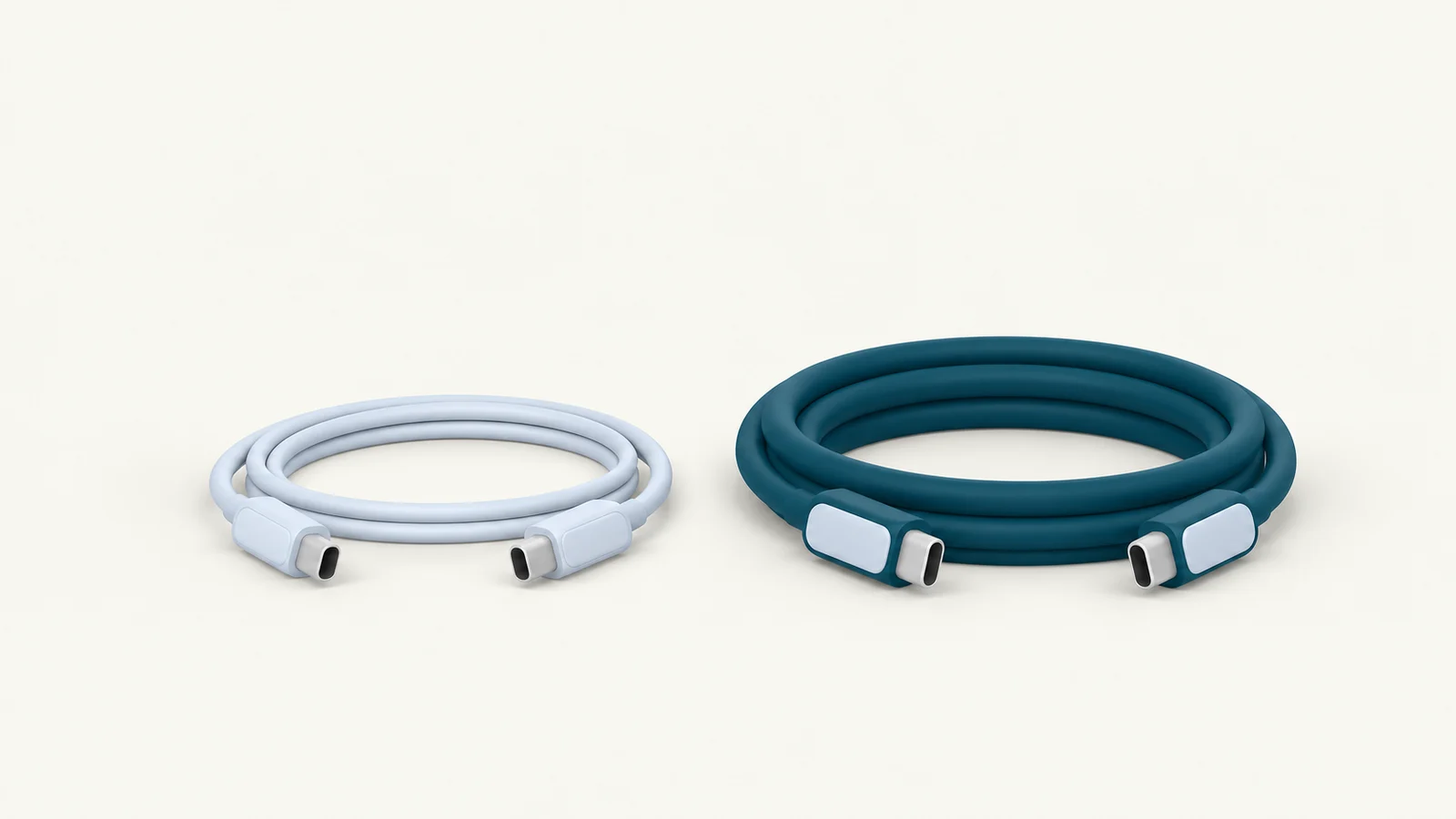
To check an iPhone's USB cable speed, first confirm that the phone supports USB 3, then read the active connection while it is plugged into the Mac. A USB-C connector and a high charging-wattage label do not establish the data speed. In Yado, open Overview, click the USB generation under Connection, and read Link speed in the Cable card.
Check the iPhone model before changing cables
Apple's USB-C connection guide lists these iPhones as supporting USB 3.2 Gen 2 at up to 10 Gbit/s with a suitable USB 3 cable:
- iPhone 15 Pro models
- iPhone 16 Pro models
- iPhone 17 Pro models
- iPhone 18 Pro models
- iPhone Duo
The same guide says the USB-C cable supplied with an iPhone supports USB 2 data speeds. A supported phone can therefore arrive with a cable that charges it normally while leaving transfers at USB 2. Check the cable's stated data specification for 10 Gbit/s support before replacing it.
Yado distinguishes the connection from the phone's known maximum. For Lightning iPhones, its card explains the 480 Mb/s limit; for known USB-C models limited to USB 2, it gives the same limit. Changing the cable cannot raise the phone's own ceiling. On a model outside Yado 1.2.0's known list, which includes iPhone 18 Pro models and iPhone Duo, use Apple's specifications for the maximum rather than expecting a model-specific verdict.
Read the active USB connection
Connect the iPhone directly to the Mac for an initial check. This removes a hub from the comparison and gives Yado the best chance of identifying the Mac port and the cable's chip, if macOS exposes them.
- Unlock the iPhone and complete the trust request if one appears.
- Open Yado and select Overview.
- Under Connection, click USB 2.0 or USB 3.
- Read Link speed in the Cable card.
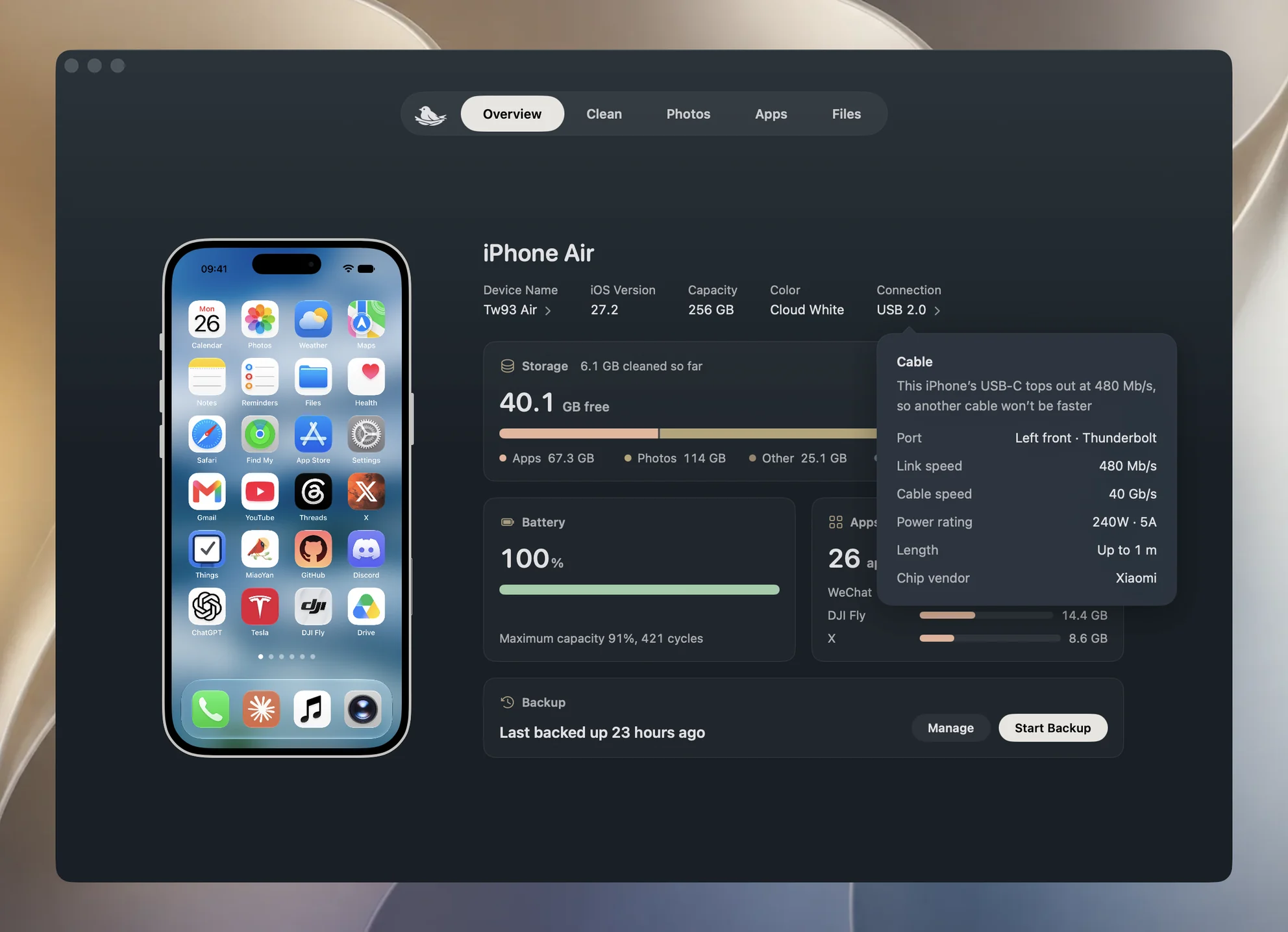
The generation on Overview is a short label. The card gives the more precise rate: USB 2.0 can show 480 Mb/s, while USB 3 can show 5 Gb/s or 10 Gb/s. A 5 Gb/s connection is USB 3 even though it is below a compatible phone's 10 Gb/s maximum.
If Connection reads just USB, Yado has not obtained a usable speed reading. A Wi-Fi connection does not have a USB cable reading. If the phone itself is missing, work through iPhone not showing up on Mac before investigating transfer speed.
What the cable card measures
Yado reads the iPhone's USB device entry in macOS's hardware registry and uses its reported device speed. It identifies that device by the phone's serial, then looks for the associated port and cable information. Opening the card does not copy a test file or run a throughput benchmark.
| Field | What the number or name describes |
|---|---|
| Link speed | The active USB connection to this iPhone |
| Cable speed | The capability reported by the cable's e-marker chip |
| Power rating | The cable's reported power capability, with current in amps |
| Length | The length limit a passive cable's chip states, such as Up to 1 m, not a measured length |
| Chip vendor | The vendor identity read from the cable chip |
| Port | The Mac port's location and type, when macOS identifies them |
An e-marker is the identification chip in some USB-C cables. Its data describes what the cable reports it can carry, so a high Cable speed can coexist with a lower Link speed. The phone and the connection still determine what is being used. A cable reporting 40 Gb/s does not turn an iPhone connection into a 40 Gb/s link.
The vendor field also needs that distinction. Yado resolves the chip's vendor ID to a name when its catalog recognizes it, otherwise it shows the ID. Treat it as reported chip information, rather than proof of the cable's retail brand or authenticity.
Isolate a slow link one part at a time
If a USB 3-capable iPhone shows 480 Mb/s, make a comparison that keeps the other parts unchanged. Finish any transfer first, note the current rate, then change the connection and reopen the card.
- If a hub or dock was involved, connect the same cable directly to the Mac and read Link speed again.
- Try a cable explicitly specified for USB 3 data at 10 Gbit/s, using the same phone and Mac port.
- If it stays slow, try another suitable Mac port and compare the result.
A change from 480 Mb/s to 10 Gb/s after changing only the cable is evidence that the previous setup was limiting the link. If the rate changes when removing a dock, investigate that path before replacing more cables. These comparisons identify where the result changes without claiming which internal component has failed.
If Cable speed already reports USB 3 capability while Link speed remains low, the chip information alone does not explain the slow connection. Yado's cable advice also avoids recommending an upgrade solely on that combination. Continue with the port and direct-connection checks instead of treating the cable's rating as a measurement of the entire connection.
Missing chip information has several explanations
The link-speed reading is useful even when the rest of the card is sparse. Yado can read the USB device speed without finding the port or an e-marker. Its port and chip lookup uses information exposed on Apple silicon Macs; other Macs can have only the link-speed information.
A hub, or a desktop front port without a matching port node, can prevent Yado from associating the chip with the iPhone. Some cables have no e-marker, and a chip that exists may not be exposed by macOS in that connection. None of those cases proves that the cable is USB 2, defective, or unable to charge the phone.
Keep the missing fields separate from an actual reading. A visible 10 Gb/s link establishes a faster connection even if Cable speed is absent. With a 480 Mb/s link and no chip details, the controlled cable comparison above is more useful than guessing from the empty card.
Read the Mac port's warnings
When available, Port can name a location such as Left front, followed by its type. This helps identify which connection to check when several cables are attached. It describes the Mac side of the connection.
When the Mac port has detected liquid, or its overcurrent guard has tripped since the Mac started, the card adds a line saying so. A liquid warning tells you to disconnect the cable and wait until the port is dry. The overcurrent count covers events since the Mac started, including whatever was connected at the time, so it does not establish that this iPhone or cable caused them.
An absence of warnings means no warning was reported through those fields. The card cannot certify that a connector, cable or phone is free of every physical fault.
Check the export separately from the link
Gb/s and MB/s use different units. Dividing bits by eight converts to bytes: 10 Gb/s corresponds to 1,250 MB/s, and 480 Mb/s to 60 MB/s, before allowing for anything beyond the link rate. These are arithmetic conversions, not measured iPhone export speeds.
A photo export has work beyond moving bytes over USB. Yado downloads each file, checks its size, calculates a digest, then records the completed export. Its cable card does not time those steps. To compare actual exports, use the same source selection and destination, and compare completed jobs that actually copied files; an export that skips files already saved is a different workload.
Use the iPhone photo-transfer guide for the export steps. If the slow number you were investigating was charging watts, follow iPhone charging power instead, because the cable's power rating and the active data rate answer different questions.