Check a used iPhone before buying: serial, parts and battery
Before buying a used iPhone, inspect Settings, General, About for its serial number and Parts and Service History, then check battery health and complete the ownership handover. Apple's coverage lookup answers a coverage question, while repair history and functional checks answer different ones. Yado can add battery diagnostics and a local parts-serial comparison on a Mac, but it cannot certify that a phone has never been repaired or remove Activation Lock.
Read the serial number from the phone
Ask the seller to unlock the iPhone so you can inspect its own Settings. Open General, then About, and read the serial number there. You can touch and hold it to copy it, as Apple's identifier guide explains.
Use the number from the actual phone for Apple's coverage lookup. The site accepts a serial number and shows device coverage and benefits. Keep that result separate from the condition inspection: coverage information alone does not establish that the screen, cameras or battery are unchanged, or that the previous owner's account has been removed.
You can also open Settings, General, AppleCare & Warranty on the phone for coverage information, following Apple's coverage instructions. A seller's screenshot can be useful background, but check the phone in front of you before agreeing that it matches the listing.
Check Apple's parts and repair information
With iOS 15.2 or later, look in Settings, General, About for Parts and Service History. Availability depends on the model and repair history. Read each listed part rather than treating the presence of the section as a failure.
Apple's current parts-history guide distinguishes Genuine, Used, Unknown and Unverified. Genuine describes a repair using Apple's parts and processes; Used identifies a part previously installed in another iPhone. Unknown can reflect a nongenuine, malfunctioning, modified or unverified part. Unverified concerns a logic board previously used in another iPhone. Check the explanation for the actual part rather than inferring a specific fault from Unknown alone.
The supported parts differ by model. For example, iPhone 11 models report battery and display information, while iPhone XR and XS models cover the battery. When a part has been serviced more than once, only its most recent service appears. An absent section is therefore insufficient evidence for a claim that every component is factory-original.
Ask how a repair relates to the seller's description and test the affected function. A documented replacement and an unexplained warning deserve different follow-up; neither should be reduced to whether a screenshot contains a green mark.
Read battery health before comparing numbers
Open Settings, then Battery. On iPhone 11 through iPhone 14, choose Battery Health & Charging; on iPhone 15 and later, choose Battery Health. Read the maximum capacity and any replacement recommendation. Apple's battery-information guide confirms these model-dependent paths.
Maximum capacity describes the battery's capacity compared with when it was new. It differs from the current charge percentage, so a phone charged to 100 percent can still have an aged battery. The battery-health guide explains capacity and cycles in more detail.
If the phone cannot verify its battery, Apple says battery-health information may be inaccurate. Another app displaying a percentage does not resolve that warning. Ask for a battery assessment before relying on the number to decide the phone's condition.
Add a Mac hardware reading when useful
If you have a Mac running macOS 14 or later, connect the iPhone to Yado with a USB cable, unlock it, and accept the trust request if prompted. Click the Battery tile on Overview, or open the Yado logo menu and choose Hardware Check. If the connection itself fails, use the iPhone connection checks before interpreting missing hardware data.
The card puts a verdict above two columns. Battery health and display/storage information sit on one side, with charging/temperature and Parts on the other. The available readings can include Maximum capacity, Cycle count, Battery serial, camera-module serials and display-related serials. The phone may not provide every field.
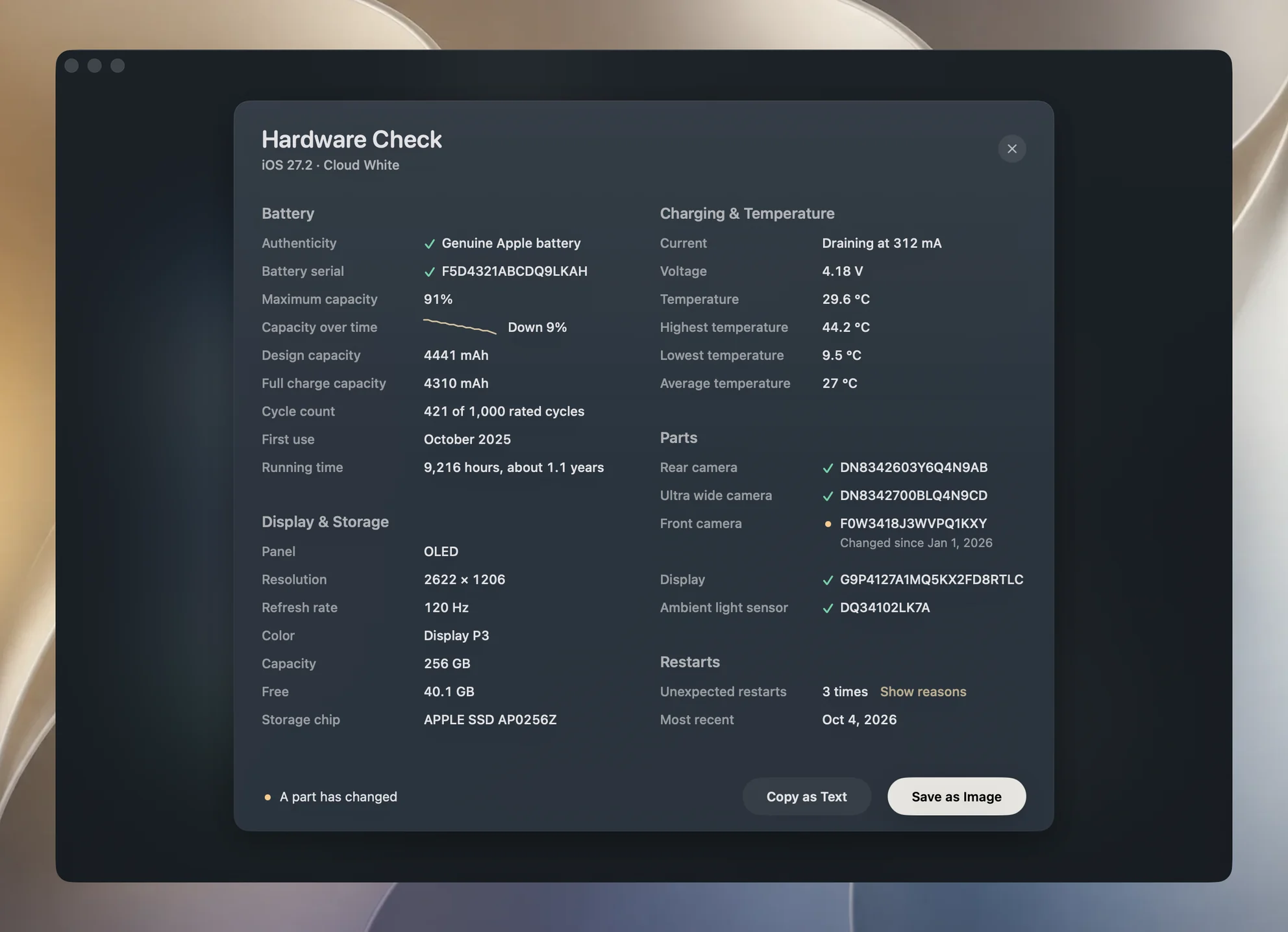
The verdict follows an order. Failed battery authentication takes priority, then a changed part serial, then maximum capacity below 80 percent; otherwise the card shows Hardware looks good. Read the fields as well as the heading, since the first applicable condition determines the headline.
Under Authenticity, Yado distinguishes Genuine Apple battery, Did not pass authentication and Not checked on this model. The last result is not a successful authentication. Even a reassuring verdict can accompany unavailable authentication data, so use the specific row to understand what was checked.
To hand the result to a buyer or a repair shop, click Save as Image at the bottom of the card. Yado saves the card as one PNG headed by the phone's model, with the phone's name and the day it was checked under it, so the picture still makes sense when someone reads it apart from the phone. It carries the same readings and the same limits as the card, a record of what Yado read that day rather than Apple's repair history.
Understand what the parts comparison proves
Yado remembers the first serial it reads for each available part of this iPhone on this Mac. Later checks compare current readings with that record. Matching serials get a check mark; a changed serial gets a warning and the date of the original record. Hovering over a matching row shows its recorded date.
The first reading establishes the comparison. The first time this Mac reads a phone there is nothing to compare with yet, so every serial becomes the record and shows a check mark, and the verdict can read Hardware looks good on a phone that had its screen replaced last month. If a screen was replaced before Yado ever saw the phone, its replacement serial becomes the first record. A match on that first visit cannot prove that the screen came with the phone from the factory, and a matching serial later only means the part is the one Yado saw before, not that it is a genuine Apple part. A newly readable part is added to the record, while a serial missing from either side is not counted as a change.
This makes the comparison useful for checking a phone you already recorded before a repair. It is much more limited when inspecting a stranger's phone for the first time. Yado reads hardware diagnostics, not Apple's repair records; return to Parts and Service History on the iPhone for Apple's information.
Device Details, in the same logo menu, adds one clue that needs no earlier record. Under Raw Identifiers, beside Serial Number, Yado shows Manufactured with the month the serial says the phone was made, read from the serial itself. That works only for the older 12-character serials. The 10-character serials on newer phones are random and carry no date, so on those phones the row is simply absent. Use the month to compare a listing's claimed age with the phone in front of you, and not as evidence about repairs.
If the card cannot load, unlock the iPhone and try again. A missing serial or unavailable check leaves that question unanswered. Do not translate a blank field into evidence that the part is original, replaced or broken.
Test the phone and finish the handover
Before accepting the phone, remove its case and examine the display, sides and back. Take pictures with the available cameras, check focus and play back a video. Test buttons, sound, a voice recording and display brightness. Apple includes these actions in its preowned-iPhone inspection guide. A list of serial numbers cannot show whether the speaker sounds distorted or a camera focuses correctly.
Also check Settings, General, About, Carrier Lock. Apple identifies No SIM restrictions as the unlocked state. This is separate from Activation Lock, which concerns the previous owner's account rather than the mobile carrier.
Find My enables Activation Lock, and an erased phone can still remain linked to its previous owner. Have the seller complete the removal and erasure, then begin setup with an internet connection before taking ownership. If setup asks for the previous owner's Apple Account, hand the phone back so they can resolve it. Do not buy a phone still protected by Activation Lock. Apple's Activation Lock instructions describe this check.
Inspect the phone while it is usable, then verify the handover rather than stopping at a Mac report. A Hello screen means the phone was erased; begin setup to confirm it does not ask for the previous owner's Apple Account. If buying remotely, establish the return terms in advance and repeat the checks when it arrives. After the phone is yours, make a local backup once you have set it up with your data.