How to organize your iPhone Home Screen: sort, folders, most used
To sort an iPhone Home Screen without dragging icons one by one, you have two routes. iOS can reset the layout to its original arrangement, which removes the folders you created and puts your downloaded apps in alphabetical order. Yado, on a Mac with the phone connected, can sort by name, group apps into folders by what they do, or put your most used apps on page one, shows a before-and-after preview first, and keeps a copy of the old layout so you can go back.
What iOS gives you
Everything on the phone itself is manual except one reset. Apple's Home Screen guide covers pages and the App Library. Touch and hold an app, tap Remove App, then Remove from Home Screen to keep it in the App Library only. To remove a page, touch and hold an empty area, tap the dots near the bottom, tap the circle under that page, tap the Remove button, then tap Remove; the apps on it stay in the App Library.
Folders are made by dragging one app onto another, as Apple's folders page describes, and a folder can hold several pages of apps.
The one bulk tool is on Apple's page for moving apps. Open Settings, tap General, then Transfer or Reset iPhone, tap Reset, Reset Home Screen Layout, then Reset Home Screen. Apple says folders you created are removed and downloaded apps are arranged alphabetically after the apps that came with the iPhone.
Arrange it from the Mac
Connect the iPhone to the Mac, unlock it and accept the trust request if shown; the connection steps are in managing an iPhone from a Mac. In Yado's Apps tab, whose page is titled Manage Apps, the head has a sort dropdown, an Arrange Home Screen dropdown and a search button. The Home Screen menu holds:
- Most Used on Page One
- Sort by Name
- Group into Folders by Category
- your saved layouts, then Save Current Layout
- Undo Last Change
Each of the first three opens a card instead of acting at once. It reads the Home Screen as the card opens and draws page one and the Dock twice, labelled Now and a result caption (Sorted, Grouped or Rearranged). Apply to iPhone stays disabled until the change would actually move something; if nothing would change, the card says so, for example that no category has two or more apps outside folders.
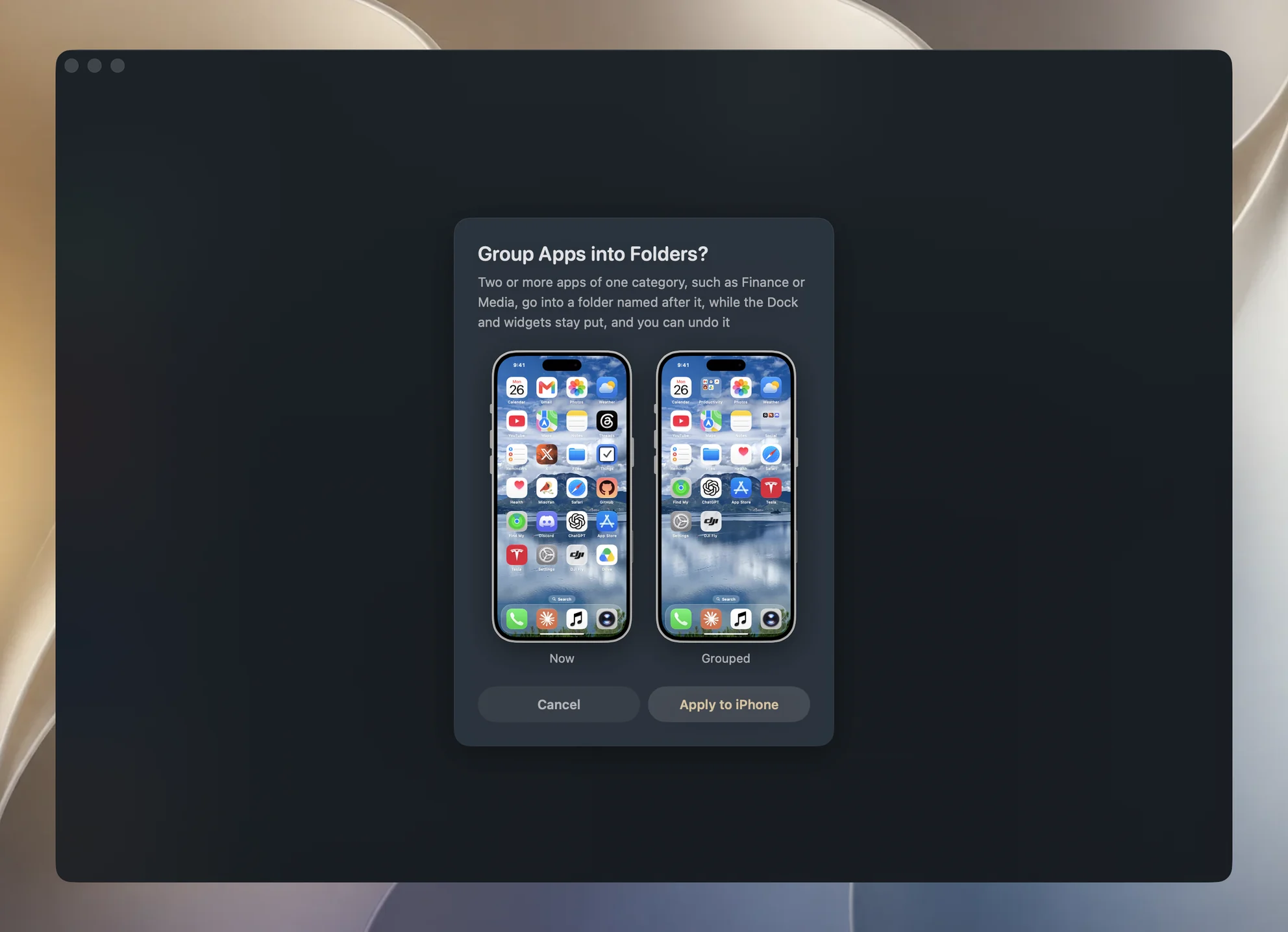
Only page one and the Dock are drawn, so check the later pages on the phone afterward.
What each option does
Sort by Name puts the apps that sit loose on your pages in A to Z order across all pages, refilled into the slots those apps already held. Folders, widgets and the Dock keep their places, and apps inside folders are not reordered. Names follow the phone's own language, so Chinese names sort by pinyin rather than by code point.
Group into Folders by Category puts loose apps into a folder named after their use, such as Finance, Media, Games or Productivity, in the phone's language. A category gets a new folder when it has two or more loose apps. If a folder of that name already exists, even one app joins it, so a second run never makes a second Media folder. Folders hold nine apps a page, and a page left empty disappears.
Most Used on Page One ranks apps by how often they were opened in the last four weeks, including apps inside folders, and puts the winners at the bottom of page one, with the most used last, where a thumb reaches. What page one held before moves into the places they left, and anything that no longer fits flows onto later pages. Only apps opened in the last four weeks are picked. It needs the Screen Time data described below.
Save Current Layout asks for a name such as Work or Weekend and stores the Home Screen as it is now, writing nothing to the phone. Saving under an existing name replaces that layout. Pick it from the menu later and the card previews it; apps the iPhone no longer has are skipped, apps the layout lacks go on the last page, and the Dock changes too. Saved layouts belong to the Mac, not to one phone, so one saved from an old iPhone can be laid onto a new one. The card has Delete This Layout for removing it.
Undo Last Change puts back the layout from before Yado's latest change. Yado saves the layout before every change and keeps the last ten per phone on the Mac. Each undo uses up the newest one, so a second undo goes one step further back. Apps installed since then go on the last page. Undo takes none of the free uses, so it still works once they run out.
How it works underneath
SpringBoard, the iPhone's Home Screen service, hands out the whole layout as a list: the Dock first, then one list per page. Yado reads that list, works out the new order and writes a whole new list back. SpringBoard gives no answer to a write, so Yado waits about a second and a half, reads the layout again and compares. If the phone did not keep what was written, the card reports that it could not change the Home Screen.
Only apps on the pages change places, plus the folders on page one for Most Used on Page One. Widgets, Smart Stacks, the Dock and anything Yado does not recognize are written back as they were, and a widget keeps its place because the number of entries ahead of it on its page does not change. An app that exists only in the App Library is not on any page, and SpringBoard puts any installed app missing from the written layout back on the last page, so those apps show up there after a change.
Category names come from Yado's own catalog of about 128,000 apps, which assigns each app a folder by use rather than by App Store genre. The whole catalog is downloaded to the Mac, a copy ships in the app, and matching happens locally, so the list of apps on your phone is never sent anywhere. For an app the catalog lacks, Yado falls back to the App Store genre mapped to the same folders. An app with neither stays where it is.
Most Used needs Screen Time
Yado does not get app open counts from the phone. It reads the Screen Time activity that your iPhone syncs to the Mac. Two switches have to be on.
On the iPhone, open Settings, tap Screen Time and turn on Share Across Devices, as Apple's Screen Time page describes; on iOS 27 the switch sits under Manage Screen Time. Yado's card notes that the first sync can take a few hours.
On the Mac, macOS shows that data only to apps with Full Disk Access. If Yado lacks it, the card says Allow Full Disk Access and offers Open System Settings; turn on Yado under Privacy & Security, Full Disk Access, then try again.
Yado counts the opens on the Mac and drops the records, and keeps and sends none of them. The Mac may hold records for several of your devices, so Yado picks the folder that matches this phone's iOS version and apps, and reports no records rather than guess.
When it does not work
- Couldn't Change the Home Screen. The iPhone did not take the new layout; unlock it and try again.
- Nothing to Change. The layout already matches, or there is nothing to group. This is not a fault.
- No Screen Time from This iPhone. Share Across Devices is off, the Mac has not received records yet, or Yado cannot match a folder to this phone.
For deleting apps rather than arranging them, see which iPhone apps to delete.
FAQ
Can I get my old layout back?
With Yado, choose Undo Last Change, or a layout you saved with Save Current Layout.