iPhone backup extractor: get messages, contacts and photos out of a backup on Mac

An iPhone backup extractor reads a backup that Finder or iTunes left on a computer and copies single things out of it, a conversation, the contacts, the camera roll, without restoring the backup to a phone. Finder can make, archive and restore a backup but cannot open one, so an extractor is what you need when the phone is lost, broken or already wiped and the backup is all that is left. Copy the backup folder first, have the password ready if the backup is encrypted, and use a tool that only reads.
When you need one
Restoring puts the whole backup back on an iPhone and replaces what is on it. That is the right move when you are setting up a phone, and the wrong one when you only want last year's messages with one person, or the photos from a phone that no longer turns on.
The usual cases are a phone that is gone, a backup from an older phone you no longer have, a backup kept as an archive before selling a phone, and checking what a backup really holds before you depend on it. In all of them you want to look inside without touching any iPhone.
Find and copy the backup
On a Mac, connect any iPhone, select it in the Finder sidebar, open General, click Manage Backups, then right-click the backup and choose Show In Finder. Apple describes this in its backup location guide. Without a phone at hand, choose Go, Go to Folder in Finder and paste this path.
~/Library/Application Support/MobileSync/Backup/
Each folder in there is one backup, named after the phone's identifier. Where iPhone backups are stored on a Mac explains how to tell them apart.
Copy the whole backup folder to another place, such as the desktop or an external drive, and work on the copy. An extractor that only reads should not change anything, but a copy costs nothing and keeps the original safe from any tool's mistake.
What a backup holds, and what it does not
A local backup holds the phone's messages and attachments, contacts, call history, notes, calendar, the camera roll, voice memos, Safari bookmarks, app data and settings. An encrypted backup adds saved passwords, Health data and the call and browsing history that an unencrypted one leaves out.
What it does not hold is anything already in iCloud. Apple's backup documentation lists the data a computer backup excludes, including iCloud Photos and Messages in iCloud when those are on. If the camera roll in a backup is much smaller than the phone's library, iCloud Photos is the usual reason, and those photos come back from iCloud rather than from the backup.
Inside the folder, files are stored under hashed names and listed in a database called Manifest.db, so you cannot browse it like a normal folder. Viewing an iPhone backup on a Mac shows how the file index works if you want to read it by hand.
How to choose an extractor
Several tools do this, from paid ones such as Reincubate's iPhone Backup Extractor to free and open-source ones such as OpenExtract. Whichever you pick, check four things.
It should only read. An extractor has no reason to write into the backup, and one that offers to repair or modify it is doing something else.
It should handle encryption. A backup made with a password can only be opened with that password, and nothing can recover a forgotten one, as Apple's encrypted backup page says.
It should export in formats you can use without it, such as vCard for contacts, plain text for messages, and the original files for photos.
It should run on your Mac. A backup holds your whole phone, so a tool that uploads it somewhere to read it is a bigger risk than the problem it solves.
Read a backup with Yado
Yado reads backups in any folder you point it to, on the Mac's own disk or an external drive, with no phone connected. In the menu bar, open the iPhone menu and choose Read backups in another folder, then pick either one backup folder or a folder that holds several, such as the copy of Backup above. Yado looks one level deep, so pick the folder that directly contains the backups.
The backups it finds appear in the Backup panel under Other backups, marked Browse and export only. Those rows offer no restore, check or delete, and Yado writes nothing into the folder. Stop reading removes them from the list again, and an unfinished backup shows as Unfinished.
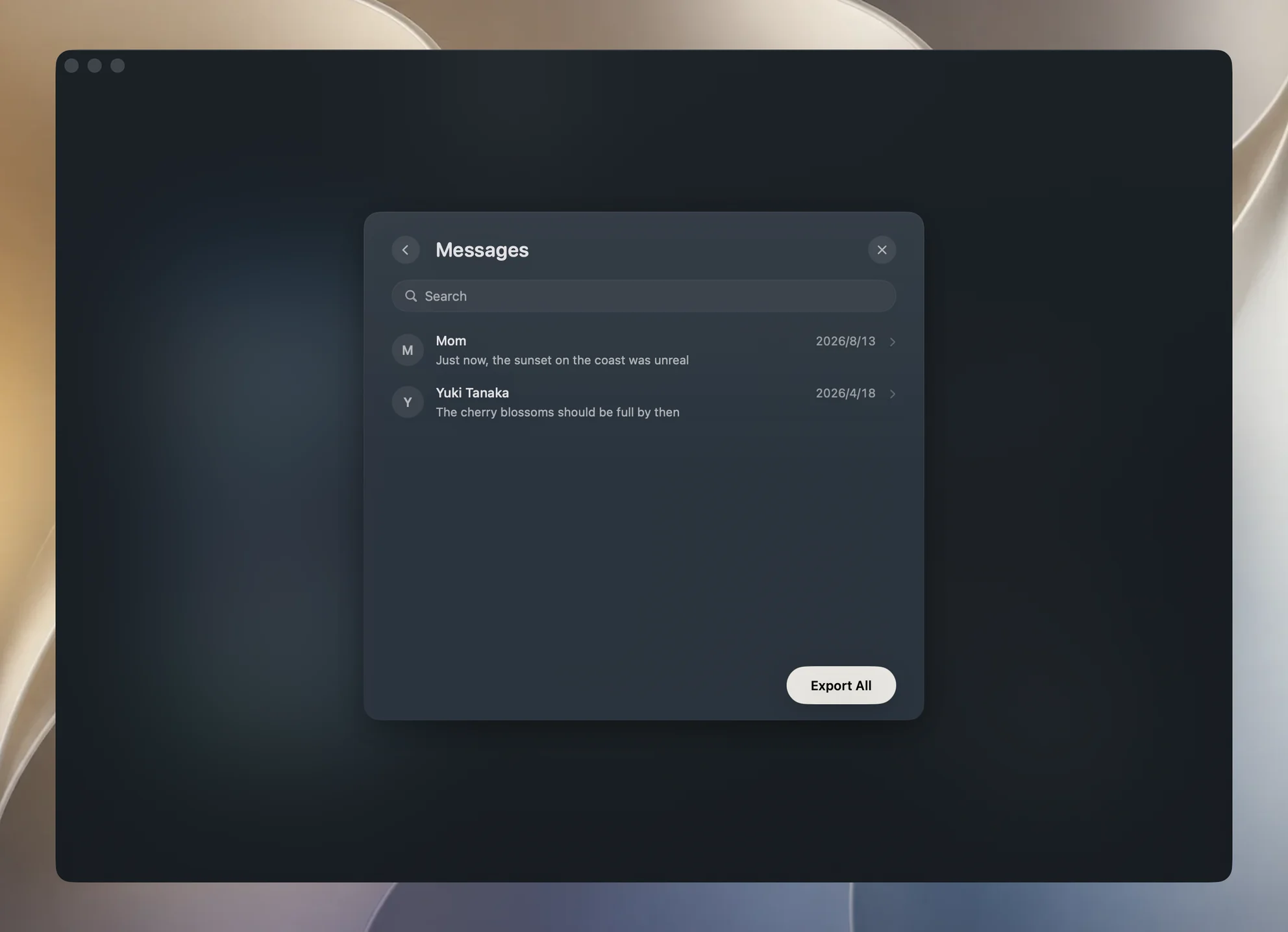
Opening a backup lists what it contains. Contacts, notes, messages and app files can be read record by record and searched, and every kind exports to a folder you choose.
| Kind | Exported as |
|---|---|
| Contacts | one vCard file |
| Messages | one text file per conversation |
| Notes | one text file per note |
| Photos & Videos | the original files |
| Voice Memos | the recordings, named by title |
| Voicemail | the recordings, named by date and caller |
| Calendar | one .ics file |
| Safari Bookmarks | one HTML file |
| Call History and Safari History | one CSV file each, encrypted backups only |
| App Files | each app's files as they were stored |
An encrypted backup asks for its password before showing anything. Yado decrypts what it needs into a temporary folder that is removed when you close the backup, and does not keep the password. Exports never overwrite a file already in the folder, and the result opens in Finder when it is done.
Message attachments show as [Attachment] in the text, notes come out as plain text without their formatting or attachments, and locked notes are left out. Exporting iPhone messages to a Mac and getting photos out of an iPhone backup cover those two kinds in more detail.
FAQ
Can I extract from a backup I forgot the password to?
No. The password is the key the data is encrypted with, and Apple cannot recover it. If you still have the phone, Apple's forgotten-password steps let you reset the backup password on it and make a new encrypted backup, but the old backup stays closed.
Does an extractor need the old iPhone?
No. Everything it reads is in the backup folder on the Mac, which is why it works for a lost or broken phone.
Why is a category empty?
Either the phone did not have that data, the data was in iCloud and so left out of the backup, or it is call or Safari history in an unencrypted backup, which does not include them.