How to export iPhone text messages to Mac

To get iPhone messages onto a Mac, turn on Messages in iCloud if you want them to keep arriving in the Messages app, and make a local backup if you want a copy you can read and keep as files. Messages in iCloud syncs conversations to the Mac but offers no file export, and deleting a message on one device deletes it everywhere. A local backup does not sync anything; it stores the phone's message database, which Yado can open and export as plain text, one file per conversation.
Three different things people mean by "sync messages"
The searches for this problem mix up three jobs, and each has a different tool.
Keep the same conversations on iPhone and Mac. This is Messages in iCloud. Apple says that with it on, your messages history is kept up to date across your devices, including SMS, MMS, RCS and iMessage. Your messages are stored in the cloud, with only the most recently accessed ones kept locally on each device, and they count toward your iCloud storage, as Apple's iCloud guide puts it.
Receive new SMS on the Mac. This is Text Message Forwarding, which only matters when you do not use Messages in iCloud. Apple says forwarding is built into Messages in iCloud, so there is no separate setup when it is on. Without it, on the iPhone open Settings, tap Apps, tap Messages, tap Text Message Forwarding and switch on the Mac, as described on the same Apple page.
Keep a readable copy as files. Neither of the first two does this. Apple's pages describe syncing and deleting; the Messages guide for Mac does not describe exporting a conversation. For a file you can store, search or hand to someone, you need a backup of the phone and a reader for it.
What Messages in iCloud does and does not give you
On the Mac, open Messages, choose Messages, then Settings, click the iMessage tab and select Enable Messages in iCloud, per Apple's setup page for Mac. The iPhone needs the same switch on, with the same Apple Account.
Two limits matter. First, it is sync, not an archive. Apple states that if you use Messages in iCloud, deleting a message or conversation on your Mac deletes it from all your devices where it is on. Deleted items leave devices after 30 days and iCloud after 40 days, according to the same page. A conversation you clear on the Mac to tidy up is gone from the phone too.
Second, it is a service, not a file. Nothing in the setup produces a folder of readable conversations on the Mac, so it is a poor fit for keeping a record before cleaning up.
How messages are stored, and why a backup can read them
On the iPhone, messages are rows in a SQLite database. In a local backup, that database is the file Library/SMS/sms.db in the HomeDomain domain, and the attachments sit under Library/SMS in MediaDomain. A backup stores files under hashed names, with Manifest.db mapping each hash back to a domain and path, which is why searching a backup folder for sms.db finds nothing. View an iPhone backup on Mac walks through that index and the commands to inspect it.
The database holds more than the visible text. Each message has a date, a flag for whether you sent it, a link to a sender handle (a phone number or address) and a link to a conversation. Since iOS 16, a message's text is often not in the plain text column at all; it sits in an encoded attributedBody field. A reader that selects only text shows blank rows for those messages. Yado reads the plain column first and the encoded one when it is empty.
The backup is a snapshot of that database, so it can be read with the phone in a drawer, and it reflects the moment the backup finished.
Export messages with Yado's backup browser
You need a local backup of the phone on the Mac first. If there is none, follow back up an iPhone to Mac. For an encrypted backup, have its password ready; encrypt an iPhone backup on Mac explains what the password covers.
- In Yado's Overview tab, open the backup tile's Manage button. Under Existing Backups, move the pointer over the backup and click Browse Contents. With no phone connected, the Yado logo menu has View Backups instead.
- If the backup is encrypted, enter its password and click Unlock.
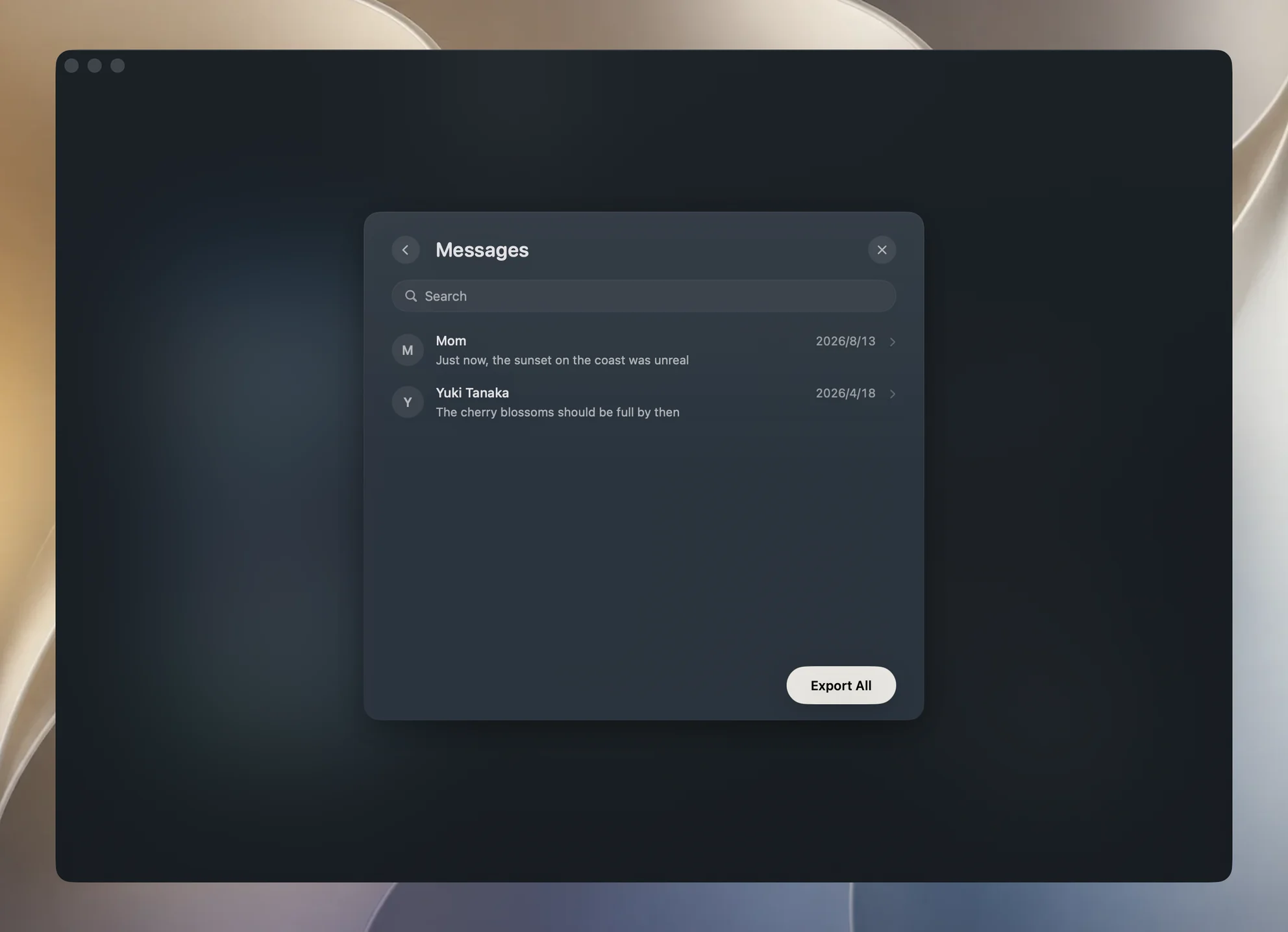
- Open Messages. Conversations are listed newest first, each showing its latest message as the preview, with attachment-only messages shown as [Attachment].
- Type in Search to narrow the list. It matches a conversation's name, its phone number or address, and the words inside its messages. A number typed with spaces or dashes still finds it, since Yado compares the digits.
- Open a conversation to read it as bubbles, yours on the right, with a time stamp over each sitting. Click Export Text and choose a folder to save that one conversation as a
.txtfile named after it. - To save every conversation at once, go back to the list and click Export All at the bottom. Yado creates a Messages folder in the destination and writes one
.txtper conversation into it. Existing files are never overwritten.
Each transcript line is the time, the sender (Me for your own messages, otherwise the number or address) and the text.
[2026-03-04 21:15] Me: See you at eight
[2026-03-04 21:17] +1 555 0100: Running late, start without me
It is text only. A message that is just a photo or video appears as [Attachment]; the picture itself is not embedded or copied, and the Messages page does not export it. For the pictures, see transfer photos from iPhone to Mac. Messages with neither text nor an attachment are left out.
Browsing a local backup works without the phone attached and is free. Yado keeps the decoded messages in memory and builds no search index on disk.
What goes wrong
The conversation you want is missing or old messages are not there. This is the case that surprises people. Apple's computer-backup page says a backup made from your computer does not include data already synced and stored in iCloud, naming iMessages and SMS and MMS messages. Apple's iCloud Backup page says the same for the cloud side: with Messages in iCloud on, messages sync to iCloud and are not included in your daily backup, while with it off they are part of iCloud Backup. Apple does not spell out exactly what a local backup holds for a phone that uses Messages in iCloud, so do not assume it holds the whole history. Open the backup in Yado and look at the oldest conversation it shows before you rely on it.
The backup is encrypted and will not open. The password is the one set for that backup, and nothing in Yado works around a forgotten one. Apple's page on resetting a backup password says a reset allows a new backup but does not make older encrypted backups readable.
Chats from other apps are not here. WhatsApp, WeChat, Telegram and similar apps keep their history in their own storage. The Messages list only reads Apple's message database, so it will not show them.
A conversation reads shorter than on the phone. Compare a known passage with the original before trusting the export, and keep the backup itself.
Export fails. Yado says it could not export and to check the backup and destination folder; choose a folder you can write to and try again.
Which route to pick
Use Messages in iCloud to read the same conversations on the Mac as they arrive, and Text Message Forwarding only when you rely on SMS without iCloud sync. Use a local backup and a text export for a copy that outlives the phone or a record to keep before deleting. Finder can make the backup but cannot read it.
FAQ
Can I export iPhone messages to Mac without a backup?
Not through anything Apple offers for a file. Messages in iCloud shows them in the Mac's Messages app but has no export. A backup is the route that gives you the database.
Does exporting delete anything from the iPhone?
No. Yado reads the backup on the Mac and writes text files next to it. Nothing is changed on the phone, and the backup stays as it was.
Are photos in my text messages exported?
The transcript marks them as [Attachment] and does not include the pictures. They remain in the backup, and for the originals use Photos on the phone or a photo export.
Will an old backup contain messages I deleted later?
Possibly, since a backup is a snapshot of that day. What it holds depends on when it was made and, as above, on whether Messages in iCloud was on.