Where are iPhone backups stored on a Mac? Find them and tell them apart

On a Mac, the iPhone backups Finder makes are in your home folder at ~/Library/Application Support/MobileSync/Backup/, one folder per backup, each named with a long string that identifies the phone. The quickest way there is from Finder itself: select the iPhone, click Manage Backups, right-click a backup and choose Show In Finder. iCloud backups are not on the Mac at all, and other apps may keep their own backups elsewhere. Yado, for one, keeps its backups in their own folder.
Open the folder from Finder
Connect the iPhone and select it in the Finder sidebar. On the General tab, click Manage Backups, and a list opens with each backup's device name and date. Right-click the one you want and choose Show In Finder, and Finder opens the backup's folder with it selected. Apple gives the same steps in its backup location guide. The same menu offers Delete and Archive.
Without a phone at hand, go there directly. In Finder, choose Go, then Go to Folder, paste the path below and press Return.
~/Library/Application Support/MobileSync/Backup/
The ~ stands for your home folder. The Library folder inside it is hidden by default, which is why browsing your home folder does not show it, and Go to Folder is the simplest way in. Older Macs that used iTunes put backups in the same place, so a backup from years ago is usually in this folder too.
Tell the backups apart
Each backup folder is named with the phone's identifier, a string of 40 characters, or 25 with a dash on newer models, so the names say nothing about which phone or which day. Two ways tell them apart.
In Finder's Manage Backups list, each backup shows its device name and date, and Show In Finder leads from there to the right folder.
Inside a backup folder, the file Info.plist holds its details. Select it and press the Space bar to preview it with Quick Look, and look for Device Name, Product Type, which is the model, and Last Backup Date. Do not edit or move any file inside a backup folder. Finder treats the folder as one unit, and a backup with a file missing may not restore.
Why Terminal says Operation not permitted
macOS protects this folder. Listing it in Terminal, or opening it from an app that has not been given access, can fail with "Operation not permitted" even though Finder shows it fine. Finder is allowed in, and other apps need Full Disk Access in System Settings, Privacy & Security, or need you to pick the folder in an open panel. If a tool you trust cannot see your backups, that permission is usually the reason.
Where the other backups are
iCloud backups are kept in iCloud, not on the Mac. To see them, open Settings on the iPhone, tap your name, tap iCloud, then Storage, or Manage Account Storage, and tap Backups. They can be restored only to a phone during setup.
Backups on an external drive. Finder always backs up to the folder above and has no setting to change it. People who move backups to an external drive usually link the folder to the drive, which Apple does not support. Backing up an iPhone to an external drive covers the options and their risks.
Backups made by other apps are wherever those apps put them, often in their own folder under Application Support.
How much space they take
A backup takes roughly the space the phone's data takes, minus anything already in iCloud, so a few old backups can hold tens of gigabytes. Select the Backup folder and choose File, Get Info to see the total. How big an iPhone backup is explains what makes one large, and deleting old iPhone backups shows how to clear the ones you no longer need, from Finder's list rather than by dragging folders to the Trash.
Where Yado keeps its backups
Yado does not use Finder's folder. Its backups go to ~/Library/Application Support/Yado/Backups by default, a folder macOS does not protect the same way, so Yado needs no Full Disk Access to back up, and Finder's own backups are left alone. View Backups in the iPhone menu opens the list.
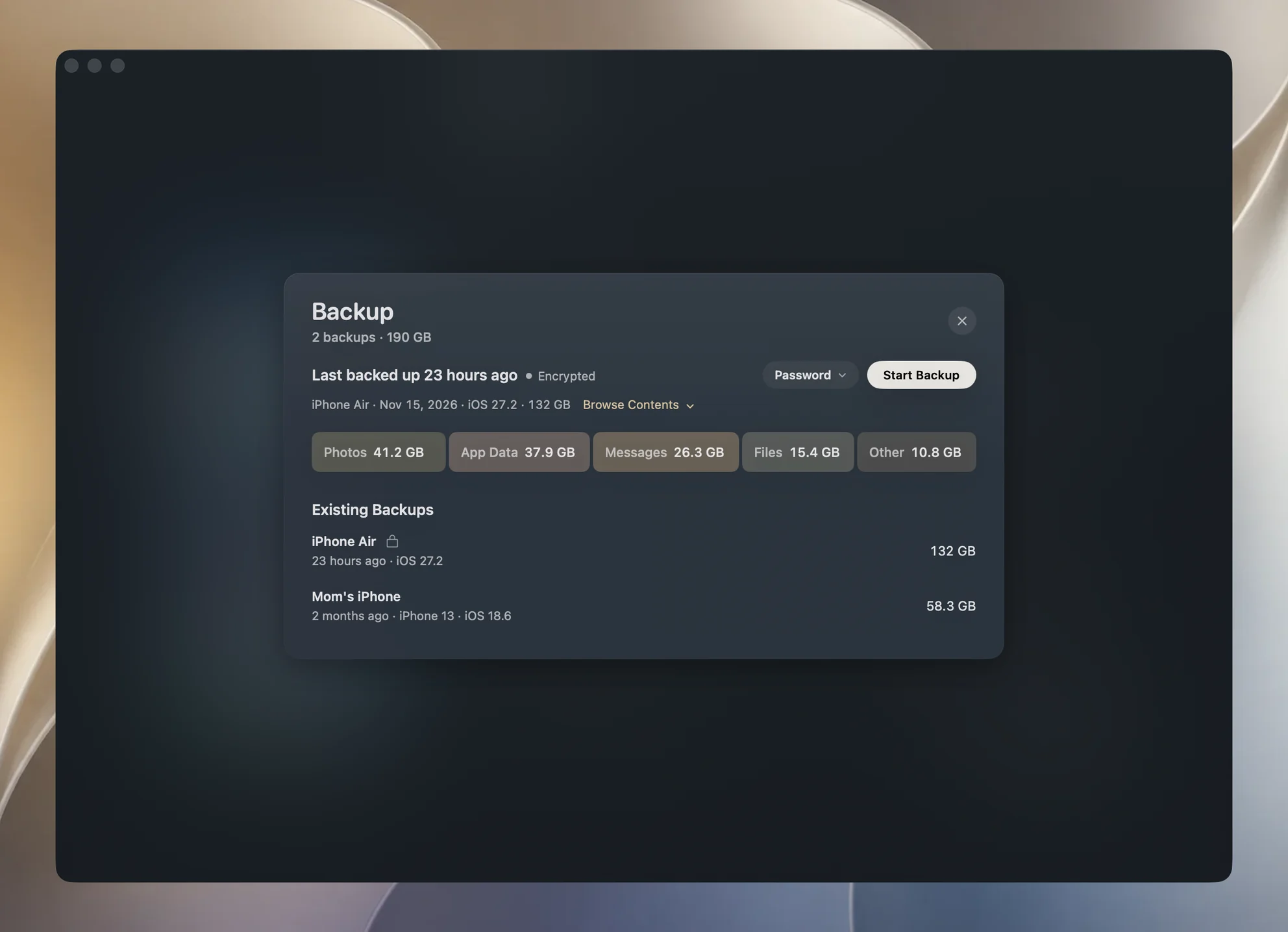
To keep backups somewhere else, such as an external drive, open Yado's Settings, choose the Backup tab, and click Change beside Backup Location. If a first backup would not fit on the Mac, the backup card says Not enough space on this Mac and offers Change Location there. If the drive holding the backups is not connected, Yado says the location is gone and asks you to connect it again.
Yado's backup list shows only the backups in its own folder. To open the backups Finder made, choose Read backups in another folder in the iPhone menu and pick Finder's Backup folder or a copy of it. Those backups then appear under Other backups, where you can browse and export from them but not restore or delete them, as described in viewing an iPhone backup on a Mac.
FAQ
Can I just copy the backup folder to another disk?
Yes, as a copy for safekeeping. Copy the whole folder for one backup, not single files inside it, and do it when no backup is running.
Is it safe to delete a backup folder by hand?
Finder's Manage Backups list is the safer way, because it removes the right folder. If you delete one by hand, check Info.plist first so you know which phone and date it was.
Why is the folder empty?
Either the phone backs up to iCloud only, or the backups were deleted, or they are kept by another app. Check Finder's Manage Backups list with the phone connected.