Why your iPhone asks for its passcode during a Mac backup
When you back up an iPhone to a Mac, the phone itself can ask for its passcode, and the backup waits until you type it on the iPhone, not on the Mac. Unlock the phone, tap Trust if it asks, enter the passcode when the prompt appears, and keep the cable connected until the progress starts. If nothing moves, the likely causes are a prompt nobody saw, a backup session that Finder still holds, or a locked screen.
What the prompt is, and what it is not
There are three different secrets around a local backup, and they get mixed up. The first is the iPhone passcode, which you type on the phone. The second is the Trust answer: Apple says that on iOS 16 and later the Trust This Computer alert appears when you back up your device, and every time you connect if automatic backups are on. The third is the backup password, which only exists if you turned on Encrypt local backup; it is chosen on the Mac and Apple warns you can't recover the backup without it.
The passcode prompt is not the backup password and it is not your Apple ID password. The phone's prompt does not take the backup password, and typing the passcode into the Mac does not answer the phone. Apple's own Finder instructions mention it in one line: if asked, enter your device passcode. Apple's page does not say when it asks.
Why the phone asks every time
The prompt is a gate on the phone's side. Third-party backup tool iMazing, which documents the change, dates it to iOS 16.1 and iPadOS 15.7.1, released on 24 October 2022, and ties it to a vulnerability, CVE-2022-32929, where an attacker could trigger a backup without the user's consent on a computer the phone was already paired with (iMazing). Apple's security notes for iOS 16.1 list a Backup entry for that CVE, with the impact An app may be able to access iOS backups and the fix A permissions issue was addressed with additional restrictions (Apple). Apple's notes do not describe a passcode prompt, so treat the link between the two as iMazing's explanation, not Apple's.
What follows is practical. iMazing notes that overnight backups and phones left locked and charging are hit hardest, because nobody is there to enter the passcode. Yado cannot enter it for you either, so a backup you start should be one you can watch for the first minute.
Back up from Finder
Connect the iPhone, unlock it with its passcode, and select it in the Finder sidebar. On the General tab click Back Up Now. Complete Trust on the Mac and on the phone if either asks, and enter the passcode on the iPhone if it asks. Then wait for the progress bar on the Mac, and leave the phone alone until it moves. The whole routine is in the Mac backup guide, including how to turn encryption on first.
Back up with Yado
Yado puts the same reminder in every backup while it is being prepared. Click Start Backup on the backup tile in Overview, or in the panel that Manage opens. A first backup that fits starts right away, with no card to confirm first. If Yado's estimate of that first backup does not fit on the backup disk, a Not Enough Space on This Mac card opens at the button instead, with Choose Folder to pick another location, and the backup starts once the new folder has room.
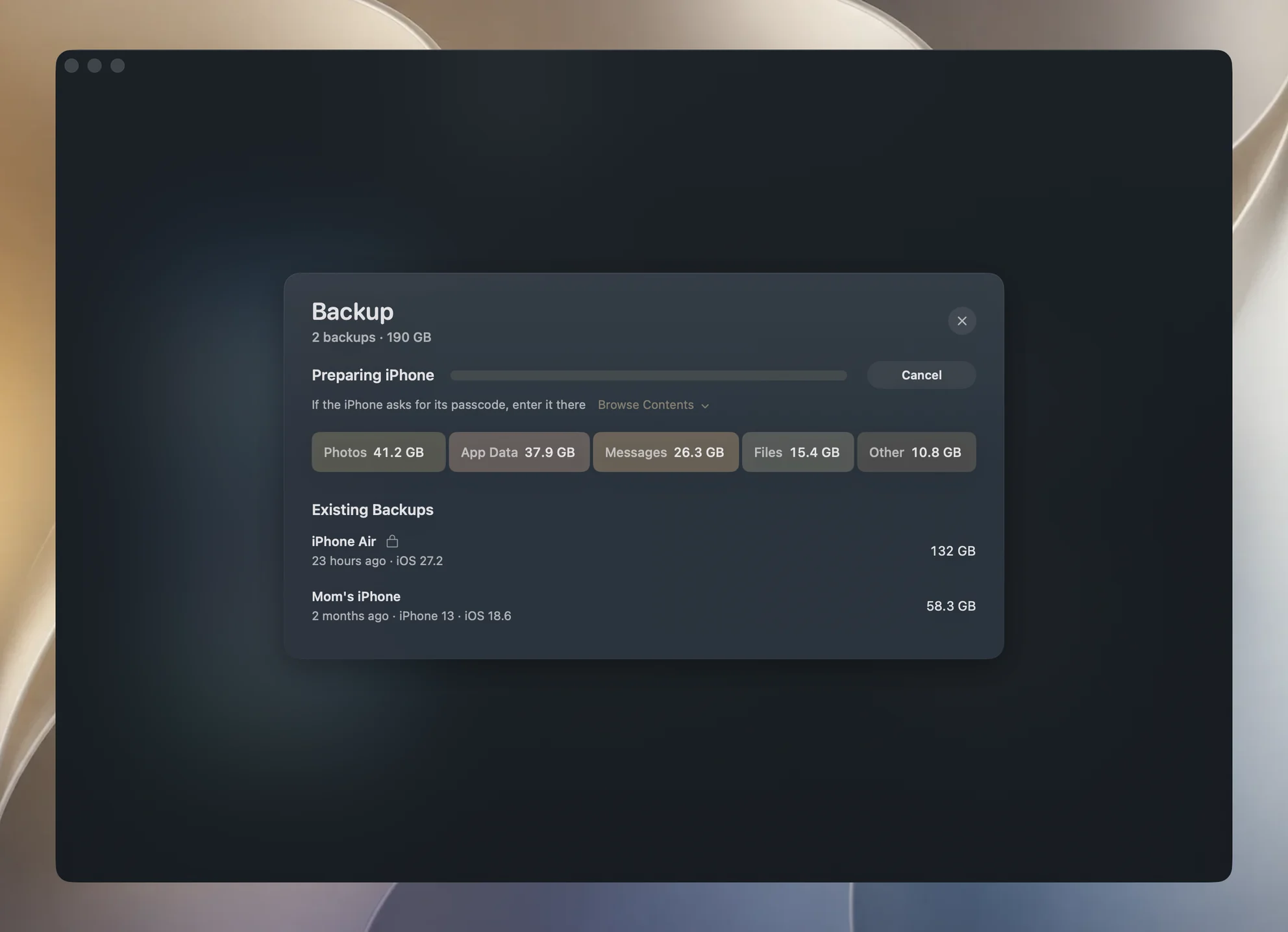
While the phone is being prepared, the backup card says Preparing iPhone with If the iPhone asks for its passcode, enter it on the phone, and keep it connected. As soon as files start moving, the line changes to the kind of data being copied and a file count. A shorter line, If the iPhone asks for its passcode, enter it on the phone., appears while you turn backup encryption on or off, since the phone takes part in that change too.
If you type the passcode and Yado reports that another backup is using the iPhone, wait a few seconds. Finder's background device agent can keep holding the phone's backup lock right after you approve; Yado tries a second time itself after a three-second pause when it sees that error, and if it still fails the message reads Another backup, such as Finder's, is using this iPhone. Try again in a moment. Close any other backup that is open in Finder or Apple Devices, then start the backup again.
When the backup stops
Work through these in order, because each one rules out the next.
- Is the phone unlocked? Apple's steps start with unlocking the phone, and both requests are answered on its screen. Wake it, unlock it, and look for a Trust or passcode request.
- Was the prompt dismissed? Tapping Don't Trust blocks the computer and the alert returns on every connection (Apple). Unplug, reconnect and answer Trust.
- Is something else holding the phone? Finder, the Apple Devices app or a second backup tool can each use the same session. Finish or close them first.
- Is it the cable? A charge-only cable never connects for a backup, and a loose cable or a hub can drop the connection partway through a long copy. Plug straight into the Mac, as the backup failed guide describes.
- Is the disk full? A run that cannot fit is a separate failure from the passcode one; the backup size guide explains how much space to leave.
Yado also watches for a run that has stopped moving. If it reports no new progress or file for 30 minutes, it stops the backup and says The backup made no progress for 30 minutes and was stopped. Check that the iPhone is unlocked and the connection is steady, then try again. That timer is Yado's, not the phone's, and it applies to backups only, since stopping a restore halfway would leave a phone half restored.
An unfinished first backup
A first backup that is cut off can leave a folder behind with only a few small files. Yado does not treat that folder as a backup. It stays in the list under Existing Backups with Unfinished on its detail line, so you can remove it, but it is not offered as a backup anywhere else: it is not counted as the last backup on the card or in Device Details, and it does not set the date an automatic backup counts from. Restoring from it is refused with This backup didn't finish, so it can't be restored.
Yado calls a backup finished only when the folder has its Info.plist, a Manifest.plist, a Status.plist whose snapshot state reads finished, and a Manifest.db that is not empty. Anything less is marked unfinished.
To clear one, move the pointer over its row, click More, then Delete Backup. It moves to the Mac's Trash, and you have 5 seconds to undo. The guide to finding and deleting old backups has the Finder route too. After removing it, start the backup again with the phone unlocked and the passcode ready.
What Yado cannot do for you
Yado cannot type the passcode, cannot answer the Trust alert, and cannot get a backup through a phone that stays locked. It also does not know why the phone refused: when a run fails it shows a short message and keeps the engine's log behind View Log. If the log shows the passcode was entered and a backup still stalls, one more run after a restart of both devices is the next step, as Apple suggests under backup troubleshooting.
FAQ
Can I turn the passcode prompt off?
Apple documents no setting for it, and its support pages only say to enter the passcode if asked.
Is the passcode the same as the backup password?
No. The passcode unlocks the iPhone. The backup password only protects an encrypted backup and is chosen on the Mac. See the encryption guide.
Does Yado see my passcode?
No. Yado has no field for it; the prompt is drawn by the iPhone and you answer it there. For backups over Wi-Fi instead of a cable, see the Wi-Fi sync guide.