How much space does an iPhone backup need on a Mac?
An iPhone backup needs room for the data included in that backup, so its size does not have to match the phone's capacity or total used storage. Check the destination disk's free space before starting. For a first backup, Yado estimates the space from app data and photos when those readings are available; after a successful run, use the completed backup's size as a reference for that phone.
Start with the Mac's available space
On the Mac, open System Settings, choose General, then Storage to check available space. Apple's Mac storage guide documents this route. If the backup will go to an external drive, its available space is the relevant figure, rather than the Mac's internal disk.
Finder can make the backup without another app. Connect the iPhone, select it in the Finder sidebar, open General, choose Back up all of the data on your iPhone to this Mac, then click Back Up Now. If you want Health and Activity data included, choose Encrypt local backup and keep its password. Apple's backup instructions explain how to confirm success from the last backup's date and time.
For the full setup, follow back up an iPhone to a Mac. When planning space, distinguish a first backup, an update to an existing backup, and keeping older copies alongside it. Those operations do not all add the same amount to the disk.
Why the backup is smaller than used storage
The phone's storage display counts what occupies the device. A computer backup saves the data and settings that iOS includes in its backup process. It is not a copy of every occupied byte.
Apple's backup coverage guide excludes App Store, iTunes Store and Apple Books content, media synced from a computer, and data already synced and stored in iCloud, including iCloud Photos. Apple Mail data, offline maps, Apple Pay information, and Face ID or Touch ID settings are also excluded. Health, Activity and Keychain data require encryption.
App size needs particular care. Installed app software and an app's data are separate amounts; Yado's backup categories count app data, not the app binaries. A large installed app therefore does not imply an equally large entry in the backup.
On the iPhone, Settings, General, then iPhone Storage shows what uses space. Apple's storage explanation describes the system, app and other categories, including caches. Comparing that entire chart with a backup mixes two inventories. A smaller completed backup can be expected, but size alone does not establish that it contains everything you need.
For photos already stored in iCloud, a local device backup should not be treated as a separate archive of the originals. If that is the copy you want to keep, use a photo-transfer workflow as a separate task.
Estimate a first backup in Yado
Yado puts the backup controls on Overview. Click Manage in the Backup tile to open the panel, where the first-backup estimate and its component tiles appear once the phone's storage and app sizes have been read.
The estimate adds the installed apps' reported data sizes and the phone's reported photo usage when the photo figure is available. It leaves out the app binaries and does not simply reuse the phone's total used-storage figure. While app sizes are still being read, there may be no estimate to show.
If photo usage is unavailable, the second tile is Photos & other, using the remaining unsplit storage amount. That is a broader estimate than a separately measured photo figure, since it also holds iOS's own data and caches that a backup leaves out, and it can run several times above what the finished backup holds. The estimate also cannot predict exactly which reported app data iOS will include, and a finished backup can contain settings and messages beyond the two initial groups. Treat the number as a planning aid and leave room above it.
- Connect the phone, open Overview, then Manage in Backup.
- Wait for the app-data sizes and available storage information to populate.
- Click Start Backup. A first backup that fits starts right away; enter the passcode on the iPhone if asked.
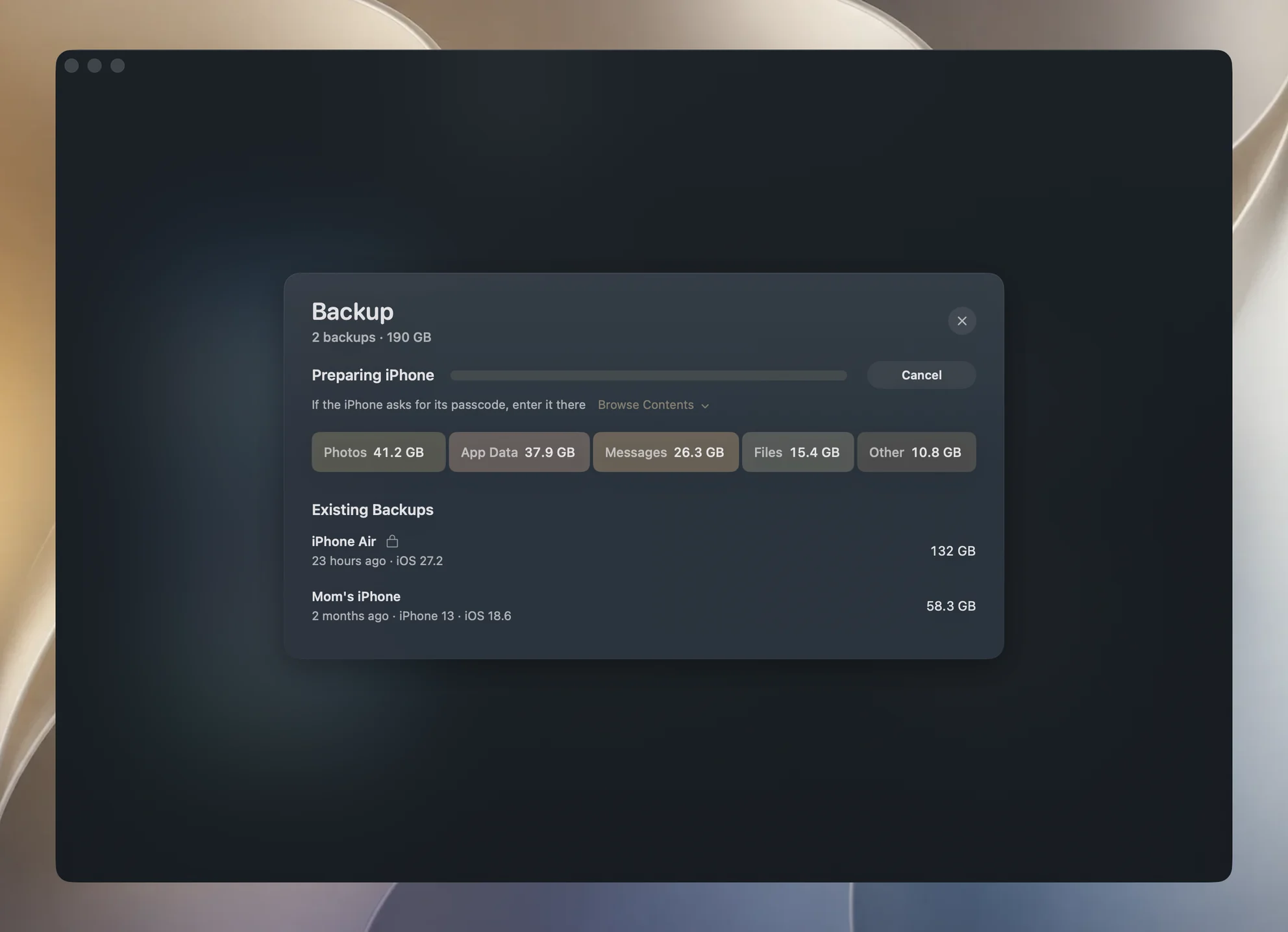
Before a first backup starts, Yado compares the available estimate with the free space on the disk containing its configured backup folder. If the estimate exceeds that space, Not Enough Space on This Mac offers Choose Folder. Choose a folder on a drive with room, or clear space before starting; the check runs again after choosing a folder, and the backup starts if it now fits.
The comparison uses the disk's currently available capacity, excluding purgeable space that macOS might reclaim later. This can be lower than a more optimistic available-space display. If the estimate or disk reading is unavailable, that comparison cannot give a size verdict, and the phone's backup process can still refuse the operation for lack of space.
Read the completed backup's categories
After a successful backup, the panel describes the saved backup rather than the first-run estimate. Its list shows each backup's size. The category tiles come from the backup's file index and the sizes of the files it references.
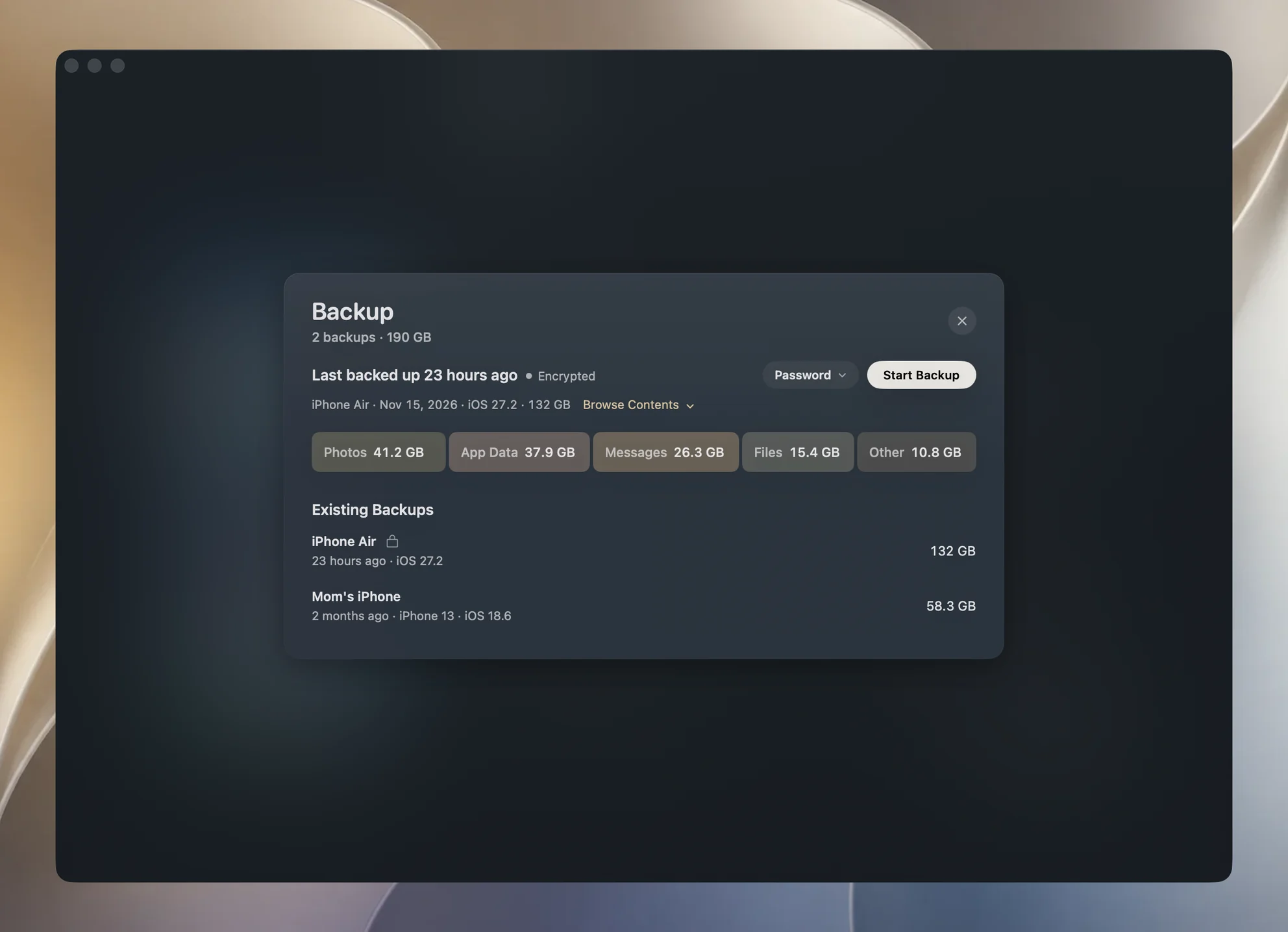
| Category | What Yado groups there |
|---|---|
| Photos & Videos | Photos and videos in the camera-roll part of the backup |
| App Data | App and app-group data |
| Messages | The message database and its attachments |
| Files | Documents in the local storage area of the Files app |
| Other | Remaining indexed backup files |
For an encrypted backup, click Enter Password and provide the backup password to read the categories. A locked breakdown is unavailable information, not evidence that those categories contain zero bytes. Categories with no bytes are left out once the index has been read.
The category total and the backup row's size have different scopes. Categories add the indexed payload files; the row counts regular files throughout the backup folder, including its supporting files. A difference between them does not by itself show missing data, and neither number is a promise of physical disk space recovered by deleting the folder.
Later backups update an existing backup
Yado's later backups are incremental updates to the phone's existing backup in that destination. The live backup can be rewritten in place, so clicking the backup button again does not automatically mean adding another independent full-sized copy.
Incremental still needs free space. New data can grow the backup, and keeping earlier copies changes the storage you retain. Use the current completed size as a starting reference, then account for new content and the older copies you intend to keep. There is no fixed extra-space percentage established by this estimate.
Changing to an empty destination also means the existing backup is not there to update. Plan for a first backup in that location. For a Mac with limited internal space, the external-drive backup guide covers choosing and managing the destination.
Check a surprisingly small or failed backup
A folder containing a few files can be the remains of an interrupted first attempt. Yado marks a backup whose snapshot did not finish as Unfinished, and does not use it as the phone's last completed backup. Check the status and completion time before treating a small folder as a usable copy.
For a completed backup, right-click its row, or hover over it and click More, and choose Check Backup if you want to validate its index and referenced files. This checks the backup's structure and file availability, with additional size checks for encrypted payloads. It does not replace a successful restore on an iPhone.
If a backup fails with a disk-space message, make room on the destination disk or choose another destination before retrying. Apple's computer-backup troubleshooting guide gives the same first step for a space warning. If the failure has a different message, follow iPhone backup failures on Mac rather than deleting photos merely because the phone reports high storage use.