Where are iPhone backups on Mac, and how to delete old ones
Finder keeps iPhone backups in ~/Library/Application Support/MobileSync/Backup/, but the safe way to delete one is not to open that folder. Open Finder, select the iPhone, click Manage Backups on the General tab, right-click the backup and choose Delete. Deleting is permanent, so check the device and date first, and use Archive for a backup you want to keep. Yado stores its backups in a different folder and has its own list, covered below.
Where Finder keeps backups
Apple's instructions give the path for the Mac: in Finder choose Go, then Go to Folder, enter ~/Library/Application Support/MobileSync/Backup/ and press Return (Apple). Manage Backups lists each backup by device and date, which is the information you need before deleting, so use the list to decide and treat the folder as the place the files sit.
If Terminal is denied access to the folder, that is a macOS privacy permission and not a broken backup; the backup failed guide covers the Full Disk Access case.
Delete a backup in Finder
- Connect the iPhone with a USB cable and open Finder.
- Select the iPhone in the sidebar. If it asks, tap Trust on the phone and enter its passcode.
- On the General tab, click Manage Backups.
- Right-click the backup you want. The menu offers Delete, Archive and Show In Finder.
- Click OK when you finish.
Apple states the consequence plainly: after you delete a backup, you can't recover it. Compare the dates, keep the newest backup for each phone, and delete the ones that belong to phones you no longer own.
Archive is the safe choice for a backup you may want later, such as the last one before an iOS update or before you hand a phone on. Apple says to archive it so later backups do not replace it. An archived backup stays on the disk and still uses its space.
Apple's steps start with the phone connected, so Manage Backups is out of reach without it.
What a backup folder is
In Yado, a phone's live backup is one folder, and the next backup of that phone rewrites it in place instead of adding a second full copy. So the number of backups on a Mac is usually one per phone plus any copies kept, and the biggest saving comes from backups of phones you no longer use. The backup size guide explains what a backup holds and why its size differs from the phone's storage.
Yado reads a folder as a backup only when it carries an Info.plist naming the device, and it calls the backup finished when it also has a Manifest.plist, a Status.plist whose snapshot state says finished, and a Manifest.db that is not empty. A folder that fails the last checks is shown as Unfinished. That is Yado's rule for its own folder, not a description of how Finder judges one.
Where Yado keeps its backups
Yado does not write into Apple's MobileSync folder. Its default is ~/Library/Application Support/Yado/Backups, and a backup of one phone is a folder named after the device's ID. To see or change the location, open Settings in the Yado menu and read Backup Location. Click the path to show it in Finder, or click Change to choose another folder, such as one on an external drive; the external drive guide has the details. Yado lists only the folder named there, so backups Finder made in MobileSync do not appear in it. Finder remains the place to manage those.
Delete a backup in Yado
On Overview, click Manage on the backup tile. With no phone connected, open the Yado menu and choose View Backups, or press Command-B from the iPhone menu in the menu bar, as long as at least one backup is listed.
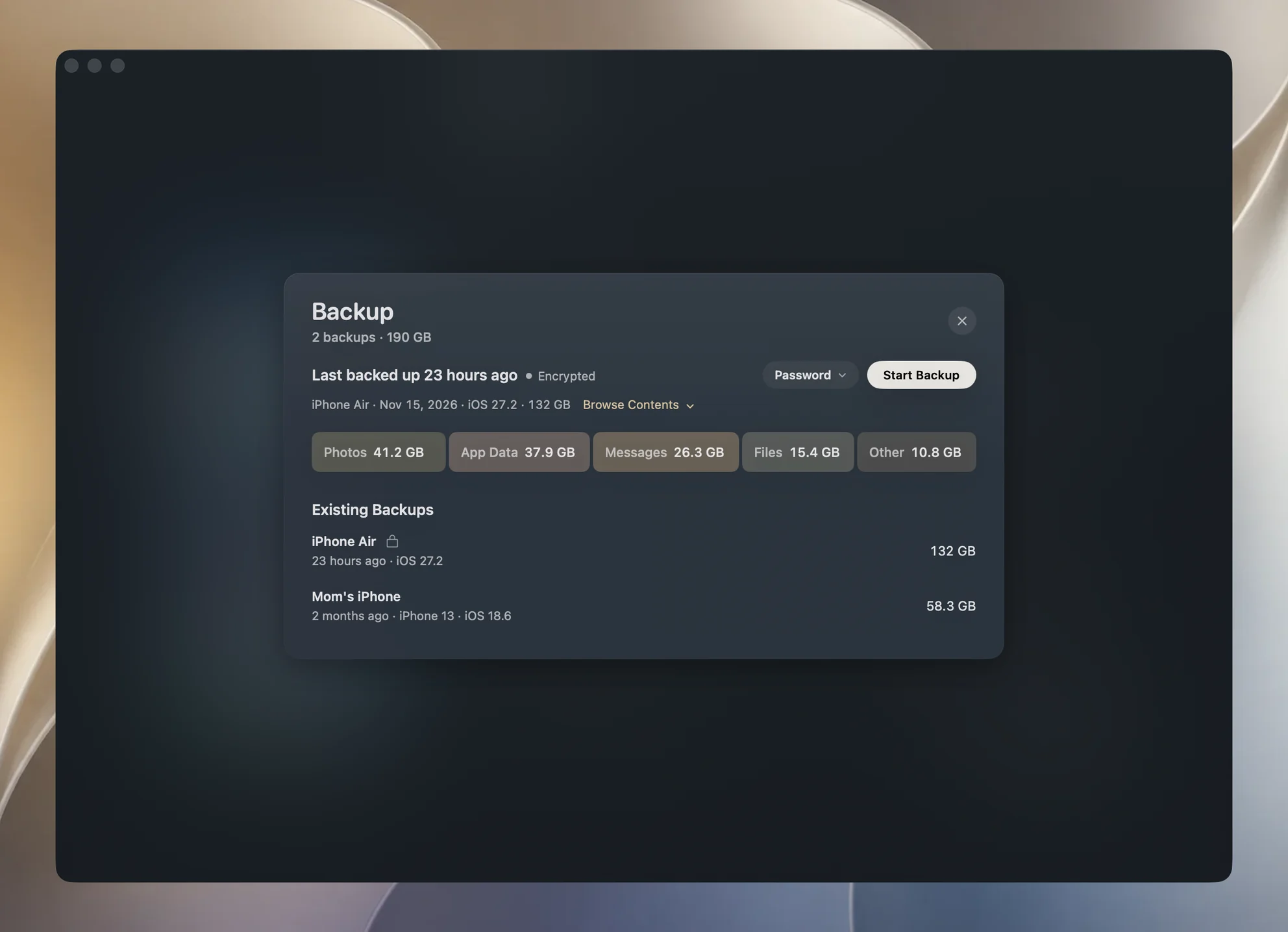
The panel is titled Backup, with the count and total size under the title. Under Existing Backups, each row names the phone and shows when it was backed up, the model when it differs from that name, the iOS version, a lock if it is encrypted and its size. A row can also say Unfinished, kept automatically or kept by you. Move the pointer over a row and its size gives way to Browse Contents, Restore (or Move Here for another phone's backup) and More.
Click More for four items.
- Show in Finder reveals that backup's folder.
- Check Backup reads the backup's index and confirms the files it lists are present and readable. An encrypted backup asks for its password first. A pass does not prove a restore will work, and the card says so.
- Keep a Copy makes a second copy beside it and reveals the new copy in Finder.
- Delete Backup moves it to the Mac's Trash and shows Backup moved to Trash. Click Undo within 5 seconds to put it back. Only a backup on a disk with no Trash asks Delete This Backup? first, with will be permanently removed. This cannot be undone.
The row disappears at once while the folder moves in the background, and the space comes back once you empty the Trash. Yado moves only a folder it recognizes as a backup, one whose Info.plist names a device, so a folder of your own files in the same place is left alone. While a backup, a restore or an export from a backup is running, Check Backup, Keep a Copy and Delete Backup are disabled; Show in Finder still works.
Keep a copy before you delete
Keep a Copy uses a clone of the backup's files, a feature of APFS; Apple describes a clone as a copy that occupies no additional space on disk, with later changes written elsewhere while both files share the unchanged blocks (Apple). A clone shares the data with the original until one of them changes, so a kept copy takes little extra room at first and grows as the live backup changes. It needs a finished backup and a disk that supports cloning; otherwise Yado says it could not keep a copy. It also means the sizes on the rows add up to more than the disk actually uses.
Settings has a Keep backups choice of Latest only, Last 3 or Last 7. With more than one, Yado keeps the state a backup is about to overwrite as an automatic copy, and removes the oldest automatic copies beyond the number you chose after a good run; the live backup counts as one of them. Copies you made by hand are never removed that way. On a disk without cloning, Settings says This disk can't keep copies, use an APFS disk, and on such a disk Latest only is the setting to use.
If you delete a phone's live backup, its next backup starts from nothing and takes about as long as the first one.
When something goes wrong
If Delete Backup is greyed out, a backup, restore or export is running; wait for it. If a row says Unfinished, the folder never completed and nothing can restore from it; the passcode guide explains one way that happens, and it is safe to delete. Before deleting a backup you might still restore from, read the restore guide to see what a restore replaces.
iCloud backups are separate. Removing them frees iCloud space, not disk space on the Mac; see the iCloud storage guide.
FAQ
Can I delete the MobileSync folder?
Apple's steps delete individual backups from Manage Backups, not the folder, and Apple warns that a deleted backup cannot be recovered. Going one backup at a time lets you see what each one is first.
Is a backup of an old phone worth keeping?
Only if you might restore it. It is the only copy of that phone's data once the phone is gone. Archive it in Finder or keep it with Keep a Copy in Yado, and delete it once you have moved to a new phone and checked the data.
Why did freeing a backup not free much space?
If you use Keep a Copy, a clone shares data with the original, so deleting one frees only what is unique to it. Check General, then Storage in System Settings after deleting to see the real change.