iPhone storage keeps filling up? Find what grows before deleting more
When an iPhone's storage keeps filling up after you have cleared it, something on the phone is growing faster than you clean, and the fix is to find what that is before deleting more. Note the free space and the size of each category in Settings, General, iPhone Storage today, check again in a week, and compare. The usual culprits are Messages attachments, videos, apps that store downloads or caches, and System Data. Once you know which one grew, there is usually one setting that stops it.
Measure before you delete
Deleting a batch of photos frees space once. If the phone is full again a month later, the same thing will happen after the next cleanup, because whatever fills it is still running.
Open Settings, General, iPhone Storage. The bar at the top splits used space by category, and the list below ranks apps by the space they take, documents and data included. Write down the free space and the top five or six entries, or take a screenshot. A week later, do it again and see what moved. Apple's storage guide explains each category.
A week is short enough to remember what you did and long enough to see a trend. A jump of a few gigabytes in one entry, while you have not added much yourself, points straight at the cause.
The usual causes
Messages. Every photo, video and voice message you receive is kept with its conversation, and group chats add up fast. In Settings, Apps, Messages, set Keep Messages to 30 days or 1 year, and review large attachments under the Messages entry in iPhone Storage. Clearing Messages storage goes through it.
Videos. Video in 4K at a high frame rate, or in a professional format, takes many times the space of standard video. Check Settings, Camera, Formats and Record Video, and pick the lowest setting you are happy with for everyday clips. Finding large videos helps with the ones already there.
App downloads and caches. Streaming apps keep downloaded episodes, music apps keep offline songs, chat apps keep every file ever sent, and browsers and social apps keep caches that grow until iOS needs the room. The app's entry in iPhone Storage shows Documents & Data, and a large, growing figure there is the sign. Most apps have a downloads or storage setting of their own, covered in clearing the cache on an iPhone.
Photos with iCloud Photos off. Without iCloud Photos, every photo stays on the phone at full size. With it on, Optimize iPhone Storage swaps originals for smaller versions when space runs low, starting with the photos you open least, though the library still grows with every new photo.
System Data. If the growth is under System Data, near the bottom of the list, see what iPhone System Data is and how to shrink it.
Leave room on purpose
iOS clears caches when space runs short, and with Offload Unused Apps on in Settings, Apps, App Store it also removes apps you have not used while keeping their data, but it does this late. A phone kept near full may not have room to download an iOS update or to record a long video. Leaving a few gigabytes free gives the system room to manage its own caches.
See the trend with Yado
Settings shows the storage at one moment, so measuring a trend means writing it down. Yado keeps that record for you. Each day a phone is connected, it saves one reading of the phone's free and total space on this Mac, and once it has readings at least seven days apart within the last four weeks, iPhone Storage shows how much the phone gained or freed over that time, such as Used 6.2 GB more over 9 days. It reports the measured change, never a forecast, and the same line appears in the Maintenance Brief.
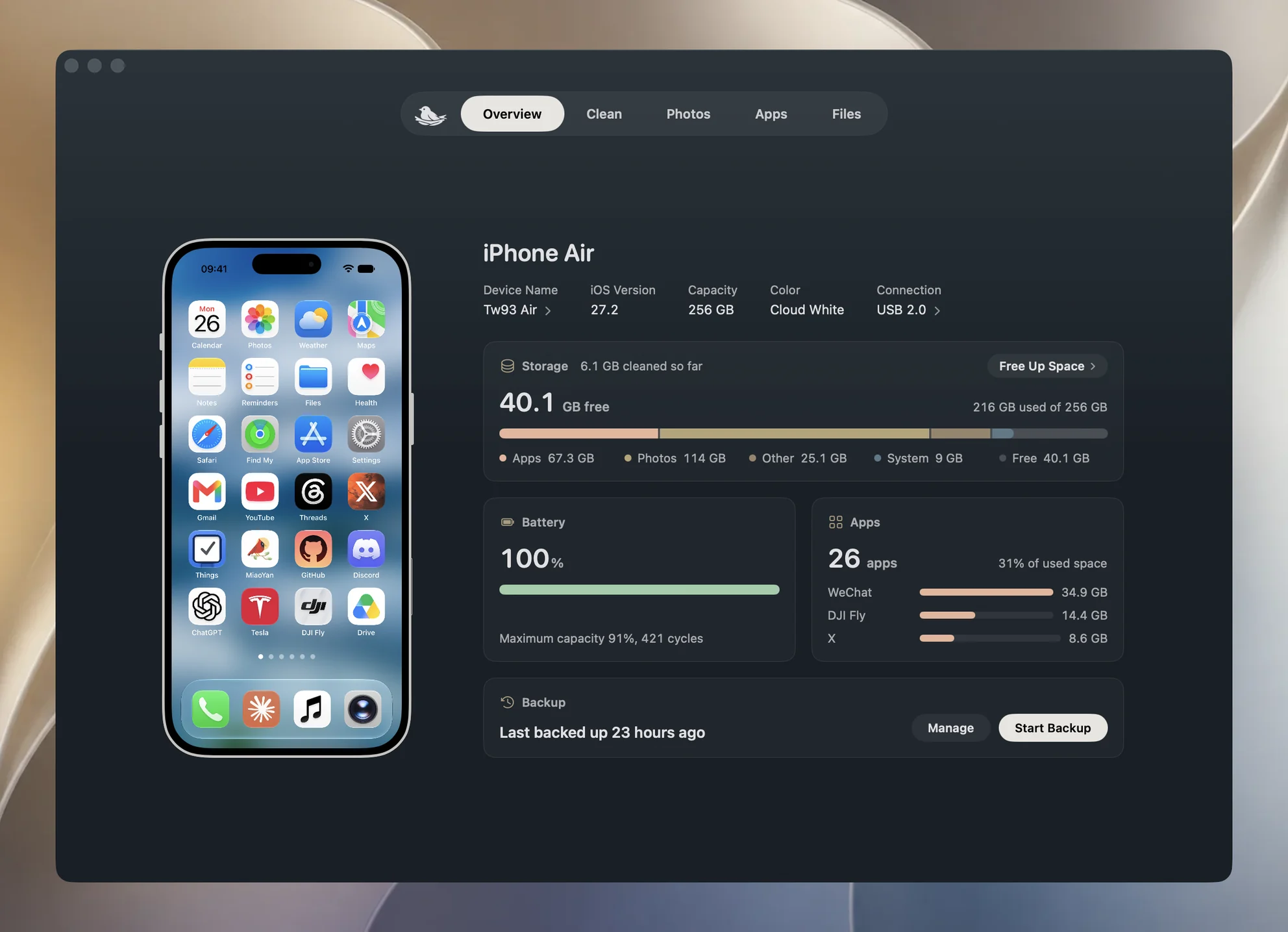
Open iPhone Storage from the Storage tile on the Overview. The bar splits used space into Apps, Photos, Other and System, Yado's Apps tab ranks apps with their data, and with the cable connected the panel adds Largest albums and Photos by month for the last six months, so a month of heavy shooting stands out. Free Up Space, beside Ready to Clean at the bottom of the panel, opens the Clean tab, which lists what can go now, duplicates, screenshots, screen recordings and diagnostic logs, each with its size.
The readings stay on this Mac and are kept for up to two years, one per day per phone.
FAQ
My storage fills up even though I deleted lots of photos. Why?
The space from deleted photos returns only after Recently Deleted is emptied, and something else may still be growing. Check which category rose over a week.
Does Optimize iPhone Storage stop the phone from filling up?
It slows the photo part, since photos you rarely open are kept small when space runs low. It does nothing for Messages, apps or System Data.
How much free space should I keep?
Apple gives no figure. A few gigabytes leaves room for iOS updates and the system's own caches.