iPhone System Data taking up space? What it is and how to shrink it
System Data on an iPhone is the space iOS keeps for itself beyond the operating system: caches, logs, the Spotlight index, Siri voices, fonts, dictionaries and system databases such as the Keychain. It grows and shrinks on its own, and there is no button that clears it. To bring it down, restart the phone, update iOS, clear the caches you can reach inside apps, and if it still sits far above what it should, back the phone up, erase it and restore. Check the number again after each step before going further.
What counts as System Data
Open Settings, then General, then iPhone Storage, and scroll to the bottom of the list. The last two rows are iOS, the operating system itself, and System Data. Apple's storage guide describes the second as "non-removable mobile assets, like Siri voices, fonts, dictionaries, non-removable logs and caches, Spotlight index, and system data, such as Keychain and CloudKit database", under the older name Other.
Two things follow from that list. Part of System Data is meant to stay: a downloaded Siri voice, a dictionary, the Keychain that holds your passwords. The other part, caches and logs, is meant to come and go, since iOS keeps them to make things faster and is supposed to remove them when space is needed. The same guide says that when the device is low on storage, it removes items that can be downloaded again or are not needed, like temporary files.
So a System Data figure that moves by a few gigabytes from one day to the next is normal. A figure that keeps climbing and never comes back is the case worth acting on.
How much is too much
Apple gives no target size. A Yahoo Tech guide (read 2026-11-14) calls 5 GB to 20 GB fairly typical on a modern iPhone, worth a look past about 30 GB, and a problem at 50 GB or more. Treat those as a rule of thumb rather than a limit, because a phone that streams a lot of video or has many apps holding offline data will sit higher.
Watch the trend more than the figure. Note the number today and check it again in a week. If it is higher each time while you have added nothing, the cleanup inside iOS is not keeping up.
Steps that can shrink it
Go through these in order and recheck iPhone Storage after each one, since the Settings figure can take a few minutes to update.
Restart the iPhone. A restart lets iOS drop temporary files that a running process was holding. It costs nothing and is the first fix most guides suggest.
Update iOS. Open Settings, General, Software Update. An update replaces the system and often clears leftovers from the previous version. Some updates have also fixed bugs where System Data kept growing.
Clear caches inside apps. Many apps keep their caches and downloads under their own name in the storage list, but some of what they write is counted under System Data, streaming caches in particular. In Safari, Settings, Apps, Safari, Clear History and Website Data removes its cache. Music, podcasts, video and map apps usually have a downloads or offline setting of their own. Clearing the cache on an iPhone goes through the common ones.
Trim Messages. Settings, Apps, Messages, Keep Messages set to 30 days or 1 year removes old conversations and their attachments. It counts under Messages rather than System Data, but it often frees more than anything above. Clearing Messages storage covers it.
Give it room. iOS clears caches when it runs short, so a phone with almost no free space can get stuck where nothing gets cleared and nothing new fits. Moving a few gigabytes of videos off the phone first, as in freeing up storage without deleting photos, gives the system room to tidy up.
The last resort: back up, erase, restore
If System Data still sits far above where it was, erasing the phone and restoring it from a backup rebuilds the system data from scratch. A backup carries your apps' data, messages, photos (unless iCloud Photos holds them) and settings, but not the caches that had piled up.
Do it only with a backup you have checked. Backing up an iPhone to a Mac explains how, and turning on encryption keeps saved passwords and Health data in the backup. Then on the iPhone open Settings, General, Transfer or Reset iPhone, Erase All Content and Settings, and during setup choose to restore from the Mac backup. Restoring an iPhone from a backup walks through the restore.
This takes an hour or more and is the only step here that can lose something if the backup is incomplete, which is why it comes last.
What Yado shows
Yado cannot show System Data as a number, because the iPhone does not hand that figure to a Mac. The Storage tile on the Overview opens iPhone Storage, whose bar splits used space into Apps, Photos, Other and System. System there is the system volume, the space the operating system takes, and Other is everything that remains once apps and photos are counted, which includes System Data and can include other system data such as Messages.
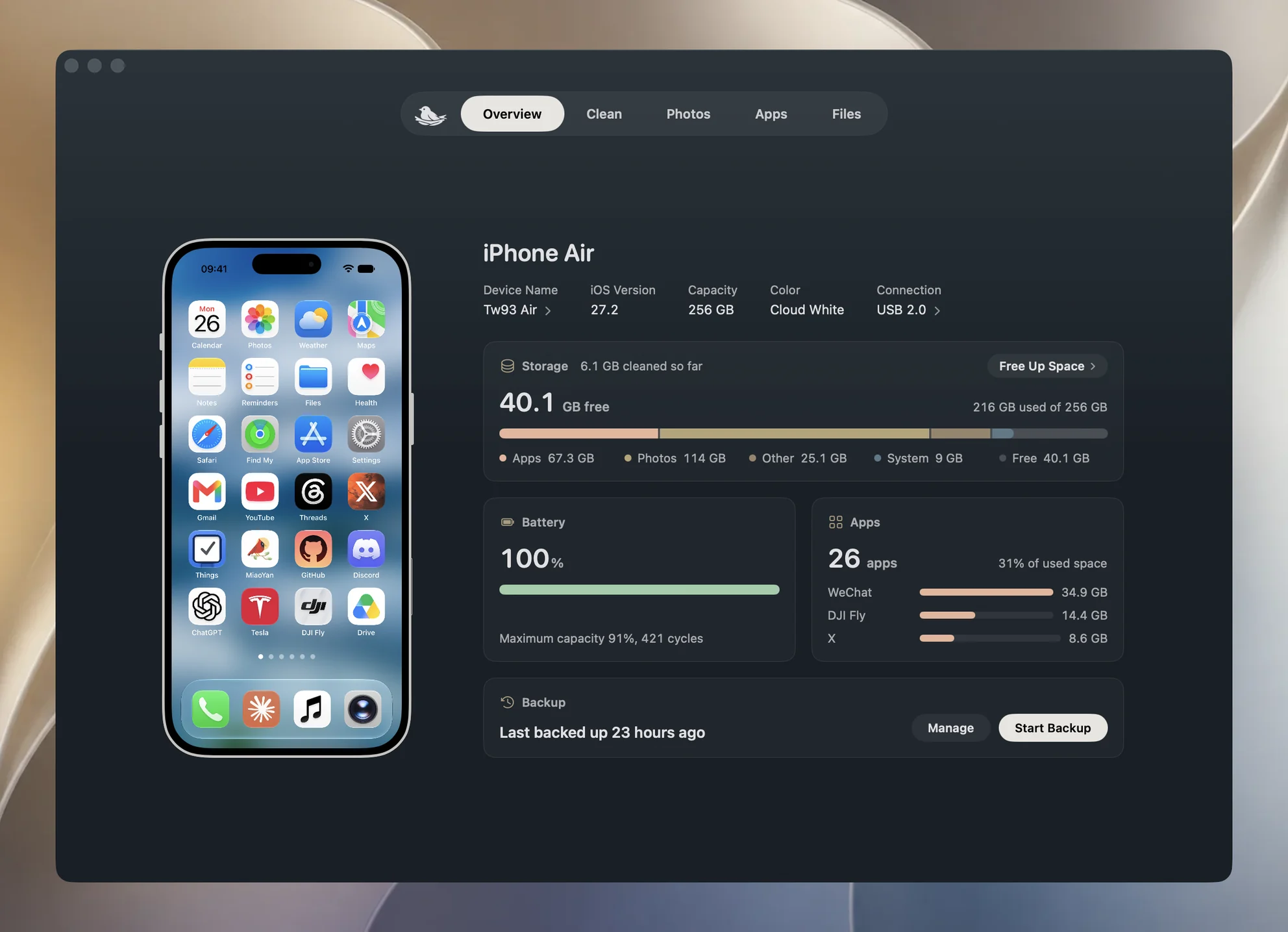
What it adds is the trend. Each time a phone is connected, Yado keeps one reading a day of its free and total space on this Mac, and once it has readings at least seven days apart within the last four weeks, iPhone Storage shows a line such as Used 6.2 GB more over 9 days. If that line keeps rising while you have not added photos or apps, the growth is likely in System Data or an app's cache, and the steps above are worth going through.
In the Clean tab, the Diagnostic Logs row clears the crash and diagnostic reports the iPhone shares with a Mac. These are part of what iOS keeps for itself, but they often add up to only a few megabytes, so clearing them will not move a large System Data figure. Clearing them also restarts the Analytics Data list in Settings and removes the restart history that Yado's Hardware Check reads.
For the backup before an erase, Yado backs up to the Mac, can encrypt the backup, and its Check Backup reads the finished backup for missing or damaged files before you rely on it.
FAQ
Why does System Data grow after I delete things?
Deleting photos or apps frees space, and iOS can use some of that space for caches again. A rise right after a cleanup usually settles back within a day or two.
Can an app clear System Data for me?
No app can reach most of it. iOS does not let other software clear the system's own caches, logs or indexes, so a cleaner that promises to empty System Data is promising something iOS does not allow.
Will erasing the phone delete my photos?
Erasing removes everything on the phone. Photos come back from the backup, or from iCloud if iCloud Photos is on, which is why the backup has to be complete and checked before you erase.