iPhone stuck in recovery mode: how to exit without erasing it
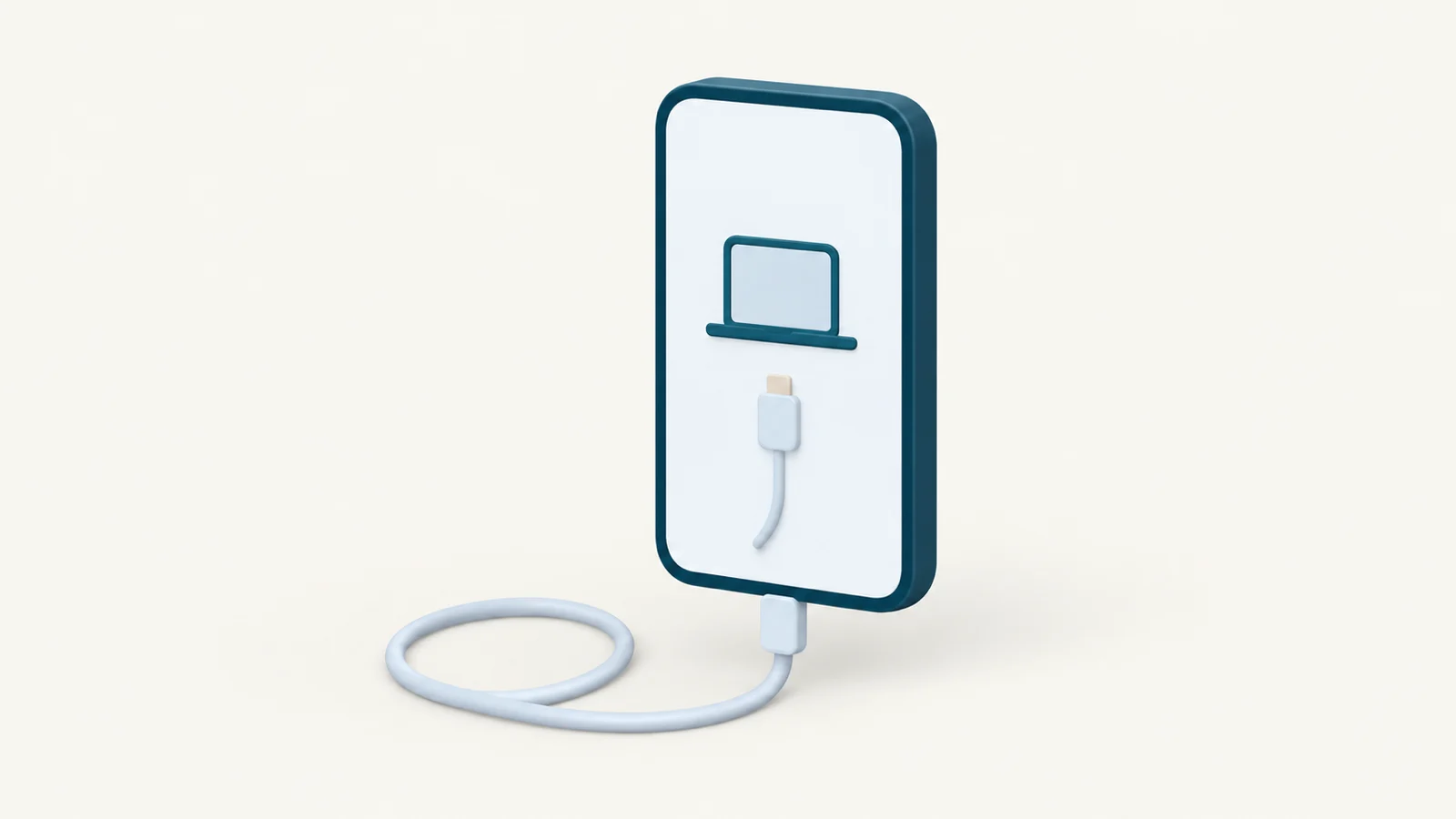
An iPhone showing a cable pointing at a computer is in recovery mode, and one with a black screen that the Mac still finds on the cable may be in DFU mode. Try these in order: a forced restart, then Exit Recovery Mode in Yado, then Update in Finder, and choose Restore last, because Apple says Restore erases all your data. None of them brings back data that was never backed up.
Recovery mode and DFU mode are different screens
Recovery mode is the "Connect to computer" screen. Apple's page If you can't update or restore your iPhone or iPod touch lists it among the signs you may need recovery mode, together with an Apple logo that stays for several minutes with no progress bar, and a computer that says the device is in recovery mode. The phone is waiting for a computer to give it software, and its startup code is still answering.
DFU mode shows a black screen, so there is nothing to read and the phone looks switched off. The Apple pages linked here do not describe DFU for iPhone, so the difference that matters here is the way out, and it comes from how Yado treats the two. In recovery mode a Mac can tell the phone to start up again. In DFU mode Yado treats a forced restart as the only way out.
Try a forced restart first
Apple suggests a forced restart for a phone that won't turn on or shows a black screen, on If your iPhone won't turn on or the screen is black. The buttons depend on the model:
- iPhone with Face ID: press and quickly release volume up, press and quickly release volume down, then hold the side button until the Apple logo appears, which Apple says might take longer than 10 seconds.
- iPhone 7 or iPhone 7 Plus: hold the side button and volume down together until the Apple logo appears, which might also take longer than 10 seconds.
- iPhone 6s and earlier: hold the Home button and the side or top button together until the Apple logo appears, which takes around 10 seconds.
That page names no group for iPhone 8 or iPhone SE (2nd generation and later). For those models Yado's DFU page gives the Face ID sequence above, the same buttons Apple's recovery-mode page uses for them.
If iOS starts, you are done. If the phone drops back to the cable-and-computer screen, use the next section.
Exit recovery mode with Yado
Connect the phone to a Mac on macOS 14 or later with a USB cable and open Yado. While no other iPhone is open or connecting, the page that normally asks you to connect and unlock the phone shows the phone instead, drawn as its model with a black screen, and a line that names the model, such as "iPhone Air is in recovery mode. If Finder asks to update or restore it, click Cancel." Finder may offer its own update or restore window as soon as the phone appears, so click Cancel there first.
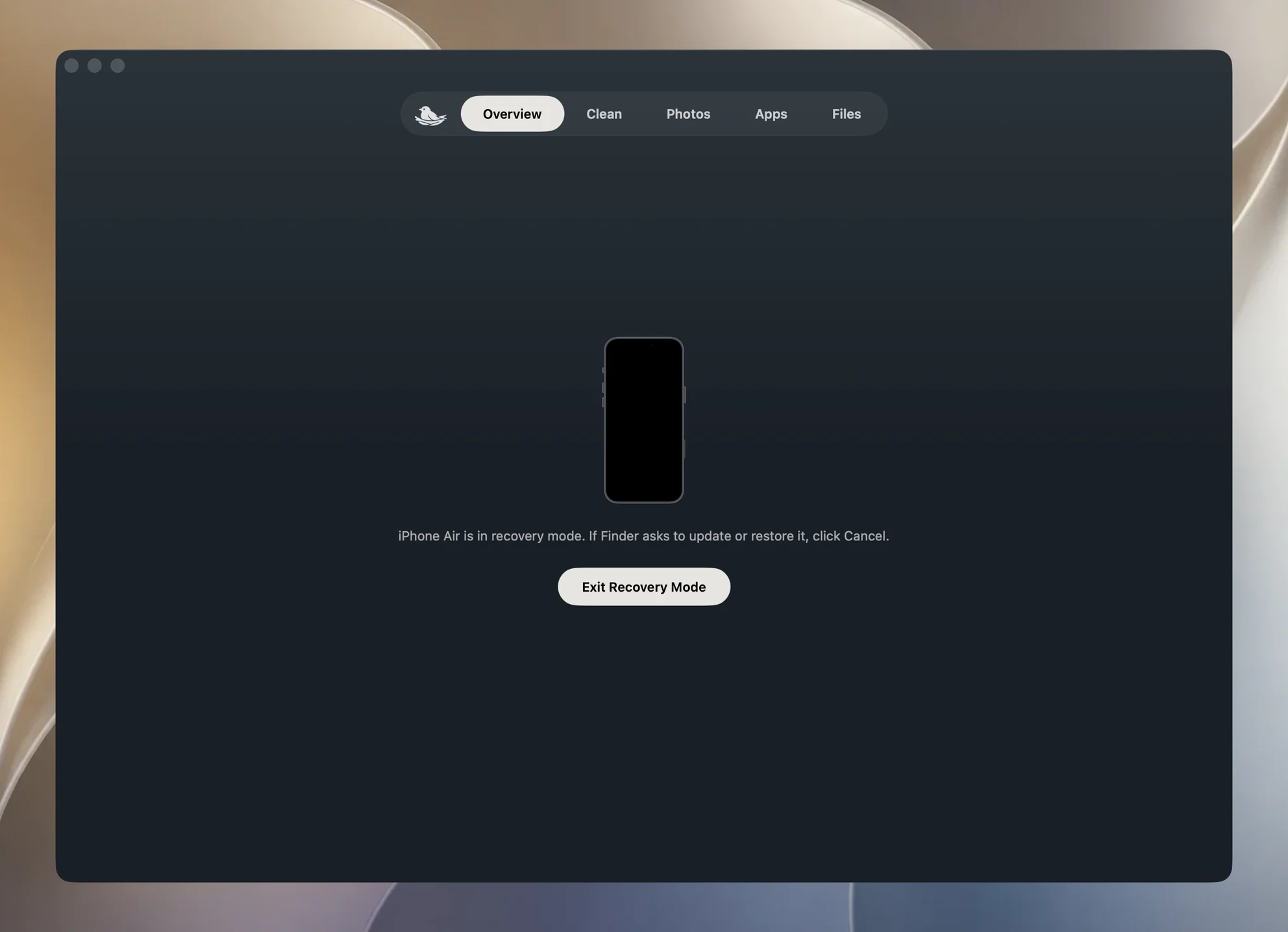
Then click Exit Recovery Mode. The line changes to "Starting up" and the model name, and the phone usually leaves recovery mode within about ten seconds as it boots into iOS. Yado waits up to 30 seconds for that. If the phone is still there, or the request could not be sent, the page names the model and says it "didn’t leave recovery mode. Plug the cable in again and try once more."
For a phone in DFU mode the page has no button. It names the buttons for a forced restart instead: the Home button with the side or top button on iPhone 6s and earlier, including the first iPhone SE; the side button with volume down on iPhone 7 and iPhone 7 Plus; volume up, volume down, then hold the side button on iPhone 8 and later. A model Yado does not recognise gets that last sequence.
Put an iPhone into recovery mode on purpose
Apple's recovery page uses recovery mode to update or restore a phone that no longer starts. Connect the phone, open Finder, and hold the buttons for your model until the "Connect to computer" screen appears: volume up, volume down, then hold the side button on iPhone 8 or later, including iPhone SE (2nd generation and later); the top (or side) button with volume down on iPhone 7 and iPhone 7 Plus; the Home button with the top (or side) button on iPhone 6s or earlier, including iPhone SE (1st generation).
If the phone still works, Yado can send it there without any button presses. Click the Yado logo at the left of the tab bar and choose Enter Recovery Mode in the power group, or use the iPhone menu in the menu bar. It is offered only over the cable, since a phone on Wi-Fi would be sent where Yado cannot reach it, and it is disabled while Yado is busy with another operation. The card that opens, "Put [your phone's name] into recovery mode?", says the phone restarts into the recovery screen and keeps its data, and that you click Exit Recovery Mode in Yado to start it up again. If the request does not reach the phone, Yado shows "Couldn't reach the iPhone" with "Unlock the iPhone and try again."
Update or Restore in Finder
With a phone in recovery mode, Finder shows Update and Restore. Apple writes that Restore "reinstalls iOS and erases all your data" and that if you haven't tried updating yet, you should try updating first. The page does not say what Update keeps, so read what Finder shows before you confirm.
If the software download takes more than 15 minutes, Apple warns that the phone might leave the "Connect to computer" screen. Let it finish, then put the phone back into recovery mode with the same buttons.
If you have to use Restore, put your data back from a backup afterwards: Apple's restore from a backup page uses the Transfer Your Apps & Data screen in setup for an iCloud backup, and Restore Backup in Finder for a backup on your Mac. That only works if a backup exists, so back up your iPhone to your Mac while the phone still works, and read restoring an iPhone from a Mac backup before you need it. Yado cannot read a phone in recovery mode, so it cannot make that backup for you at this point.
How exiting actually works
A phone in recovery mode is not running iOS, so it has no UDID and no pairing, and usbmuxd, the service that lists connected iPhones, never shows it. Yado looks for it another way. It builds libirecovery 1.3.1 from source, which reads the USB devices through IOKit, tells phones apart by their ECID and looks up the model from the chip and board IDs, so the offline page can name the model without a Trust prompt.
When you click Exit Recovery Mode, Yado opens the phone by ECID, sets the startup variable auto-boot to true, saves it with saveenv and sends a reboot. In plain terms it tells the phone's startup code to boot iOS by itself and keep doing that, then restarts it. The phone drops off the cable as it restarts, so Yado does not trust the reboot's reply and waits for the phone to leave instead.
That is enough when iOS itself is fine, as when the phone was sent into recovery mode on purpose. It does not reinstall anything, so if iOS is damaged the phone may land on the recovery screen again. Yado sends nothing to a phone in DFU, which is why it shows buttons to press and no button to click.
When it goes back into recovery mode
If the phone returns to the cable screen after Exit Recovery Mode, use Apple's order: Update in Finder, and Restore only if the update fails.
If Yado never shows the phone, the connection is the first suspect. Plug the cable straight into the Mac, try another cable and port, and follow what to do when the iPhone does not appear on the Mac.
If the screen shows a progress bar for several minutes rather than the cable screen, Apple's page links to separate advice. If a button on the phone doesn't work or sticks, or you cannot update or restore in recovery mode, Apple says you might need service.
FAQ
Does Exit Recovery Mode delete my data?
No. Yado changes a startup setting and restarts the phone. Restore in Finder is the step Apple says erases all data.
Why is my iPhone black but my Mac sees it?
It may be in DFU mode, where the screen stays black. If Yado finds it, the page says DFU mode and names the buttons for a forced restart, the only way out Yado offers.
Can Yado put an iPhone into recovery mode over Wi-Fi?
No. Enter Recovery Mode is offered only over the cable.