How to find and delete blurry photos on iPhone

To delete blurry photos on an iPhone, start in Photos, find the day or event, and review the pictures before selecting any to remove. There is no dedicated blurry-photo album. For a larger library, Yado's Clean tab on a Mac offers Blurry or Missed Shots, a list based on the iPhone's own assessments, with each chosen photo exported and checked before removal from the phone.
Find the obvious misses in Photos first
If you remember the outing that produced the unwanted pictures, the iPhone already gives you a useful starting point. Open Photos, tap Search, and enter a month, place, event or a person named in your library. Apple's photo-search guide documents these searches; they narrow the pictures you need to inspect without pretending to judge their quality.
Open a candidate and check the detail you wanted to capture. For a portrait, that might be the eyes; for a receipt, the printed total. A blurred background can be intentional, and a soft photograph may still be the only picture of someone at an event. Keep uncertain pictures while removing the unmistakable pocket shots or frames blocked by a finger.
For pictures you have decided to remove, tap Select, choose the items, tap the Trash button, and confirm. For a single open picture, tap Trash, then Delete Photo. These are Apple's deletion controls, and you can stop here if the batch is small.
Keep duplicates and failed shots separate
The Duplicates album is useful for repeated copies. Open Collections, then Utilities, then Duplicates, and review the groups before using Merge, following Apple's merge instructions. It does not provide a list of every out-of-focus photograph, and a failed shot can have no duplicate at all.
Likewise, two usable pictures of the same scene can differ in timing or expression. Follow the duplicate-photo guide when choosing among copies or similar takes. For blurry-photo cleanup, the decision is whether the picture contains something worth keeping, even if there is no sharper alternative.
What Yado uses to find blurry or accidental photos
Yado reads assessments already stored in the iPhone's photo library. The missed-shot list uses a failure score and, for less strongly flagged pictures, a score describing the subject's interest. It is not a new blur scan performed on the Mac, and the list is not a ranking of how much a photograph matters to you.
In Yado 1.2.0, a picture qualifies when its failure score is at or below -0.3, or when that score is at or below -0.1 and its subject score is at or below -0.6. More negative failure scores come first. Those are internal selection thresholds, not percentages of blur or a confidence level that deletion is safe.
The list contains photo items, excludes screenshots and pictures the library identifies as not coming from a camera, and needs a failure score to exist. Missing analysis cannot produce a candidate. The phone's assessments can help surface a black frame or an accidental capture, but they cannot know that a technically poor picture is your only record of a moment.
Review the candidates on the Mac
Connect the iPhone to the Mac with a USB cable, unlock it, and complete the trust request if prompted. Photo access for this workflow needs the cable. Yado runs on macOS 14 or later.
- Open Clean in Yado and wait for the photo catalog and library information to finish loading.
- Under Move to Mac, find Blurry or Missed Shots and click the row to expand its pictures.
- Use None in the bottom bar to clear the page's other selections before choosing photos.
- Click only the candidate pictures you have decided to remove. Missed shots start with nothing selected, while the row's own checkbox, the picker's Select All and All in the bottom bar each tick every candidate at once.
- Check the chosen set again before clicking the bottom Clean button, which includes the selected size.
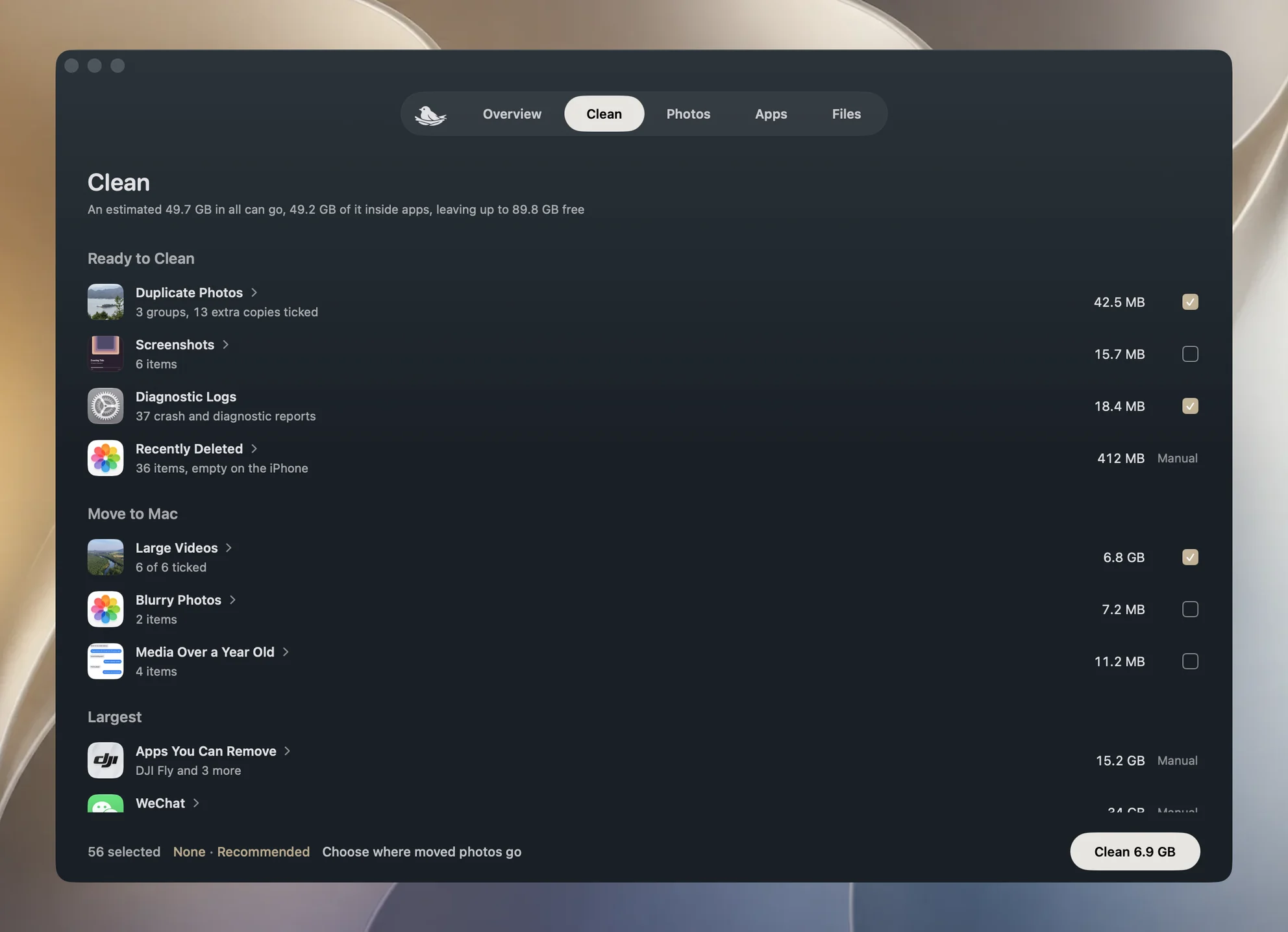
The expanded row lists all of its candidates. Its pictures are selection buttons, so clicking one changes its tick; this row is not a full-size preview. If a small picture leaves you unsure, inspect it in the iPhone's Photos app before choosing it. The Mac photo-preview guide covers the separate library viewer.
Clearing other selections matters because Clean can also act on duplicate copies and diagnostic logs. What is ticked is the whole scope of this run, so check it before you click, since a confirmation appears only when the deletion has a further consequence. Choosing a missed shot does not mean you have agreed to clean every other category on the page.
Export and verification happen before removal
When photos are selected to move, the footer offers Choose where moved photos go, or shows the remembered destination. Pick a folder you can find again. Clicking Clean asks for a folder if one has not been chosen. With iCloud Photos on or duplicate copies ticked, it then opens a confirmation describing the export and deletion.
Yado first exports the selected photos, then checks whether the selection is verified before beginning removal. At deletion time, it checks that the saved files still match the device and source records, have the expected sizes, and retain the content digests recorded during export. If export fails or the required checks fail, the dependent deletion does not proceed.
This check detects changes to the saved copy after export. Open a few exported files yourself to check their content. After the run, inspect the destination folder and confirm that the pictures you meant to keep on the phone are still in its library.
For a larger archive, the export-before-deletion guide explains the same distinction between a saved file and an original that is safe to remove from a synced library.
Understand a missing row or a photo that stays
An absent Blurry or Missed Shots row can simply mean there are no candidates after the library has loaded. It can also reflect missing scores or photos unavailable in the phone's accessible catalog. An empty result does not certify the whole library as sharp. If the row is still loading, wait for the reading to finish before judging the result.
With iCloud Photos on, or when its state cannot be established, Yado also requires original-size evidence. It compares the phone's listed files with the original size recorded in the library. A smaller local copy can export successfully while still failing this additional check, so the photo remains on the iPhone and the run reports that it was kept.
Avoid treating that result as a reason to force deletion. Review the retained photograph on the phone and establish that an independent original is saved before removing it by another route.
Recover a mistaken selection before clearing the album
iCloud Photos synchronizes deletions to your other devices. Removing something from an iCloud Shared Photo Library also affects its participants. Only the person who added a shared photo can recover it from Recently Deleted, according to Apple's shared-library guidance.
To recover an item, open Photos, then Collections, Utilities and Recently Deleted. Tap View Album and unlock it, tap Select, choose the picture, then use More and Recover and confirm. Apple provides a 30-day recovery window; permanent deletion from this album ends that option. See Apple's recovery instructions.
When photos were deleted and none were kept back, Yado's completion message also explains that deleted media can continue occupying space in Recently Deleted. Leave that recovery window available while checking your exported copies. Once you decide to empty the album on the iPhone, you are making a separate, permanent deletion decision.