How to view iPhone photo metadata and remove location

To view iPhone photo metadata, open a picture in Photos, then swipe up or tap Info to see its recorded camera, capture time and location. Before sharing, open Share, tap Options and turn off Location if the recipient should not receive the place. On a Mac, Preview inspects a saved file, while Yado's viewer reads capture details from the connected iPhone's photo library.
Start with the information in Photos
For a quick check, you do not need to transfer the photo or install another app. Open the actual photograph rather than looking only at its thumbnail, then swipe up. Depending on what was recorded, the information includes the capturing device, lens, shutter speed, file size, date and time, and a location you can open in Maps.
Apple's photo information guide describes these fields. For a comparison, open a photo you took with this iPhone, then see what another one lacks.
The same view can help when the issue is an incorrect date or place. Tap Adjust beside the date or location to change it. For a batch, Apple's guide also describes selecting multiple thumbnails before adjusting their information. Check the chosen set first so that a correction meant for one trip does not affect unrelated photographs.
Why the file and the library can tell different stories
A photograph's associated information can include more than the camera settings commonly called EXIF data. Apple Photos also presents library information, such as albums and who shared a picture.
Location can be embedded in the image. Apple explains that Camera can use Location Services to determine coordinates and store them with a photo. Those coordinates can travel with a shared copy, which is why a recipient may learn the location without recognizing anything in the picture. See Apple's location metadata guide.
Yado's information card reads records in the phone's Photos library. Preview reads the file you open on the Mac. A location absent from one exported copy does not establish that the phone's library has no location for the picture. When checking a share, inspect the copy that will actually be sent, rather than assuming that every copy contains the same information.
Remove location before sharing
To send a photo without its location through the Photos share sheet, use this sequence:
- Open Photos and select the picture or pictures.
- Tap Share, then Options.
- Turn off Location. Location Not Included then appears above the Options button.
- Choose the recipient or sharing app.
Apple's iOS 26 sharing guide lists the location switch separately from the file-format choices, and its location metadata guide gives the same Location step. Changing the format is not the location-removal step. Likewise, switching off Location should not be described as removing every kind of metadata, such as camera settings or dates.
For a library-level change, open the photo's More menu, choose Adjust Info, then Adjust Location and No Location. Apple's location metadata guide documents that route. This changes the location associated with the photo in Photos, whereas the share option controls what accompanies that share.
To stop Camera collecting locations for future pictures, open Settings, Privacy & Security, Location Services, then Camera, and choose Never. That setting governs future collection. Use the controls on existing photographs for the images already in the library. If you still want to organize older pictures by place, the location browsing guide explains that separate use of recorded locations.
Inspect a saved photo with Preview on a Mac
If the image is already a file on the Mac, open it in Preview and click Info in the toolbar. The Inspector includes General info for information such as size and resolution, and More info for additional image information. Apple's Inspector guide describes these tools.
For location, choose Tools, then Show Location Info. If that command is gray, Apple says the image contains no location information. If it is available, the GPS section can show where the picture was taken. This is a check on that particular file, as described in Apple's Preview location guide.
Preview is useful for checking the received or exported copy without adding it to a photo library. If you also need a different file format, follow the HEIC-to-JPG guide, then inspect the resulting file again. Do not assume a format conversion has carried out a location decision for you.
Read the connected iPhone's details in Yado
Yado's photo browsing requires a USB cable and macOS 14 or later. Connect and unlock the iPhone, complete its trust request if prompted, then open Photos. For the browsing workflow, see view iPhone photos on a Mac without importing a library.
Open a photo, then click Info in the viewer's top bar or press i. The Photo Info card shows available details from the phone's library, alongside the picture you are reviewing.
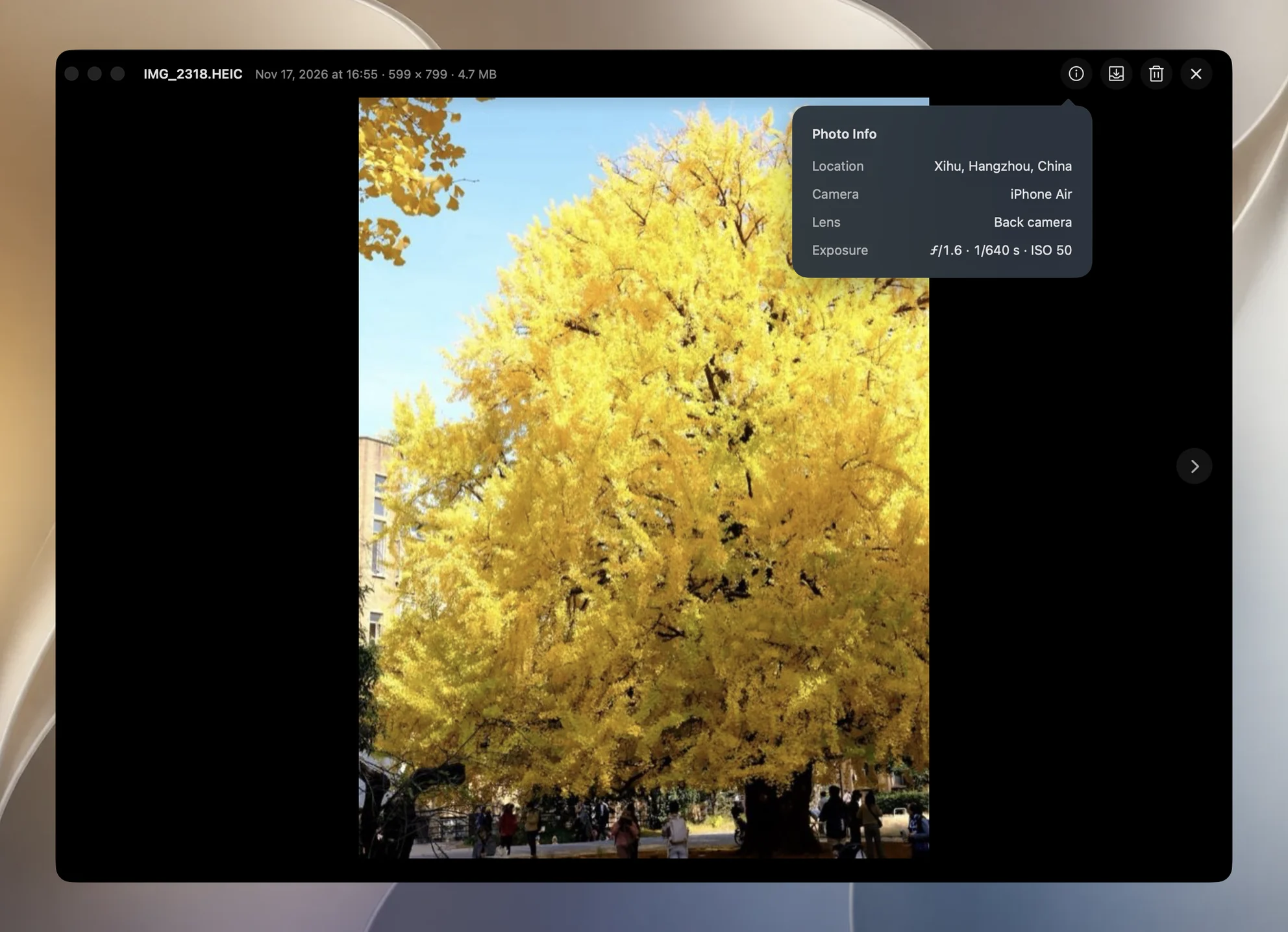
The Location row uses the place name already recorded by the phone. It shows the district and city when available, adds the country when the names are not written in Chinese or Japanese characters, and never shows the street address. Yado does not send the coordinates to a geocoding service to fill this card.
Camera identifies the recorded device. For an iPhone, Lens is simplified to Front camera or Back camera when that information is available. Exposure combines the available aperture, shutter speed and ISO, adding exposure compensation or flash when recorded. Yado leaves out an iPhone lens's physical focal length in this card.
Saved From names the app Photos recorded when a picture was saved from another app. It describes that save into the library, which is a different fact from which camera originally made the image. The Camera app itself is not listed as a saved-from app.
The viewer's ordinary date line uses the Mac's time zone. Local Time is an extra row that appears when the photograph has a recorded time-zone offset different from the Mac's offset for that date. A missing extra row can therefore be normal for a local photograph. It is not, on its own, evidence that the capture time is missing.
Check missing details and the final shared copy
If Yado's card says Reading, let the phone's library finish loading. The app needs to match the displayed file to its library record before showing those details, and the waiting card can fill when that read completes. If information is still absent, compare the same photograph in the iPhone's Photos app and inspect the particular exported file in Preview.
The Yado card is a viewer for available library information. Its shorter place name does not remove coordinates from the picture, and opening it does not edit metadata. Return to Apple's location controls when preparing a share, then inspect a copy sent to a device you control if you need to check the result. Reopen the received copy in Preview and check Show Location Info, rather than checking the original left on the phone.