How to back up an iPhone without iCloud
You can back up an iPhone without iCloud by making a local backup on a Mac with Finder: connect the phone, open General, choose Back up all of the data on your iPhone to this Mac, and turn on Encrypt local backup if you want saved passwords and Health data included. The copy then lives on your own disk, with no storage plan and no upload. It does not cover everything iCloud does, because Apple leaves out data that already syncs to iCloud, so decide what you are protecting before you switch.
Why people look for a backup without iCloud
The usual reason is space. Apple says iCloud comes with 5 GB of free storage, and a phone with a few years of photos and apps passes that quickly; the full iCloud storage guide covers what to clear first. The other reasons are practical. A first iCloud backup has to upload over your home connection, which takes a while on a slow uplink, and some people simply want a copy that sits at home on a disk they can hold.
A local backup answers all three. It uses the Mac's own storage, it moves over the cable, and nothing leaves the house. The price is that you now maintain it: the backup is only as safe as the disk it sits on, and it only updates when you connect the phone and run it.
What a local backup covers, and what iCloud Backup covers
The two methods are built on different rules, and Apple lists both on one page, Back up your iPhone: iCloud versus computer.
- iCloud Backup saves information and settings on the device that do not already sync to iCloud. It leaves out Photos when iCloud Photos is on, Messages when Messages in iCloud is on, and notes already synced. It is always encrypted.
- A computer backup saves almost all of the device's data and settings. It leaves out App Store and other store content, content synced from a computer, and data already stored in iCloud. Encryption is optional and off by default, and Activity, Health and Keychain data are excluded unless the backup is encrypted.
So a local backup is broader on the phone itself, and it is not a way to get your iCloud Photos onto your Mac. If iCloud Photos is on, the library is stored in iCloud, and Apple leaves it out of a local backup. That is a photo question rather than a backup one, and the photo transfer guide is the right place for it.
Encryption decides what else comes along. Apple's encrypted backup page lists saved passwords, Wi-Fi settings, website history, Health data and call history as included only in encrypted backups. If you plan to restore onto a new phone and expect those back, turn encryption on before the first backup. Apple also warns that a forgotten password means previous encrypted backups cannot be used, so store it before you rely on the backup. The full steps are in the encryption guide.
Make the backup with Finder
Finder is enough, and Apple's Finder backup steps are short.
- Connect the iPhone with a cable, unlock it, and answer Trust on the Mac and the phone if asked.
- Select the iPhone in the Finder sidebar and open General.
- Choose Back up all of the data on your iPhone to this Mac.
- Select Encrypt local backup if you want the extra data, set a password, then click Back Up Now.
- When it finishes, check that Finder shows a new date and time for the last backup.
The Mac backup guide walks through this with the checks, so this post will not repeat it.
Where the backup lives, and moving it
Finder keeps backups in ~/Library/Application Support/MobileSync/Backup/, as Apple's location page states. The page does not describe moving the folder, so treat any move as your own workaround. On a Mac with a small internal disk this folder can grow large, which is why many people want it on an external drive. The external drive guide gives the symbolic link method for Finder, and notes that the drive has to be mounted whenever you back up or restore.
A backup is not a photo export
A backup is a set of data files with an index, not a folder of pictures. In the format Yado reads, the index is a SQLite database called Manifest.db that maps each file's identifier to its original domain and path, while the payload files carry hashed names. Open the backup folder and you see that jumble, not your photos or messages.
That is why a backup suits one job, putting a phone back the way it was, and a photo export suits another, holding pictures you can open. Without a tool that reads the manifest you cannot browse a backup like a library. If the real goal is to keep your photos, export them separately and keep the backup as the safety net.
How the update works
Yado's first backup copies the full data set; later runs transfer what changed and update the existing backup in place, which is why later runs usually take less time than the first. The consequence is that the backup is one current state, not a stack of dated versions. If you want to keep an earlier state, you have to keep a copy yourself.
Doing it in Yado
Yado makes the same kind of local backup over the cable, to the Mac or to a folder you choose in Settings under Backup Location, including a folder on an external drive. Open Overview, click Manage on the backup card, and click Start Backup. A few things it adds on top of Finder:
- Encryption switch. Turn On Encryption asks for a new backup password; the card explains that backups then also keep saved passwords and Health data, and that a forgotten password cannot be recovered. Turn Off Encryption reverses it for later backups.
- Space check before the first backup. Yado compares an estimate of the first backup with the free space on the backup folder's disk. If it will not fit, the card reads Not Enough Space on This Mac and offers Choose Folder. The estimate is approximate, so the phone's own refusal remains the backstop.
- Automatic backup. In Settings, Automatic backup can be Off, Daily or Weekly. It updates existing backups while Yado is open, never makes the first one, and runs only once Yado is activated.
- Kept copies. Under Keep backups, Last 3 or Last 7 keeps earlier states beside the current one (Latest only keeps none), using copy-on-write clones that need an APFS disk. Yado does not substitute hard links, since an incremental run could overwrite those.
- Browsing. Hover a row under Existing Backups and click Browse Contents to read messages, contacts and notes. The backup viewing guide covers it, and browsing a local backup is always free.
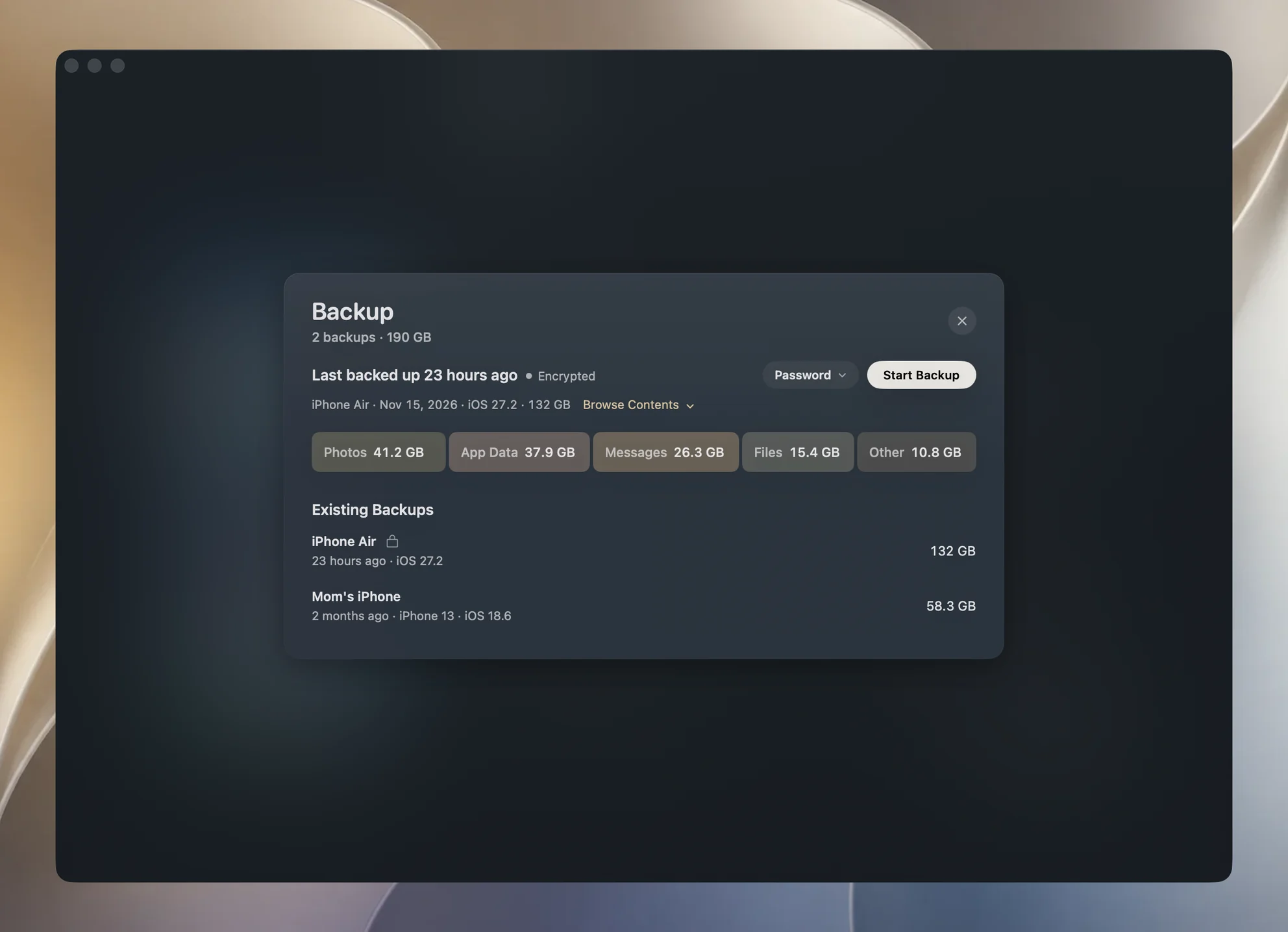
Finder and Yado do the same job here; if you only want an occasional backup and have the space, Finder is enough. Yado earns its place when you want the schedule, several kept states or a way to read what is inside.
What goes wrong
Not enough space. A first backup is a full copy, so the disk must have room for it. If it cannot, move to a folder on a larger drive before you start, rather than cleaning after a failure. The backup size guide explains how much room to leave.
The phone asks for its passcode. Apple's Finder steps say to enter the passcode if asked. Yado's first-backup card says Enter the passcode on iPhone when asked, because the prompt appears on the phone and the backup waits for it. The passcode guide explains why.
An unfinished backup. A first backup that is cut off can leave a folder with only a few small files. Yado lists it as Unfinished, so you can delete it, and does not count it as a backup anywhere else. After deleting, start again with the phone unlocked.
FAQ
Do I lose anything by skipping iCloud Backup?
You lose the automatic, off-site copy. Nothing runs by itself in Finder, so a lost or stolen phone is only protected up to the last time you connected it.
Can I use both?
Yes. The two do not conflict, and a local copy still helps when iCloud is full or unreachable. They also cover different data, as listed above.
Will a local backup include my iCloud photos?
No. Apple excludes data already stored in iCloud, including Photos when iCloud Photos is on, from a computer backup.