How to see your iPhone photos by location
On the iPhone, open Photos, tap Library, tap the Sort and Filter button and choose Show Map; on a Mac, open Photos and click Map in the sidebar. Both maps only include pictures that carry GPS data, so a photo taken with location off, or imported without coordinates, never appears. If you want the places of the photos that are on a connected phone, without a Photos library on the Mac, Yado has a Places page that groups them by city and country.
See photos by place on the iPhone
Apple's guide to browsing photos by location describes two entrances. From Library, the Sort and Filter button leads to Show Map, and tapping a thumbnail on the map shows the photos from that spot. From Collections, open a collection such as a trip or a recent day, tap the More button and choose Show Map to see only that collection. iOS 18 put a Map entry under Pinned Collections instead, so if the button is missing on an older phone, look there.
To check one picture, open it, swipe up or tap the info button, and tap the map or the address. Show Nearby Photos then lists other pictures taken around the same place. The wording of these buttons changes between iOS releases, so treat the path above as the current one and follow the labels on your own screen if they differ.
See the map on a Mac
In Photos on the Mac, click Map in the sidebar. If it is not listed, hold the pointer over Utilities in the sidebar and click the disclosure arrow. You can zoom by double-clicking a thumbnail, switch between Map and Satellite, or click Grid to see thumbnails grouped by location, as Apple's Mac guide explains. For one photo, double-click it, scroll down to Places and click Nearby Photos.
This only works for pictures that are in the Mac's Photos library, which means they were imported or came down through iCloud Photos. If the phone's pictures have not reached the Mac, see viewing iPhone photos on a Mac without importing them.
Why some photos have no place
A place comes from the coordinates the Camera app writes into the file when it takes the picture. Apple says that location metadata is only collected if Camera has access to Location Services. The switch is under Settings, Privacy & Security, Location Services, Camera; if it is set to Never, new photos carry no coordinates and stay off every map. Turning it back on helps only from the next photo, because old pictures are not given a place afterwards.
Several ordinary cases also leave a picture without coordinates. Screenshots and pictures saved from other apps usually carry no coordinates, and pictures shared or exported with location turned off arrive without them. Someone may also have removed the place on purpose: in Photos, More, Adjust Info, Adjust Location, No Location strips the place from one picture, and Apple shows the same route for changing it to another place. To strip location before sharing, see the guide to reading and removing photo metadata.
Browse a phone's photos by place in Yado
Yado's Photos tab needs the USB cable, even if the phone is otherwise connected over Wi-Fi. Connect the iPhone, unlock it, tap Trust if asked, open Photos and wait for Reading photos to finish. The head of the page has three segments: Library, Places and Duplicates. Click Places.
The page is a grid of cards, each showing the newest photo of a place over its name and a count. The first section is named after the country with the most photos on the phone, and its cards are that country's cities, the fullest city first. A city with fewer than five items does not get a card of its own; those share one Other Cities card. Below them, under Other Countries and Regions, every other country is one card.
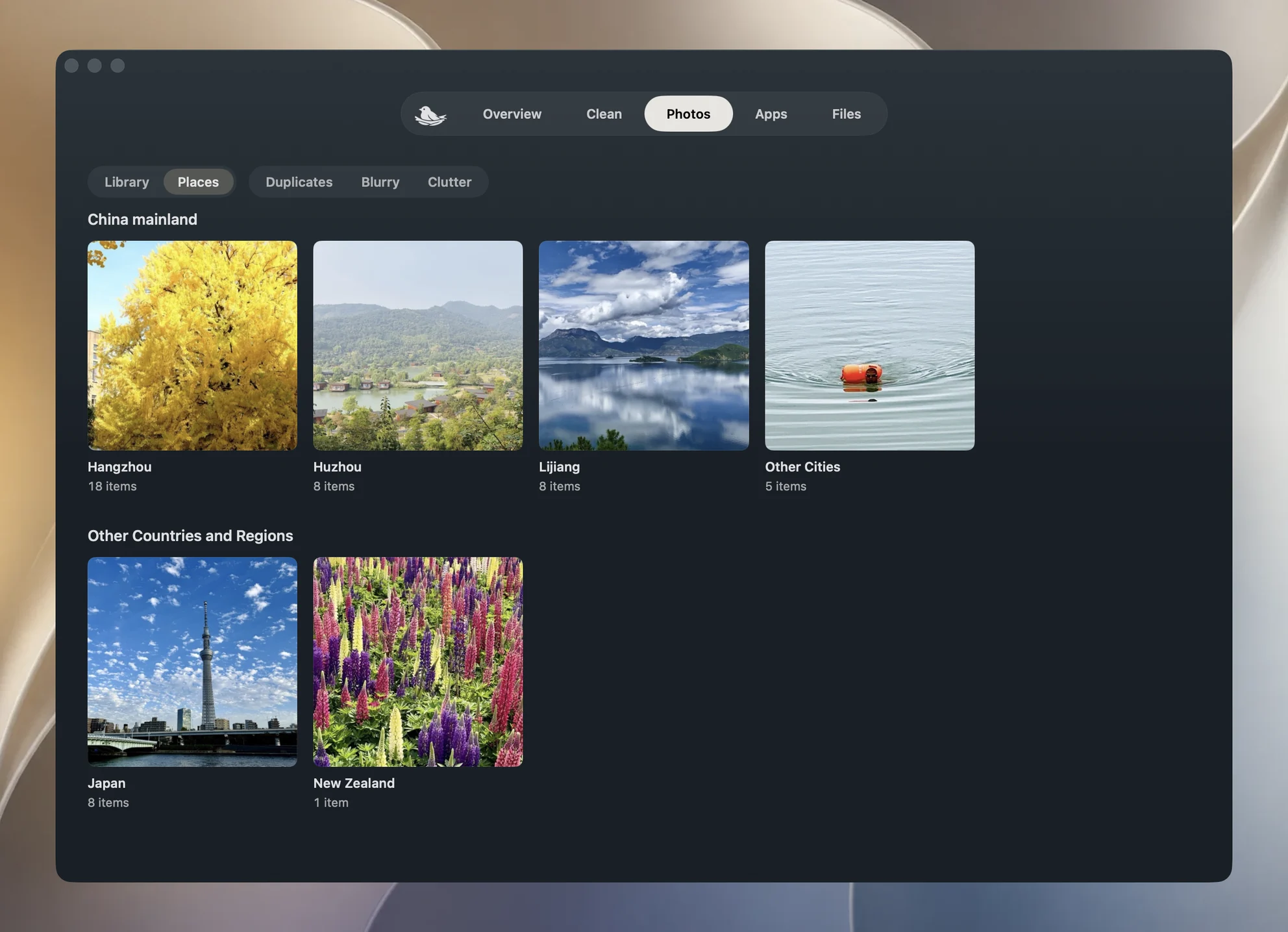
Click a card and the page becomes a normal photo grid, with a path in the head: All Places, then the card's name. A city opens in runs by district, each under a small head with its count, and a country or the Other Cities card opens in runs by city. If there is only one run, no head is drawn. The viewer steps through the photos in that same order, and the search field, filter and Select Photos work as they do in Library, so you can pick a trip's photos and export them from here. Click All Places to go back.
How the cards are built
Yado does not look at coordinates, and it does not ask a map service. Photos on the phone store, for each picture, the place name the phone worked out for itself, as an address with country, state, city and district. Yado reads that from the phone's photo library over the same cable, keeps only those parts, and drops the street. Nothing goes to the network and there is no map, which is why the page is a set of named cards rather than pins.
The home country is simply the one with the most photos on the phone, so a library from a long trip abroad may name another country first. City and district names stay in the language the phone used when it named them, while the country is shown in Yado's own language, which follows your Mac unless you changed it in Yado's settings, so a mixed-language page is expected. The count on each card is items, photos and videos alike, as the grid counts them: an edited photo or a burst is one tile, not one per file.
When Places is empty or looks wrong
No photos with a location means the phone has no stored place name for any photo it holds. That fits the cases above, such as a Camera set to Never, or a library that is mostly screenshots. Couldn’t read places comes with Try Again; unlock the phone, check the cable and try once more.
A place can also be missing for a picture that does have coordinates, because Yado only shows a name the phone has already stored, and it skips a stored name the phone marks as out of date. Photos that are only in iCloud, with no file on the phone, are not in the grid at all, so they are not on a card. The footer of the whole library adds them after its total, as N more in iCloud, but a narrowed view such as a place leaves that part out.
When the pictures you need are on the Mac already, use Photos' Map instead. To move a trip's photos off the phone afterwards, see transferring photos from iPhone to Mac.
FAQ
Can I see my iPhone photos on a map without a Mac?
Yes. In Photos, Library, Sort and Filter, Show Map. The Mac is only needed for the Mac's Photos map or for Yado's Places cards.
Does Yado show a map?
No. It shows cards named after cities and countries, with no map and no network lookup.
Why does a city card show only a few photos?
The count is the items on the phone with a stored place in that city. Photos left in iCloud, or without a stored place, are not counted.
Can I add a place to a photo?
In Photos on the iPhone, use More, Adjust Info, Adjust Location. Yado reads places and does not change them.