How to move iPhone photos to an external hard drive on a Mac
To put iPhone photos on an external drive without filling the Mac, send them straight to a folder on the drive. In Image Capture, choose Import To, then Other, pick a folder on the drive and click Download. Yado does the same from its Photos tab with Export to Mac and Choose Folder, and adds a check of every copied file before it lets you delete anything from the phone. Importing into the Mac's Photos library is a different job, and it only avoids the Mac's disk if the library itself lives on the drive.
Pick where the photos should end up
There are three destinations, and they behave differently on an external drive. A folder of files is the simplest: each picture is a file you can open in Finder or copy elsewhere. A Photos library on the drive keeps the Photos app's albums, edits and search, but the drive then becomes part of how you open your pictures. The third, leaving the pictures only in iCloud Photos, does not use the drive at all.
Apple's rules for a library on a drive are strict. The drive has to be formatted for Mac, as APFS or Mac OS Extended (Journaled), it cannot be the drive Time Machine uses, and Apple advises against SD cards, USB flash drives and network shares. If Photos cannot find the drive when it opens, it stops using that library and creates a new empty one in the Pictures folder, so connect the drive before launching Photos. None of this applies to a plain folder of files, so a folder is the easier choice when you only want the pictures stored somewhere roomy.
Send photos to a folder on the drive with Image Capture
Image Capture comes with macOS and writes where you tell it to. Connect the iPhone with a cable, unlock it and tap Trust if asked, then open Image Capture and select the phone under Devices. Select the pictures you want, or none to take everything, and open the Import To menu at the bottom of the window. Choose Other, pick a folder on the drive, then click Download for the selection or Download All. These are the steps in Apple's Image Capture guide.
By default, items you download stay on the iPhone. The Action button in the toolbar can change that, either by deselecting Keep originals or by selecting Delete after import, depending on the device. Leave it alone for the first run. A Live Photo arrives as two files, a still image and a video, and you should keep both together.
If you would rather work from Photos, select the pictures in the Photos app on the Mac, choose File, Export, Export Unmodified Original, and pick a folder on the drive, as Apple's export guide describes. That route needs the pictures to be in a library first, so it is a second step rather than a way around the Mac's disk. The transfer guide compares these routes.
Export to the drive with Yado
Yado's Photos tab needs the USB cable, even when the phone is connected over Wi-Fi for everything else. Connect the iPhone, unlock it, open Photos and wait for the library to load. On a Pro iPhone from the iPhone 15 Pro on, a USB 3 cable matters for a big job, and the cable speed guide explains how to see which one you have.
- Click Select Photos in the footer and tick the pictures, or use All to take everything in view. Any album, place or filter you have open limits what All means.
- Click Export to Mac.
- In the file panel, open your external drive, choose or create a folder, and click Choose Folder.
- Watch the footer, which shows Exporting with a progress bar. When it finishes it reads Saved with the number of files and their size, and clicking that text opens the folder in Finder.
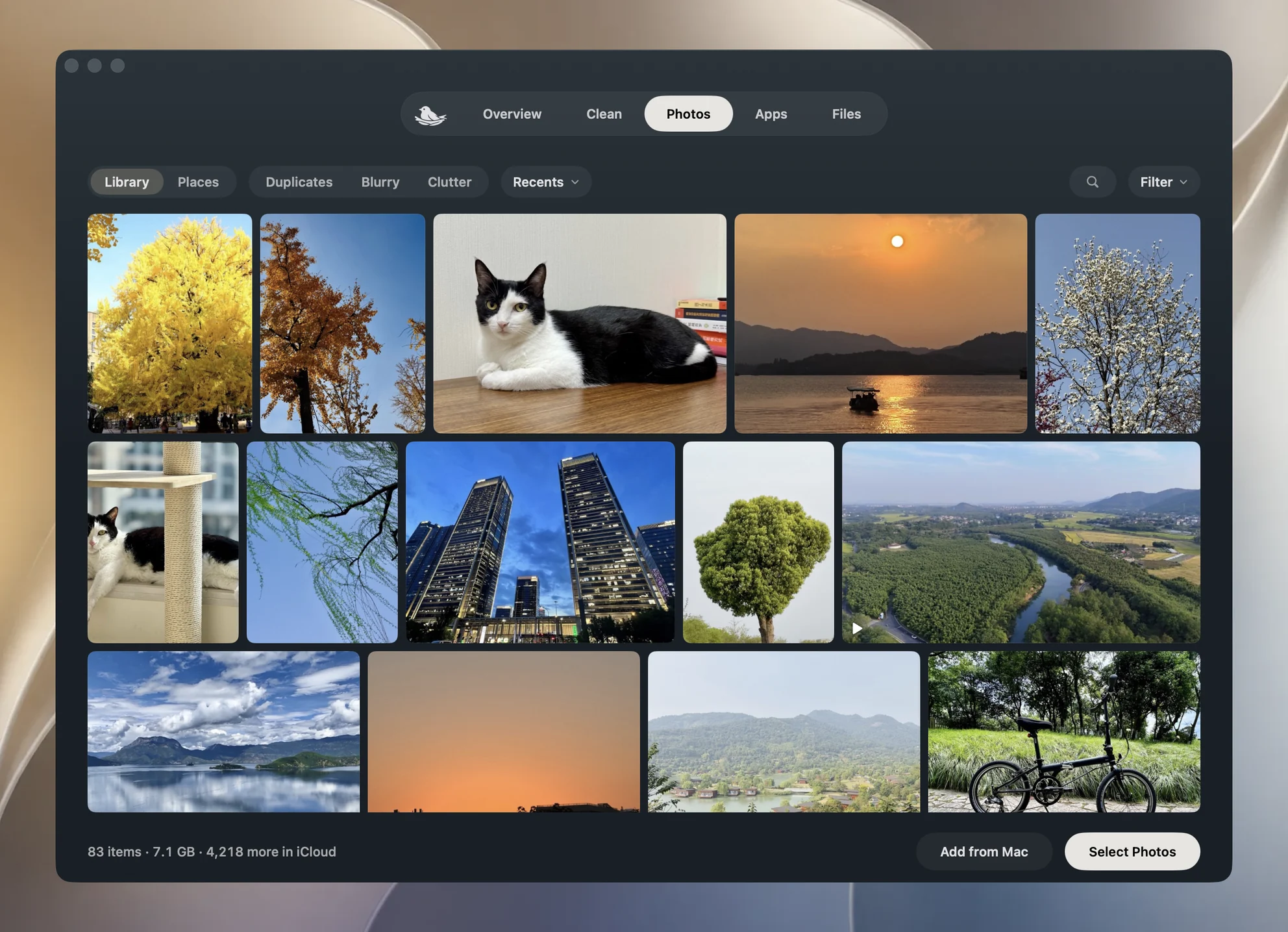
Despite the button name, the destination is whatever folder you pick, and the drive is an ordinary choice. Yado creates a folder named Yado Media inside it. With the default naming, the files keep the phone's own layout, so a picture lands at Yado Media/DCIM/100APPLE/IMG_0421.HEIC. In Settings, Photo Export Names can switch to Capture Date, which names a file like 2026-10-24 13.05.12.HEIC so a folder sorts in shooting order.
The next time you click Export to Mac, the file panel opens at the folder you chose last, and exports of the same iPhone into it go into the same Yado Media folder. Once an export folder is set, the selection footer offers Not Exported after All and None, which ticks only the photos in view that the folder does not hold yet. That makes it practical to move a large library in batches, as long as the drive is connected, because Yado reads the remembered folder to decide what is missing.
What happens to each file
A selected tile can stand for more than one file. An edited photo is a tile for its render, with the original beside it, a burst is a tile showing its cover, and a Live Photo has a movie. Yado exports every file behind a tile, so a count of files in the folder is normally higher than the number of tiles you ticked.
Each file is downloaded into a hidden staging folder inside the export folder, which means on the drive, not in the Mac's temporary space. Yado then checks that the size is what the phone listed, computes a SHA-256 digest, moves the file to its final name and records it, one line per file in a small journal, BackupManifest.journal, that is folded into BackupManifest.json when the run ends. If a name is already taken, the new file gets 2 added rather than replacing the old one, so nothing you already keep on the drive is overwritten. A second iPhone gets its own folder, Yado Media 2.
Yado also keeps some small caches on the Mac, thumbnails of photos you browsed and previews of photos you opened, each capped at 512 MB. They are not copies of your export.
Delete from the iPhone only after the check
When every ticked photo is exported, the primary button in the footer changes to Delete from iPhone. Before it deletes anything, Yado reads each file back from the drive and compares it with the digest recorded at export. If a file is missing, changed or a different size, deletion is refused with Exported files changed. Export again before deleting. If the drive was unplugged, the files cannot be found and deletion is refused in the same way.
If iCloud Photos is on, the iPhone refuses deletion over the cable, so Yado deletes the photos through Photos on this Mac, macOS asks you to confirm, and the deletion reaches the iPhone and your other devices once iCloud syncs. With iCloud Photos on or unknown, a photo is deleted only when one of its files on the phone has the size Photos recorded for the original; the rest stay on the iPhone, and the card says how many. A single external drive is also a single copy, which is a reason to keep a second one before removing the only version on the phone. Deleting photos after exporting to a Mac covers iCloud and Recently Deleted in more detail.
When the export stops or the drive disappears
If the drive sleeps, the cable comes loose or a write fails, Yado stops with Export incomplete. Completed files can be reused. Files already copied stay where they are. Reconnect the drive, select the same pictures and click Continue Export, or Choose Another Folder to move the rest elsewhere. Files that were finished are skipped, and unfinished ones are copied again from the start, so a single large video restarts rather than resumes.
After an export, with iCloud Photos on or its state unknown, the footer adds Files on this iPhone only. Originals not downloaded from iCloud are not included. That matters if Optimize iPhone Storage is on. The phone then holds smaller versions of some pictures, and those are what a cable export can reach. Download originals from iCloud first if you need them, using Photos on the Mac.
Before you rely on the drive, open a few exported files at full size, including a video and a Live Photo. Yado does not check a drive's format before writing, and Apple describes ExFAT as the Windows-compatible choice for volumes over 32 GB, so try a small batch first if your drive is formatted that way.
FAQ
Can I import straight into a Photos library on the drive?
Yes, if the library is on the drive and the drive meets Apple's format rules. Open that library in Photos before you import.
Does Yado work with an SD card or a flash drive?
Yado only writes to a folder. Apple advises against keeping a Photos library on those, which is a rule about the library, not about a folder of exported files.
Will the photos also be on my Mac?
Not unless you export them there. Previews and thumbnails stay in a capped cache.
Does Yado export over Wi-Fi?
No. The Photos tab asks for the cable.